Editing Project Settings
Project settings live in a .cycproj file.
They hold shareable configuration for a Cycle project, including execution options, reporting templates, capture and device options, stored connections, and advanced settings.
These are the same files Cycle uses at runtime.
In the Cycle Desktop IDE, project settings and user settings appear together under one set of settings views.
In the Cycle Testing VS Code Extension, each settings file has its own editor.
Open the .cycproj visual or text editor to change project settings.
Open the .cycuser editor separately to change user settings.
The extension provides a visual editor for everyday changes and a text editor with JSON and schema validation for raw or advanced edits and for fixing parse errors. Prefer the visual editor.
Application Preferences (license, editor options, and proxy) belong to the Cycle Desktop IDE only. They are not editable in the Cycle Testing VS Code Extension.
For what individual settings mean, see Cycle Settings.
Opening project settings
Open project settings with any of these methods:
- In the Explorer, open a saved
.cycprojfile. - Open the Command Palette (
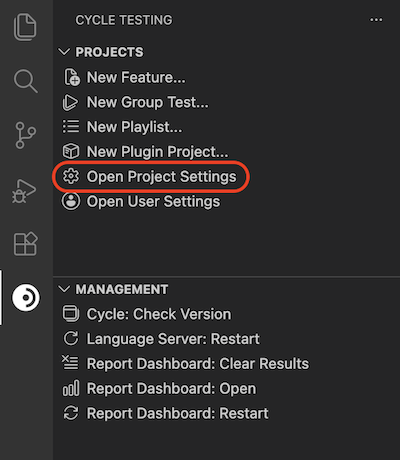
F1orCtrl-Shift-P) and run Cycle: Open Project Settings. - Open the Cycle Testing activity bar and, under Projects, run Open Project Settings.
Here is where to open it from the Cycle Testing activity bar:
Opening a saved .cycproj file opens the visual editor by default.
Nested .cycproj files can still be opened from the Explorer even though Cycle: Open Project Settings does not discover them.
When you use Cycle: Open Project Settings or Open Project Settings from the activity bar, the extension looks for .cycproj files in the workspace root folder(s) only.
It does not search nested folders.
| Result | Behavior |
|---|---|
No .cycproj found | Warning: No .cycproj file found in the workspace root. |
One .cycproj found | Opens that file in the visual editor |
Multiple .cycproj files found | Quick Pick titled Select a project settings file |
Using the visual editor
When you open a saved .cycproj file, VS Code opens the project settings visual editor by default.
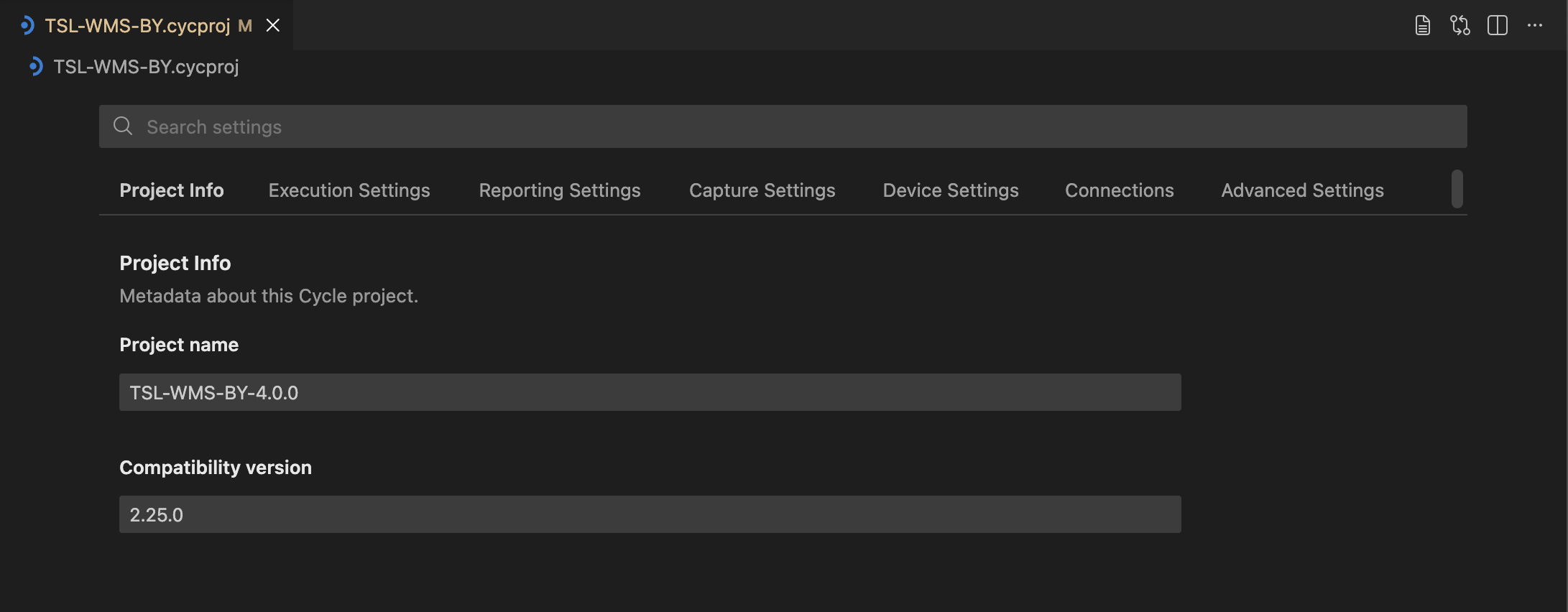
Tabs match the Desktop IDE-style project pages.
| Tab | Sections |
|---|---|
| Project Info |
|
| Execution Settings |
|
| Reporting Settings |
|
| Capture Settings |
|
| Device Settings |
|
| Connections |
|
| Advanced Settings |
|
Searching settings
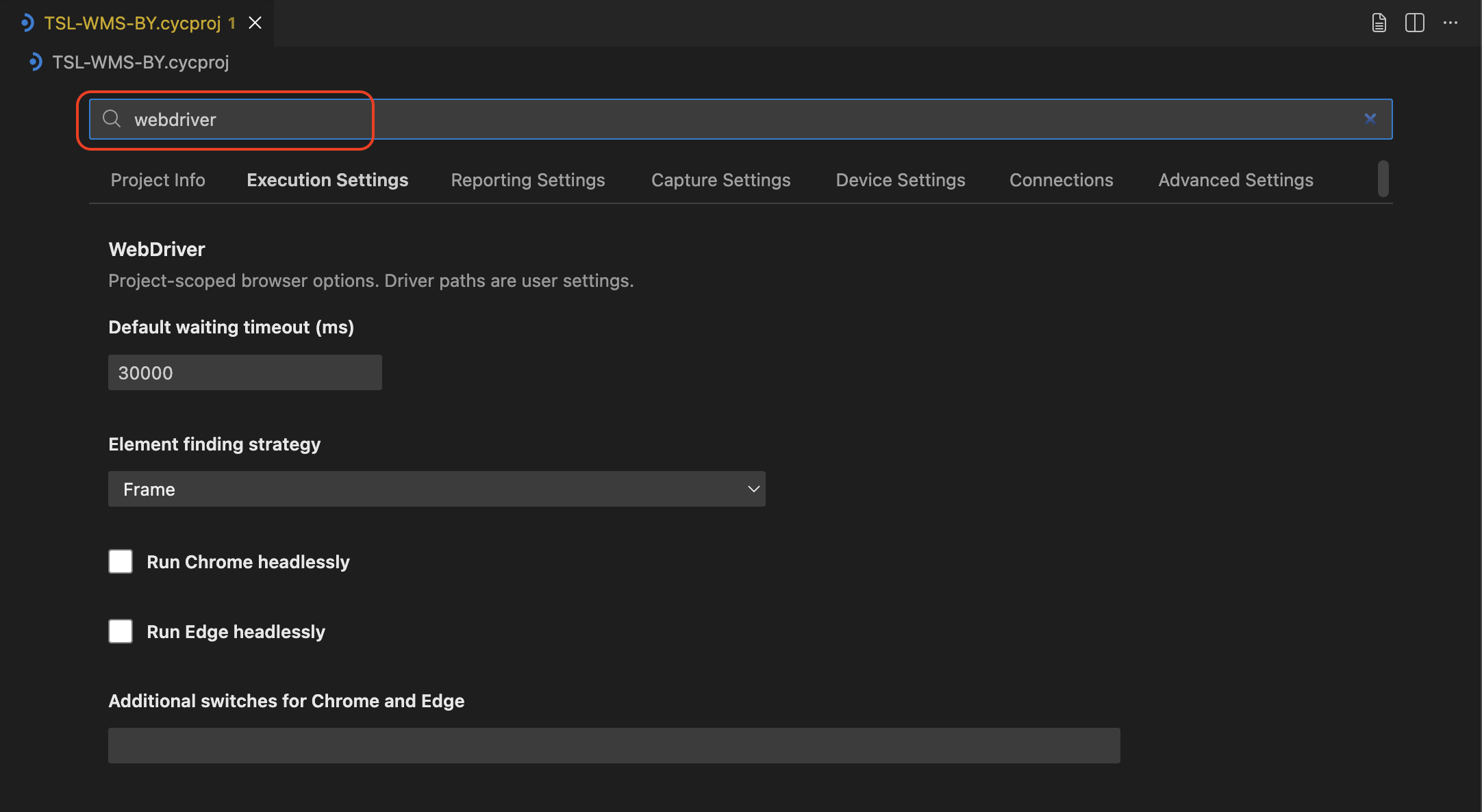
The editor includes a Search settings box.
Search filters settings within the active tab only.
When nothing matches, the editor shows No settings match your search.
Editing connections
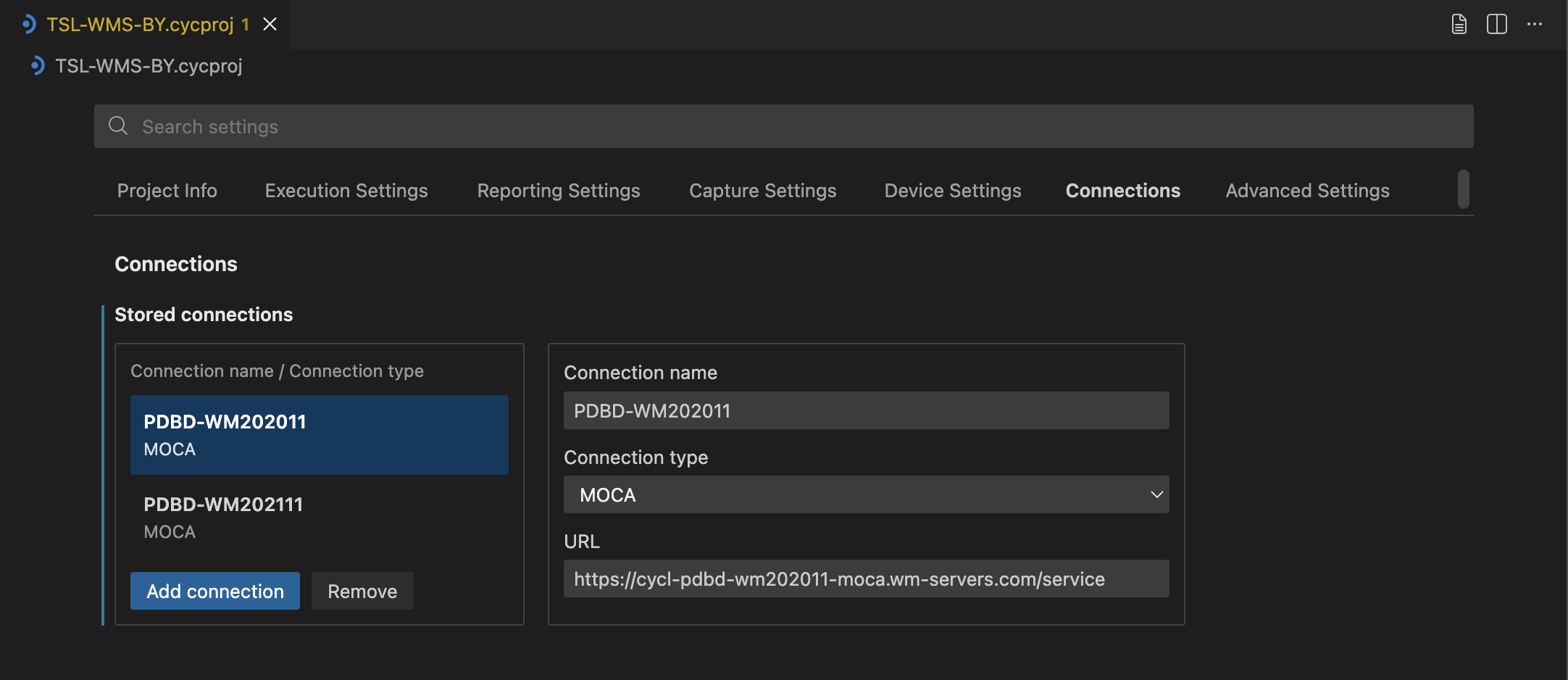
Connections are stored in the project .cycproj file under the Connections tab.
The editor shows a list plus a detail form.
- Click Add connection.
- Enter a Connection name (required and unique, case-insensitive).
- Choose a Connection type.
- Fill in the type-specific fields, then save the settings file.
You cannot add another connection while the last connection name is blank. Invalid connections are marked in the list. Saving persists the form values and validation state.
Supported connection types:
- API
- Flat File
- DB2 (Linux)
- DB2 (iSeries/AS400)
- H2
- MOCA
- MySQL
- Oracle
- PostgreSQL
- SQL Server
Type-specific fields:
- DB-style types: URL, plus an optional database name when the form shows one
- API: Base URL (required); Authentication (
None,Basic,Bearer, orOAuth2 client credentials); for OAuth2, Token URL (required) and Scope; optional Auth header - Flat File: Base directory (required); Format (
CSVorXLSX)
When API authentication is not None, the editor shows this hint: Provide the secret in Credentials, same name as this connection.
Validation messages include:
- Name required
- Duplicate name
- Base URL required
- Token URL required
- Base directory required
Pair each connection with a credential of the same name when the connection needs a secret.
Connections stay in .cycproj.
Credentials stay in .cycuser.
See Editing User Settings.
Using the text editor
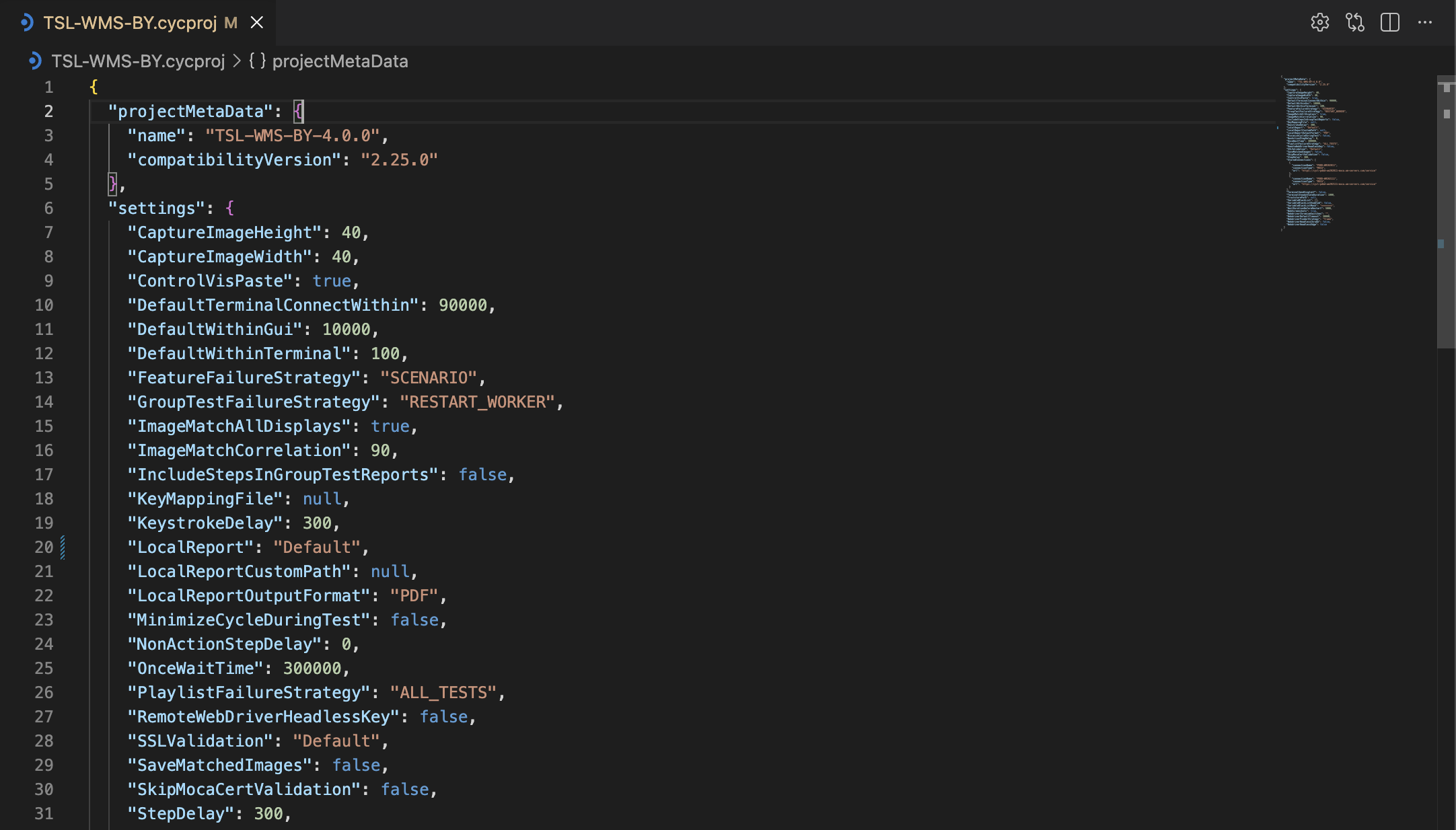
The text editor shows the full .cycproj file as JSON with schema validation.
To switch to the text editor, click Open Project Settings with Text Editor in the editor title bar (file-text icon).
Only saved settings files can switch editors.
If the file is unsaved, VS Code shows Save this settings file before editing.
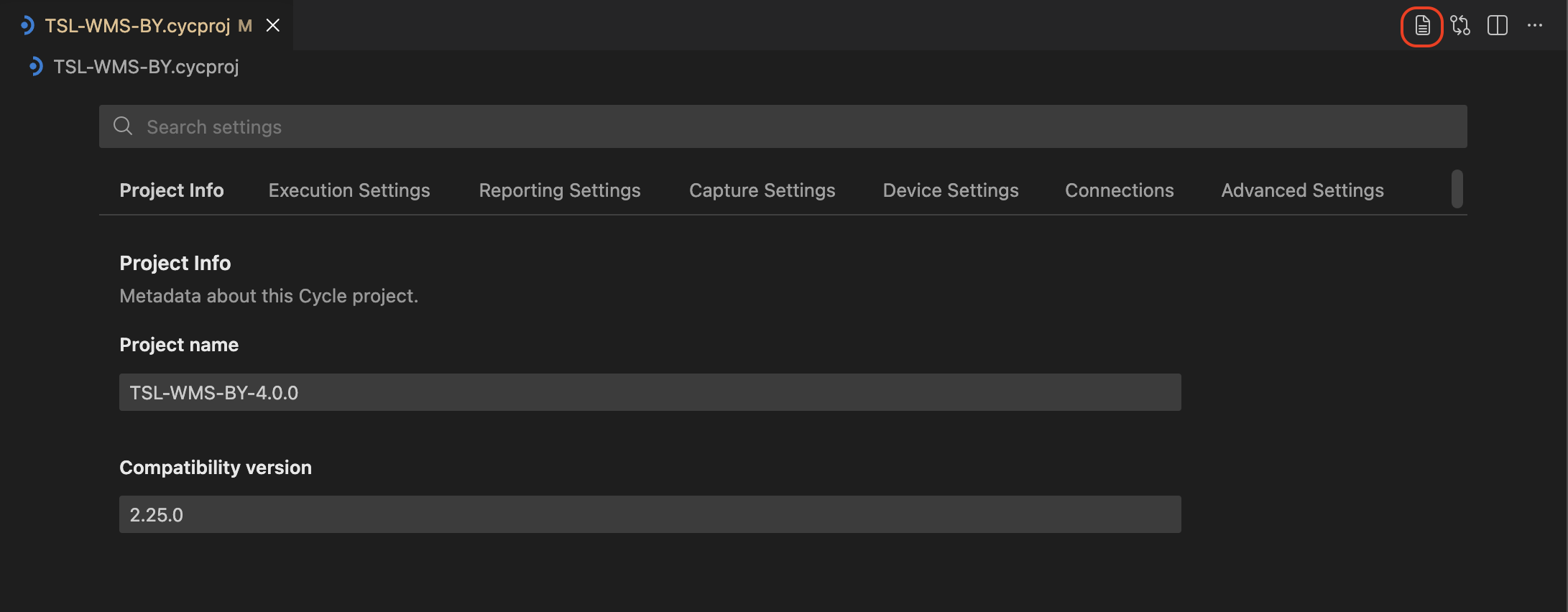
The text editor provides:
- Line numbers
- JSON syntax highlighting
- Collapsible JSON sections
- Full manual editing of all fields
- Diagnostics ("red squiggles") for syntax and semantic errors
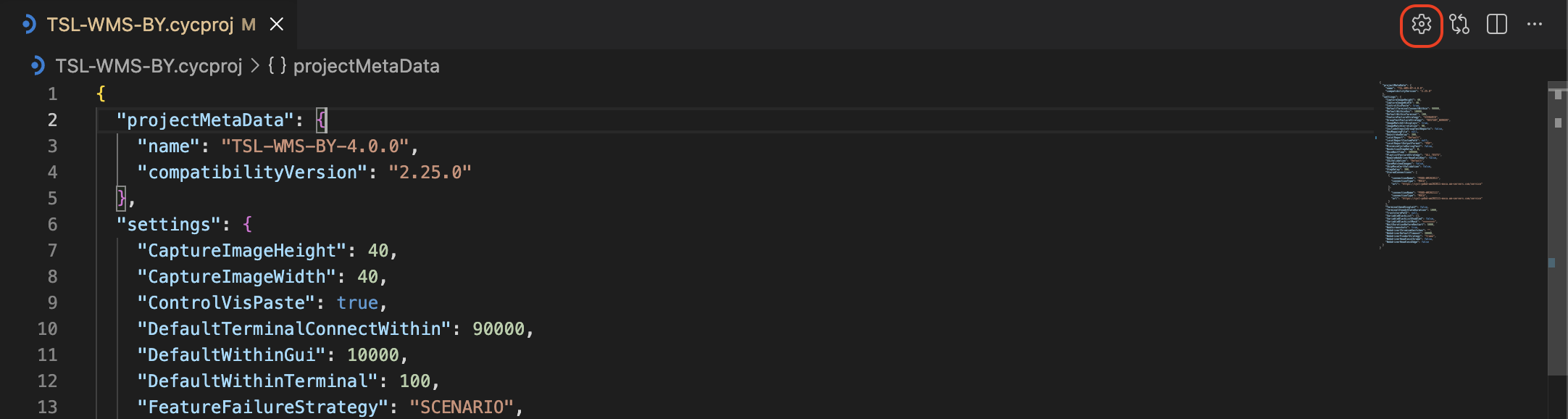
To return to the visual editor, click Open Project Settings with Visual Editor in the text editor title bar (settings-gear icon).
Only one view is open at a time per settings file. Save before switching if the file is dirty.
If you have made changes, save the file before switching between the visual and text editors.
Prefer the visual editor rather than the text editor in most cases. The text editor can allow mistakes and syntax errors. Use it for raw or advanced edits and to fix parse errors.
Identifying errors
If a settings file has a syntax error, a red banner appears in the visual editor:
This settings file has a syntax error. Switch to the text editor to fix it:
{detail}

The banner blocks visual editing until you fix the file in the text editor. In the text editor, schema validation shows diagnostics for invalid structure and values.
Sharing and source control
Commit the .cycproj file with the project when settings and connections should be shared with the team.
Do not commit personal .cycuser files.
Those hold private, machine-specific values.
A pipeline may commit a dedicated .cycuser file for agent runs (for example, jenkins.cycuser).
See Editing User Settings.