Editing API Requests
API requests are .api files that store one HTTP request.
A Feature File calls that file with the I call api step, so several Scenarios can share the same request.
These are the same .api files created in the Cycle Desktop IDE.
See Testing Web APIs for that editor.
The Cycle Testing VS Code Extension provides a visual API request editor and a YAML text editor with syntax highlighting and validation. Use the visual editor to build the request and try it. Use the text editor when you need to change the raw file.
Creating a new API request
In the Explorer view, right-click the folder in which you want to create the new API request. Select New Cycle File and then New API Request... from the context menu.
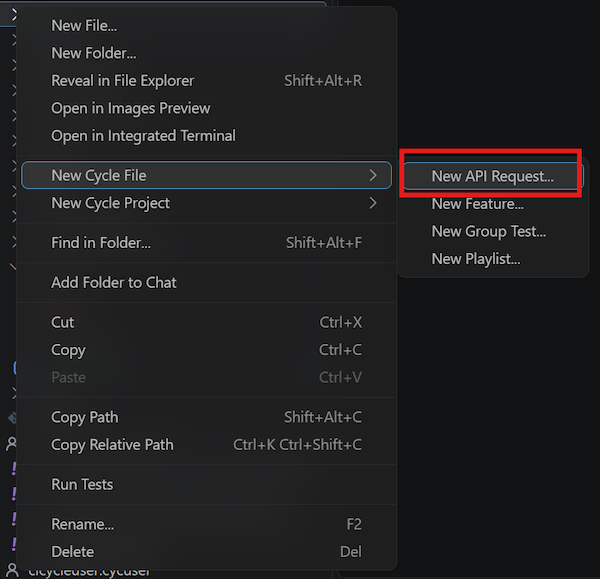
VS Code opens an input box at the top of the editor window for the API request name.
Enter the name you want to give the API request.
The placeholder is My API Request.

Do not use special characters in this name, and do not append a file extension.
VS Code automatically appends the .api extension to the file name.
Allowed characters are letters, numbers, underscores (_), hyphens (-), and spaces.
The input box rejects a blank name, a name that already includes an extension, and a name with any other character:
- An API Request name is required.
- Do not add a file extension.
.apiwill be added automatically. - Do not use any special characters in the API Request name.
After you enter a valid name, VS Code creates the file in the selected folder and opens it in the API Request Editor.
You can also run Cycle: New API Request... from the Command Palette (F1 or Ctrl-Shift-P), from File > New File..., or from the Projects view in the Cycle Testing activity bar.
These methods open an unsaved API request and do not prompt for a name.
Save it from the editor when you are ready to keep the file.
The save dialog uses the Cycle API Request filter.
If the name you choose does not end in .api, VS Code adds that extension.
Using the visual editor
When you open a saved .api file, VS Code opens the API Request Editor by default.
The editor has two collapsible sections: Request and Response.
Request starts expanded.
Response stays collapsed until you run the request.
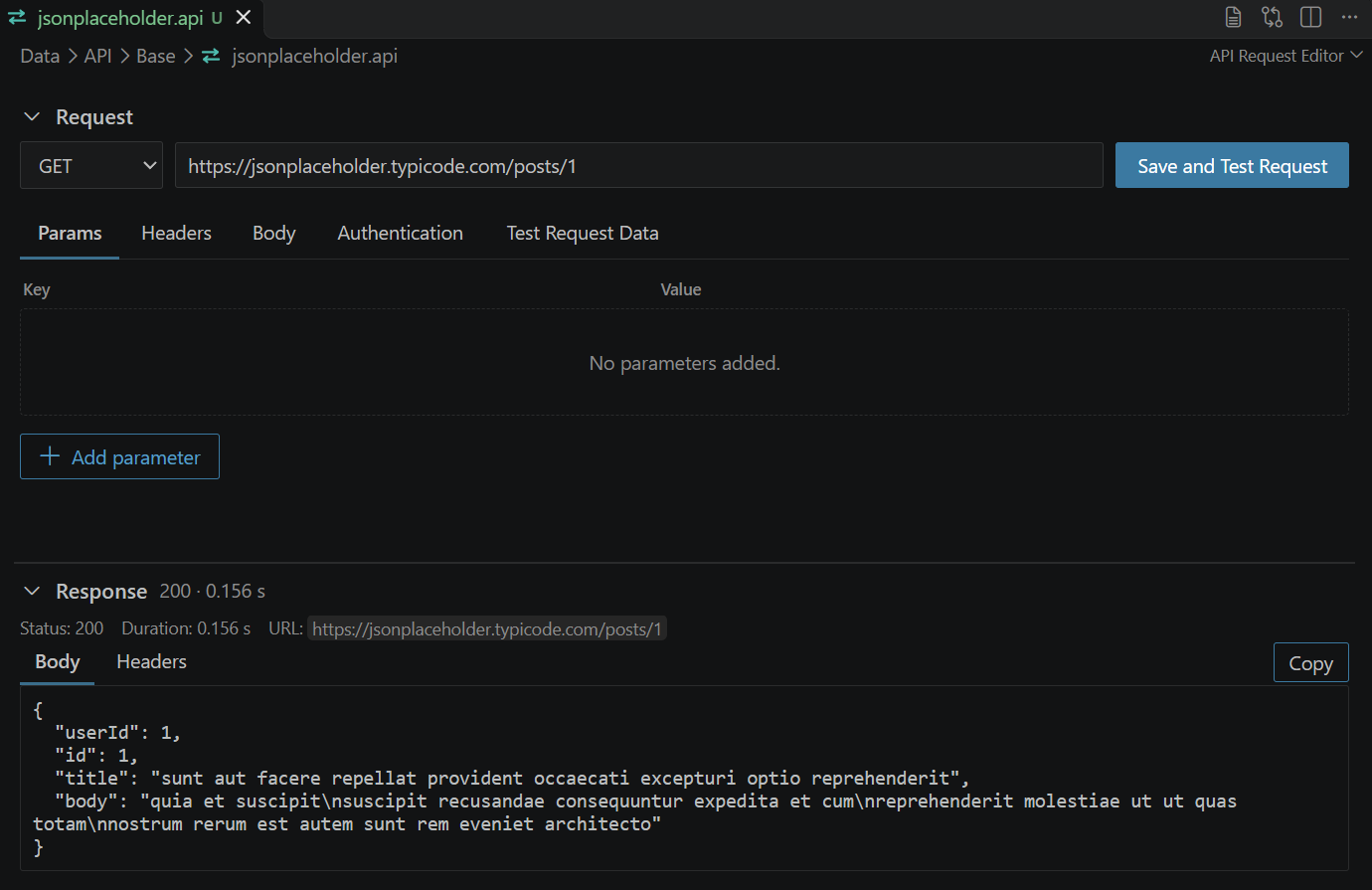
The request bar contains:
- A method dropdown:
GET,POST,PUT,PATCH, orDELETE - A URL field
- A Save and Test Request button
Under that bar, five tabs edit the rest of the request: Params, Headers, Body, Authentication, and Test Request Data. Click the Request or Response heading to collapse or expand that section.
A URL, parameter, header, body, or authentication value can be static text, a Cycle variable, or both.
Write a variable as ${name}.
The name must start with a letter or underscore, and the rest must be letters, digits, or underscores.
${host} and ${order_id} match that pattern.
A hyphen is outside those characters, so ${order-id} stays ordinary text.
Setting the method and URL
Choose the method from the list.
The new file starts as GET.
Type the URL in the field next to it.
The field placeholder is https://example.com/api.
A URL can mix text and variables, such as https://${host}/orders/${orderId}.
Adding parameters
The Params tab edits query parameters.
An empty tab shows No parameters added.
- Click Add parameter.
- Enter a Key and a Value.
- Press Enter in a value field to add another row when the last row already has a key.
Add parameter stays disabled until the last row has a key.
Click the trash icon on a row to remove it.
The tab then shows Row deleted. and an Undo button for a few seconds.
The remaining rows keep their order.
Duplicate keys are not supported.
Keys that differ only by capitalization count as the same key.
The row shows Duplicate keys are not supported. and that edit is not saved.
Adding headers
The Headers tab works the same way as Params.
An empty tab shows No headers added.
Use Add header to create a row, and the trash icon to remove one.
Setting the body
Open the Body tab and choose a Body Type. A new request starts as JSON.
| Body type | How you edit it |
|---|---|
| JSON | Text area |
| XML | Text area |
| Plain Text | Text area |
| x-www-form-urlencoded | Key and value rows |
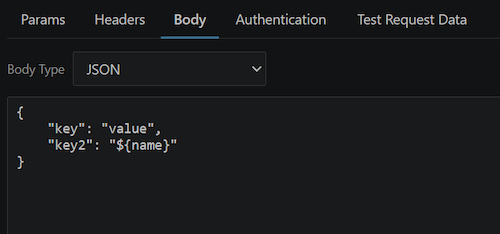
For JSON, XML, and Plain Text, type the body in the text area.
The body can include ${name} placeholders.
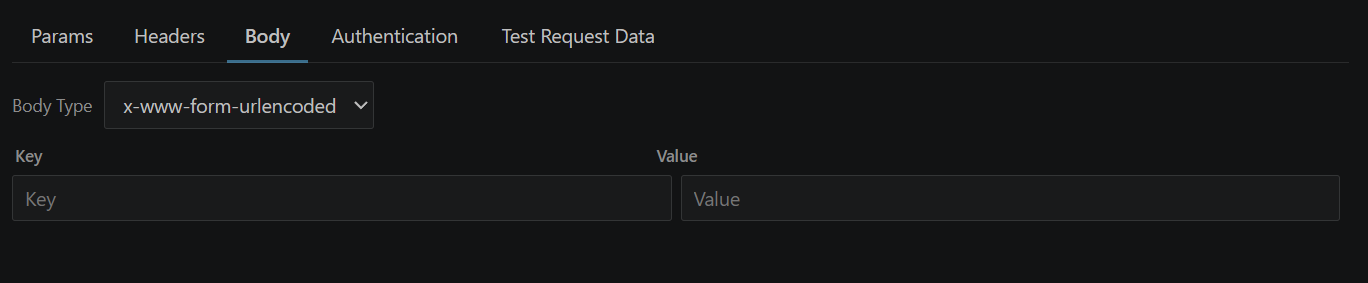
For x-www-form-urlencoded, the text area is replaced by a key-value grid. A blank row stays at the bottom. Type a key and value into that row to add a field. Remove a filled row with the trash icon. The blank row has no trash icon.
Setting authentication
Open the Authentication tab and choose an Authentication type.
| Type | Fields |
|---|---|
| No Authentication | None |
| Bearer Token | Token |
| Basic | Username and Password |
The password field masks what you type.
No Authentication is the right choice when the endpoint does not require credentials.
Prefer a ${name} placeholder for a token, username, or password, and supply the real value from the Feature File.
Supplying test request data
Test Request Data lists every ${name} placeholder found in the URL, parameters, headers, body, and authentication fields.
The names are read-only and appear in alphabetical order.
Type a sample value next to each name.
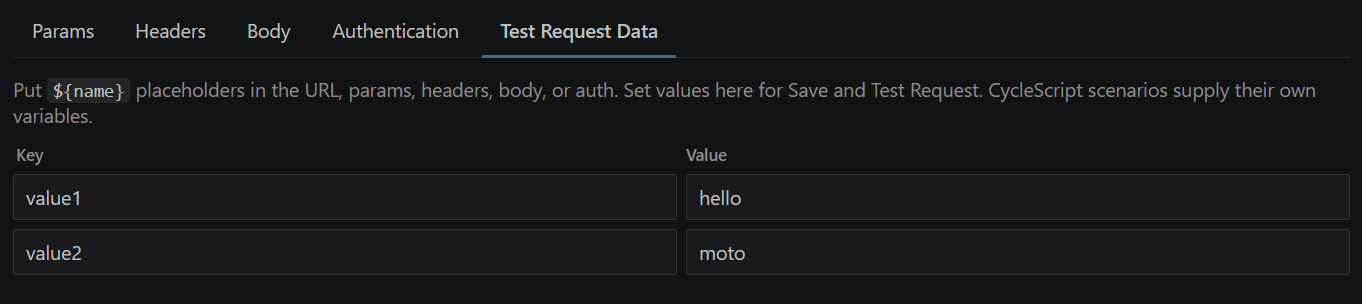
The tab explains the split between a trial run and a Feature File:
Put
${name}placeholders in the URL, params, headers, body, or auth. Set values here for Save and Test Request. CycleScript scenarios supply their own variables.
When the request has no placeholders, the tab shows: No variables detected. Add ${name} placeholders in the request to create rows here.
These sample values are saved in the .api file, and Save and Test Request is what uses them.
The Scenario must assign its own variables before the I call api step.
Test Request Data is written into the .api file.
Do not put real tokens, passwords, or other secrets in those values if the file will be committed or shared.
Use obvious sample values for the editor, and pass real secrets from the Feature File.
Testing the request
Save and Test Request saves the .api file and runs that request through Cycle.
The result appears in the Response section of this editor.
Running a Feature File from the Test Explorer is a separate action.
Cycle must be installed, and Cycle: Install Directory must point at that installation.
If it does not, the response reports: Cycle is not configured. Open Settings and set Cycle: Install Directory to run API requests.
- Click Save and Test Request. An unsaved request opens the save dialog first. Canceling the dialog stops the run.
- The button label changes to Abort, and the request fields are disabled while the call is in progress.
- The Response section expands to the Body tab.
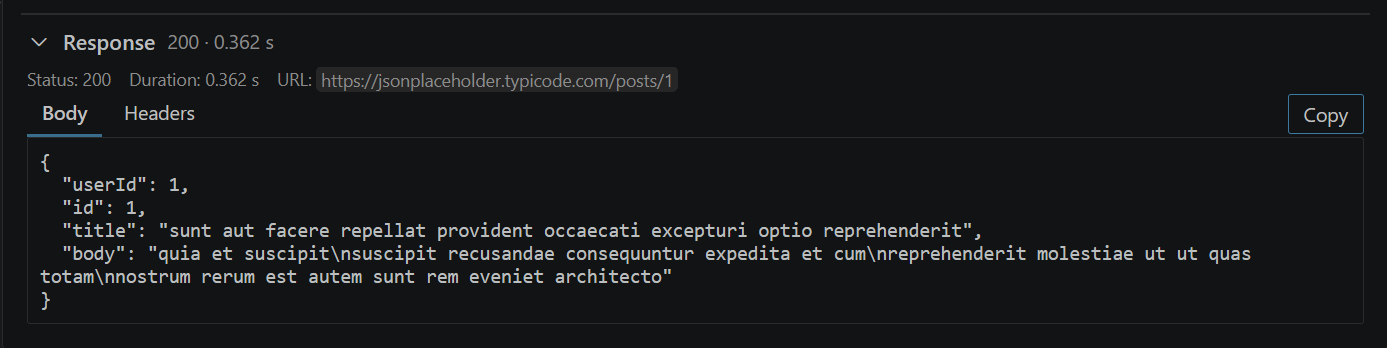
A completed call shows:
- Status: the HTTP status code, including codes such as
404 - Duration: elapsed time in seconds
- URL: the URL Cycle called, after sample values replace placeholders
- Body: the response body
- Headers: response header names and values
When the body is JSON, the editor formats it for reading.
Copy copies that body.
Copy is available on the Body tab when the body has content.
An empty body shows The response body was blank.
An HTTP error status is still a completed response.
The editor shows that status in Response.
Use the failure panel when Cycle could not perform the call, for example because a placeholder has no sample value, the host could not be reached, or Cycle is not configured.
The panel title is Your request could not be completed, followed by the error detail.

Click Abort to stop a call that is still running. The response then reports that the request was aborted.
Before the first run, Response shows: Use Save and Test Request to run this request and view the response here.
Save the file at any time with File > Save or Ctrl+S (Cmd+S on macOS).
Using the text editor
The text editor shows the full .api file as YAML.
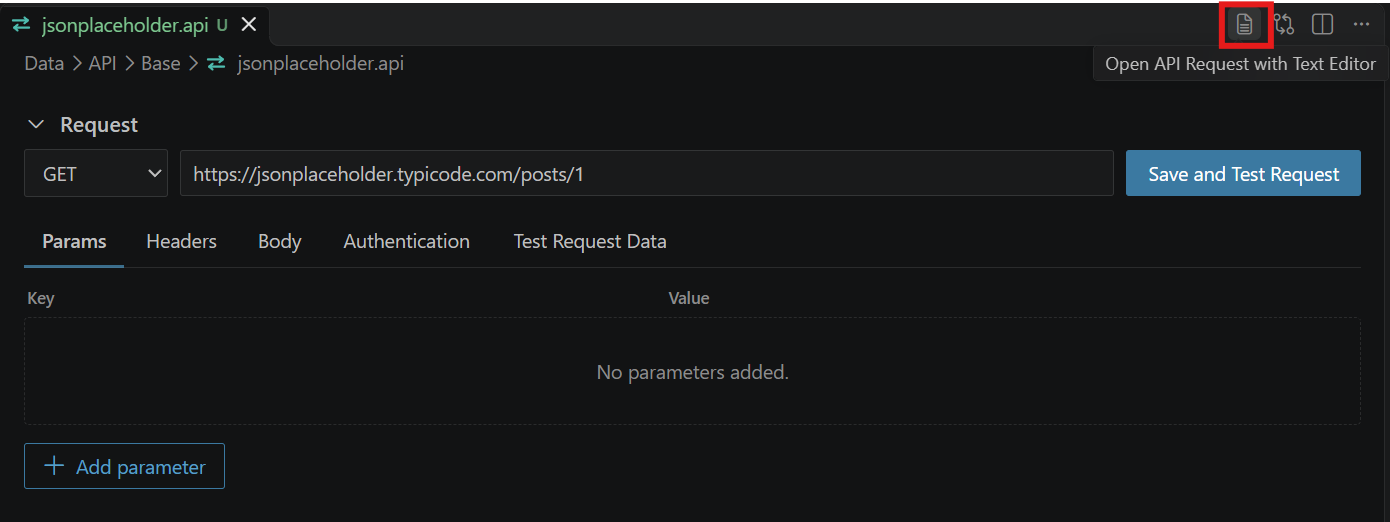
To switch to it, click Open API Request with Text Editor in the editor title bar (file-text icon).
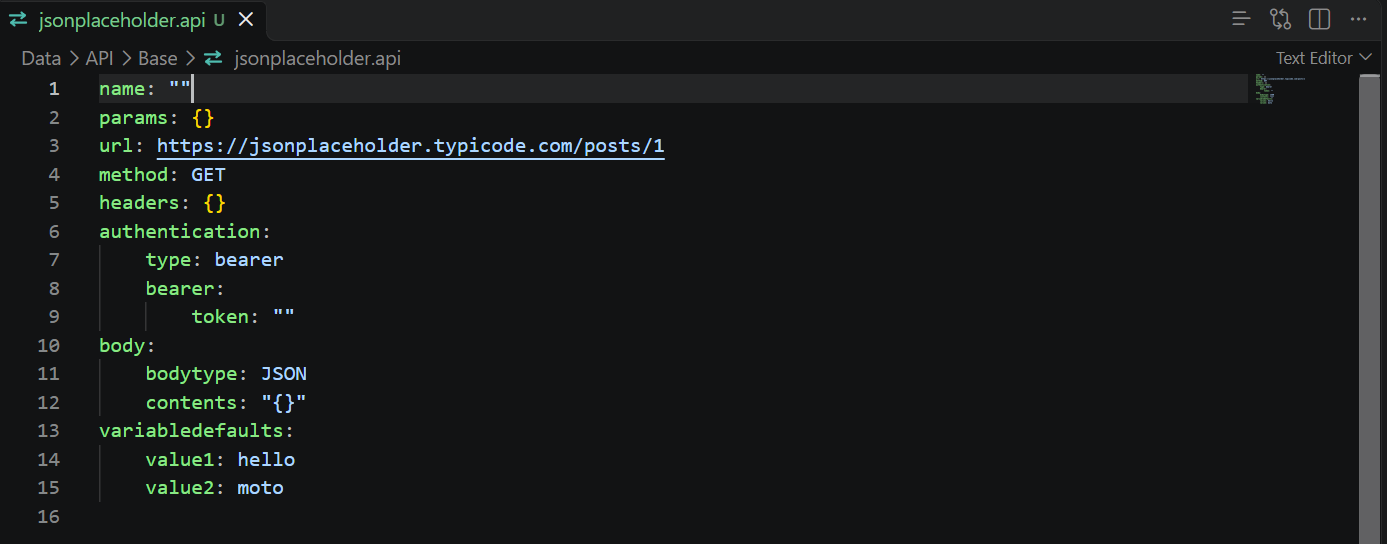
The text editor provides:
- Line numbers
- YAML syntax highlighting
- Full manual editing of every field
- Diagnostics ("red squiggles") for syntax errors
To return to the visual editor, click Open API Request with Visual Editor in the text editor title bar (list icon).
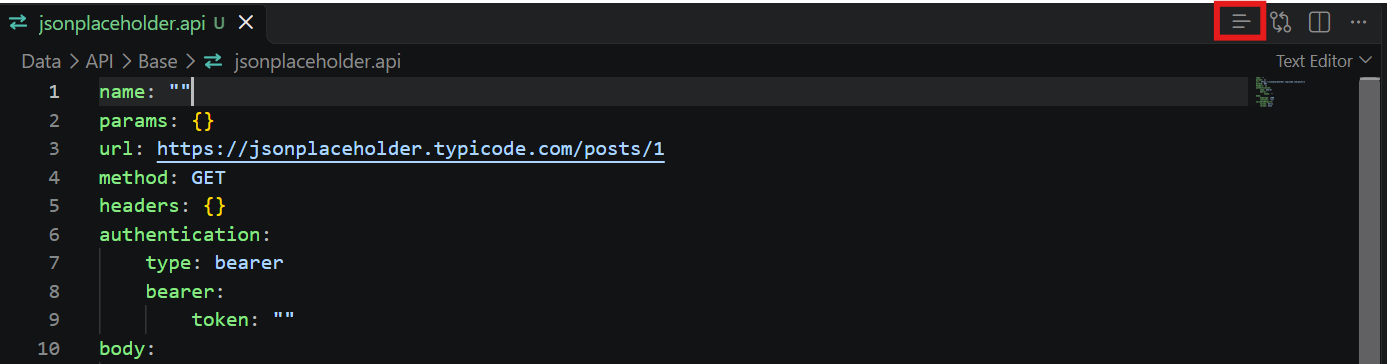
Only one view is open at a time per API request file. Edits made in the text editor appear when you switch back to the API Request Editor.
The file keeps these fields:
| Field | What it stores |
|---|---|
name | A label stored in the file. The visual editor preserves it and does not show a box for it. |
method | GET, POST, PUT, PATCH, or DELETE |
url | Request URL |
params | Query parameters as a map of strings |
headers | HTTP headers as a map of strings |
authentication | Bearer token, or basic username and password |
body.bodytype | JSON, XML, FORM_ENCODED, or PLAIN_TEXT |
body.contents | Body text. For FORM_ENCODED, a JSON array of key and value objects. |
variabledefaults | Sample values for Save and Test Request |
No Authentication is stored as a bearer token with an empty value. Opening a file that has an empty bearer token, or a blank basic username together with a blank basic password, shows No Authentication in the visual editor.
If you have made changes, save the file before switching between the visual and text editors.
Prefer the visual editor rather than the text editor in most cases. The text editor can allow mistakes and syntax errors. Use it for raw edits and to fix parse errors.
Identifying errors
If an API request has a syntax error, a red banner appears in the visual editor:
This API request has a syntax error. Switch to the text editor to fix it:
{detail}
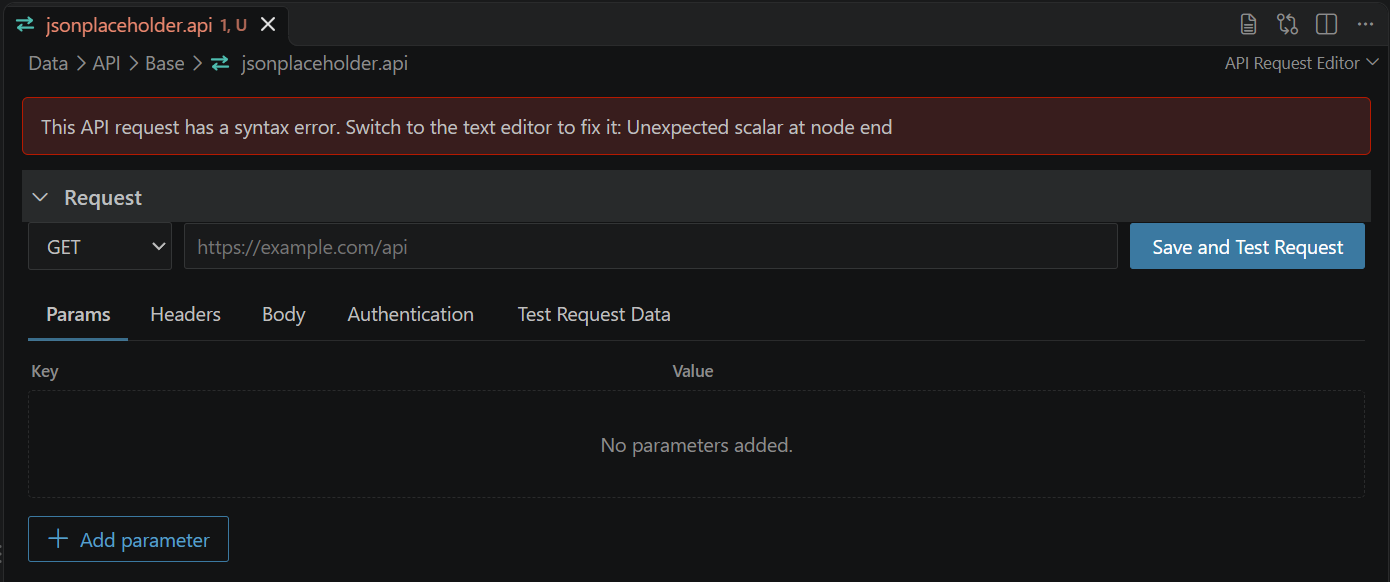
The banner stays until the file parses again. Further edits in the visual editor are rejected until you fix the file in the text editor. In the text editor, syntax errors show as red underlines. The diagnostic source is Cycle API Request.
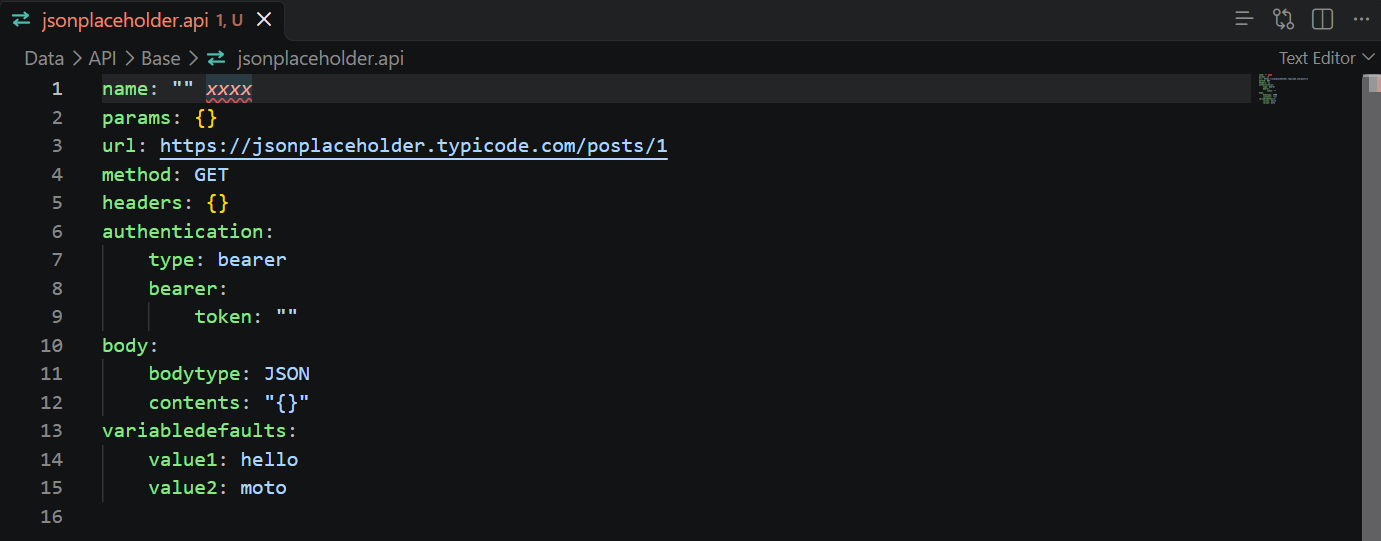
Common syntax errors include:
- Invalid YAML
- A file that is not a YAML object
- A
name,method, orurlvalue that is not a string - A
methodother thanGET,POST,PUT,PATCH, orDELETE - A
params,headers, orvariabledefaultsvalue that is not a map of strings - An
authenticationorbodyvalue that is not an object - A
body.bodytypeother thanJSON,XML,FORM_ENCODED, orPLAIN_TEXT - A form-encoded
body.contentsvalue that is not a JSON array ofkeyandvalueobjects
Calling the API request from a Feature File
Save the .api file in the Cycle project, then call it from a Scenario.
Assign every variable the request uses before the call.
The step passes when the endpoint returns a response, including an error status.
Check the status, headers, or body with later steps.
Scenario: Update a post
Given I assign value "My Updated Title" to unassigned variable "title"
When I call api "Requests/update_data.api"
Then I verify http response had status code 200
See Testing Web APIs for the I call api step, including what happens when a variable or the URL is missing.