Testing Web APIs
Overview
Starting with Cycle 2.15, Cycle improved the way you call web application programming interfaces (APIs) as part of test automation. Cycle introduced an API editor to create and edit API requests. API requests can then be used in one or more Feature Files with the I call API Step.
Using the API editor
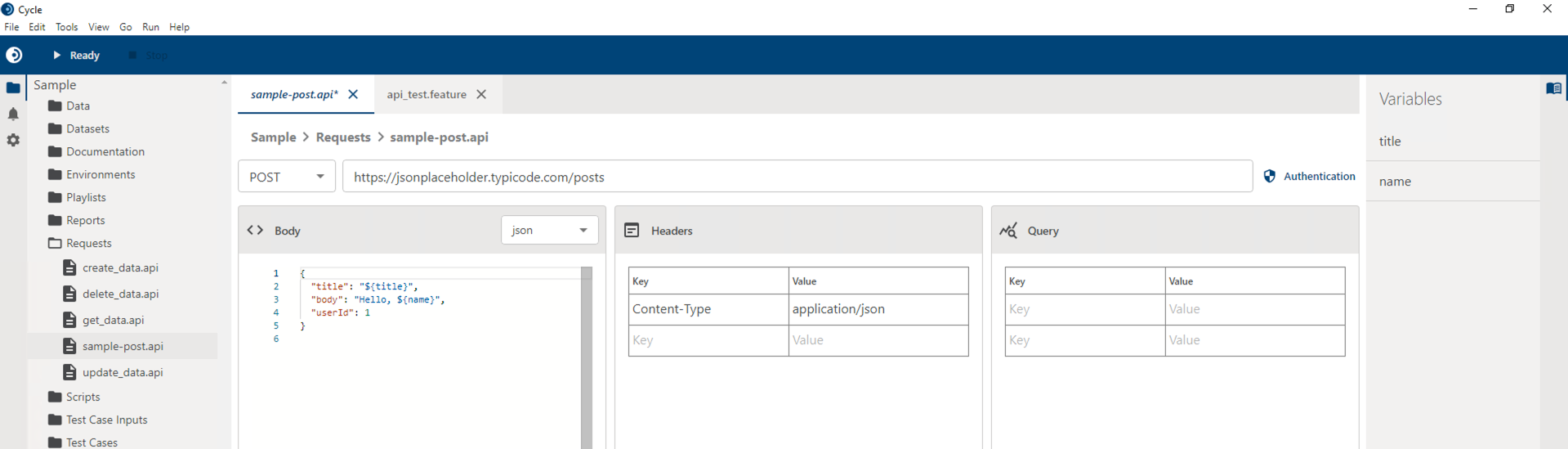
You can create a new API request using the API editor by either clicking File > New > Cycle API in the menu or by using the Control + K keyboard shortcut.
Review the following information about the API editor:
- You can set the request method (GET, POST, PUT, PATCH, DELETE).
- You can set the request URL.
- This can be a static URL, such as
https://jsonplaceholder.typicode.com/posts. - It can be a reference to a Cycle variable, such as
${url}. - It can be a mix of multiple Cycle variables and static text, such as
${protocol}://${url}:${port}/api/v1.
- This can be a static URL, such as
- Supported body types include JSON, XML, and x-www-form-urlencoded.
- The body can be static text or include one or more Cycle variables, such as
{ "title": "${title}", "body": "Hello, ${name}" }.
- The body can be static text or include one or more Cycle variables, such as
- A table-style interface is available for defining any required HTTP headers, query parameters, or x-www-form-urlencoded body.
- Both the keys and values can be static text, Cycle variables, or a mix of both.
- If your API requires authentication, you can choose from basic or bearer token and provide the necessary credentials.
- Best practices for securely handling credentials are to reference Cycle variables rather than hard-coding values.
- More information on injecting secrets and passwords into Cycle can be found in this Knowledge Base Article.
- Additional examples for securely injecting secrets can be found in this example project.
- In the Variables Inspector on the right, you can see a list of all variables referenced in the API request. This helps when you reference the API request from a Feature File. You can find a list of all variables without navigating all parts of the request by opening the API editor.
- Execute the request to validate API information entered prior to running a Feature File.
- View output of the API response.
Save your API request by either clicking File > Save in the menu or using Control + S. When saving your API requests, you can group them in folders like any other file type in Cycle.
Validating the API from within the editor
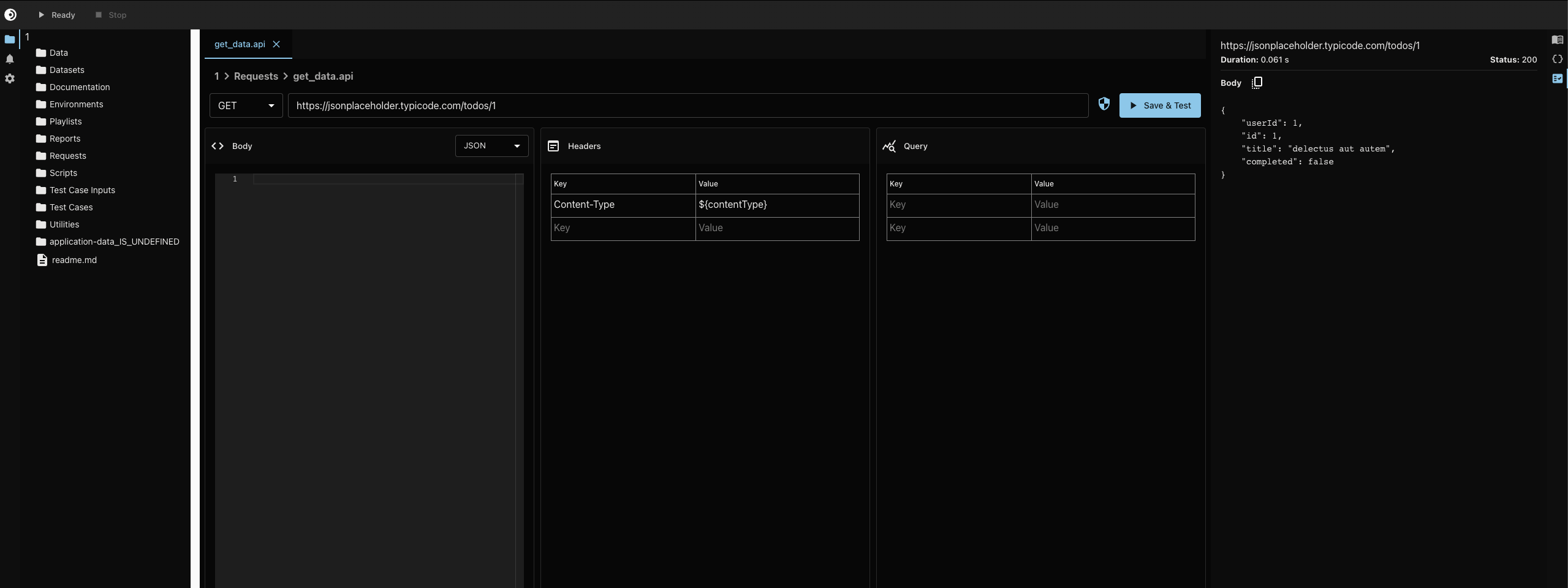
To execute the API request from within the editor, use the Save & Test button to the right of the request URL input. Then view the results to ensure that the response is what was expected, and make any other necessary changes.
Calling the API from a Feature File
To use the API request from a Feature File, use the I call api Step with the path within the project to the .api file.
A sample Scenario is below.
Scenario: Update Data API
  Given I assign value "application/json" to unassigned variable "contentType"
  And I assign value "My Updated Title" to unassigned variable "title"
  When I call api "Requests/update_data.api"
  And I verify http response had status code 200
  Then I assign http response body to variable "responseBody"
  And I echo $responseBody
  And I assign value from JSON $responseBody with path "/userId" to variable "userID"
  And I echo $userID
If any Cycle variables referenced in the API request are not present when the I call api Step is invoked, the Step fails with an error stating Missing required variable with a comma-separated list of missing variables. If no URL is defined when the Step is invoked, the Step fails with a URL is empty error message. The Step fails if Cycle is unable to complete the request, such as when the URL is unreachable. The Step passes when the API provides a response. Additional validations can then be performed to validate the response's HTTP status, headers, or body content.
Sample project
A video introduction of the API editor is available.
The sample project from that video can be found here.