Getting Started with VS Code
Opening a Cycle project
To open a Cycle project from VS Code, go to the menu, select File, and then select Open Folder....
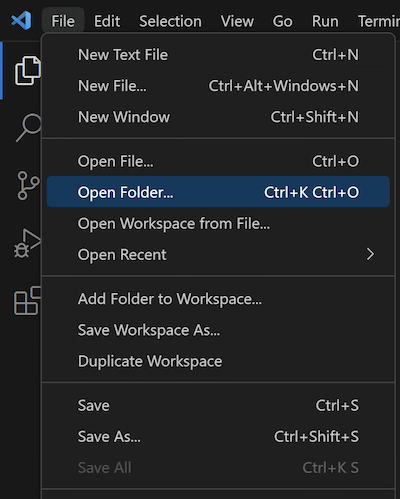
In the file selection popup, select the root folder of the Cycle project to open.
Do not select the .cycproj file or any other individual files.
VS Code opens a project based on the folder containing the project.
Viewing Cycle files
Finding files
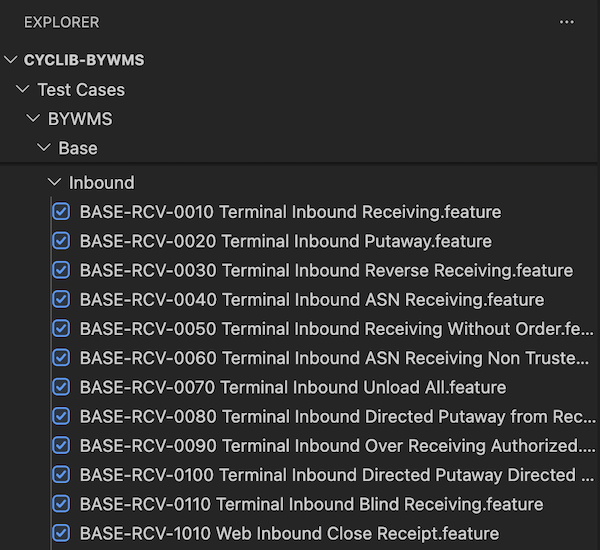
The Explorer pane on the left side of the editor shows all the files and folders in the project. It displays the Cycle logo for Feature Files, playlists, and group tests.
Opening Feature Files
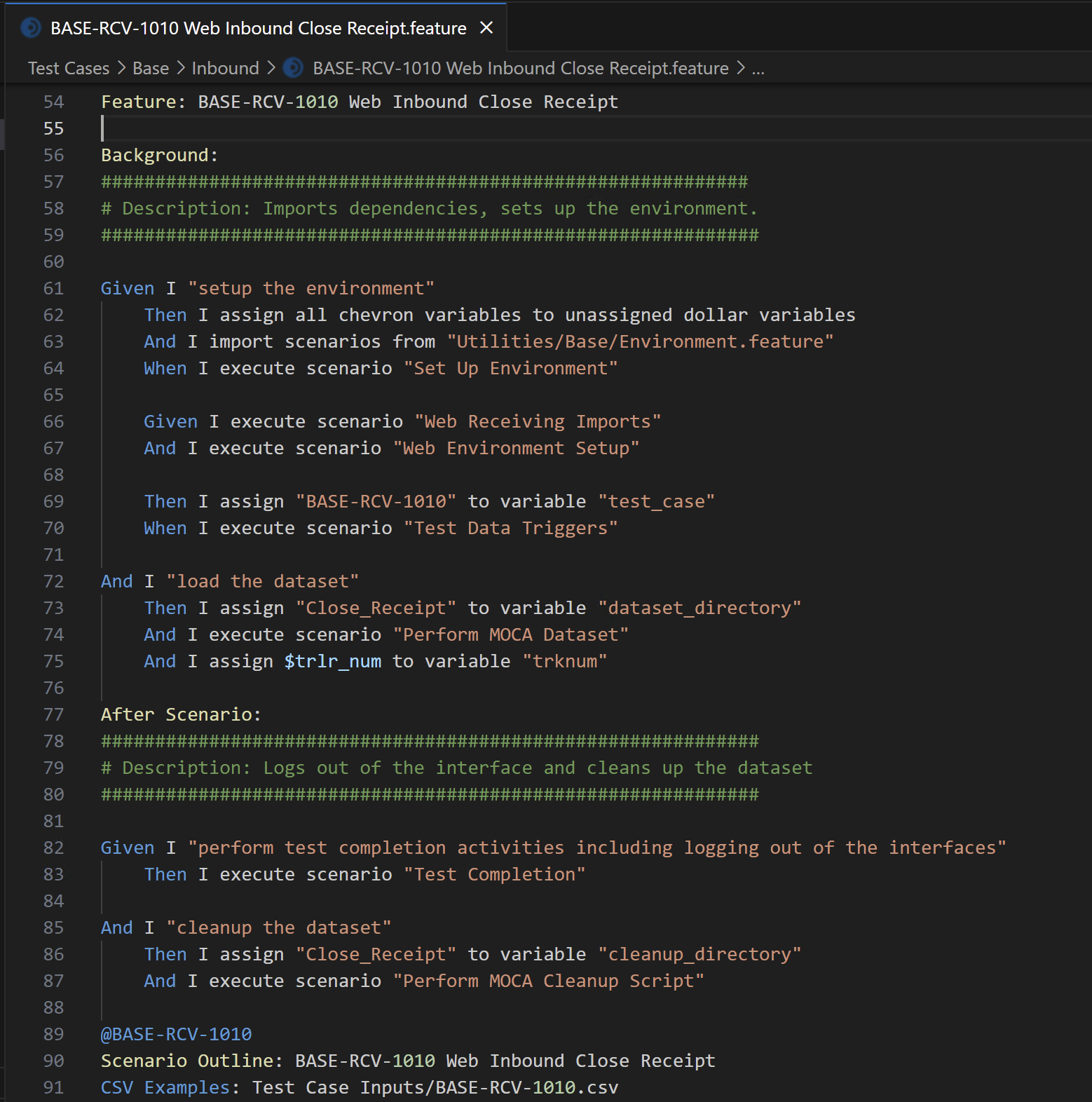
Double-click any Feature File to open it. Open Feature Files have color-coded syntax highlighting similar to the scheme used by the Cycle Desktop IDE.
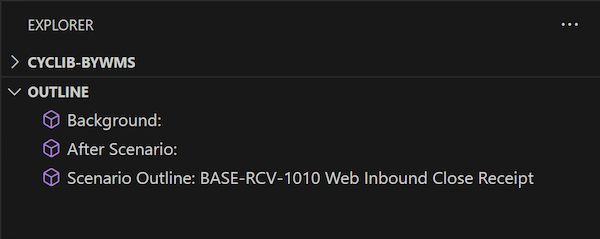
When a Feature File is open, the Explorer pane's Outline section shows its outline. This makes it easier to see all the Scenarios a Feature File contains at a glance.
Opening playlists
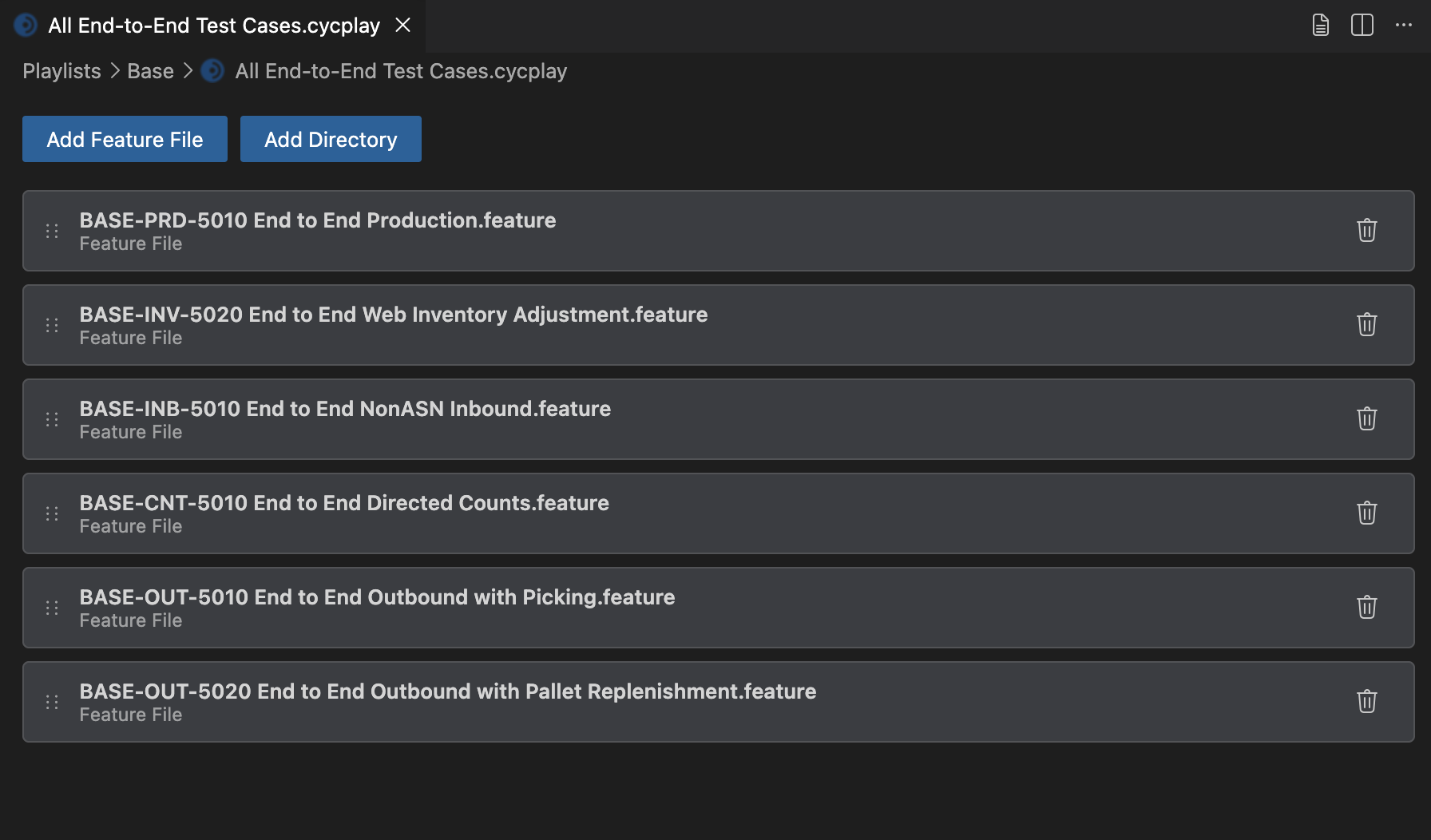
Playlists have an editor similar to the one in the Cycle Desktop IDE. You can add Feature Files and directories to the playlist, and you can drag and drop entries to change their order.
Opening group tests
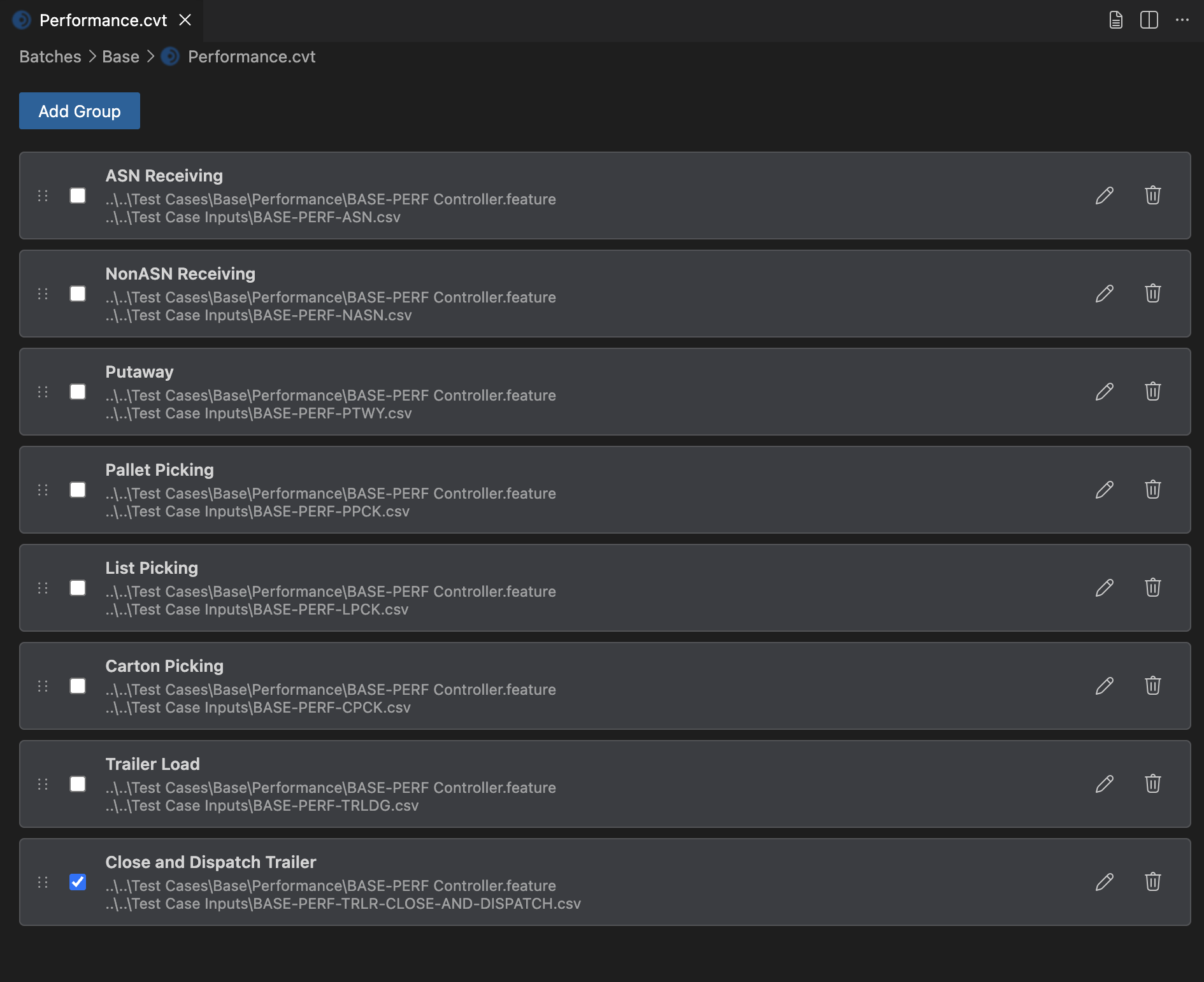
Group tests also have an editor similar to the one in the Cycle Desktop IDE. You can add groups to the set and modify them as desired.
Opening project and user settings
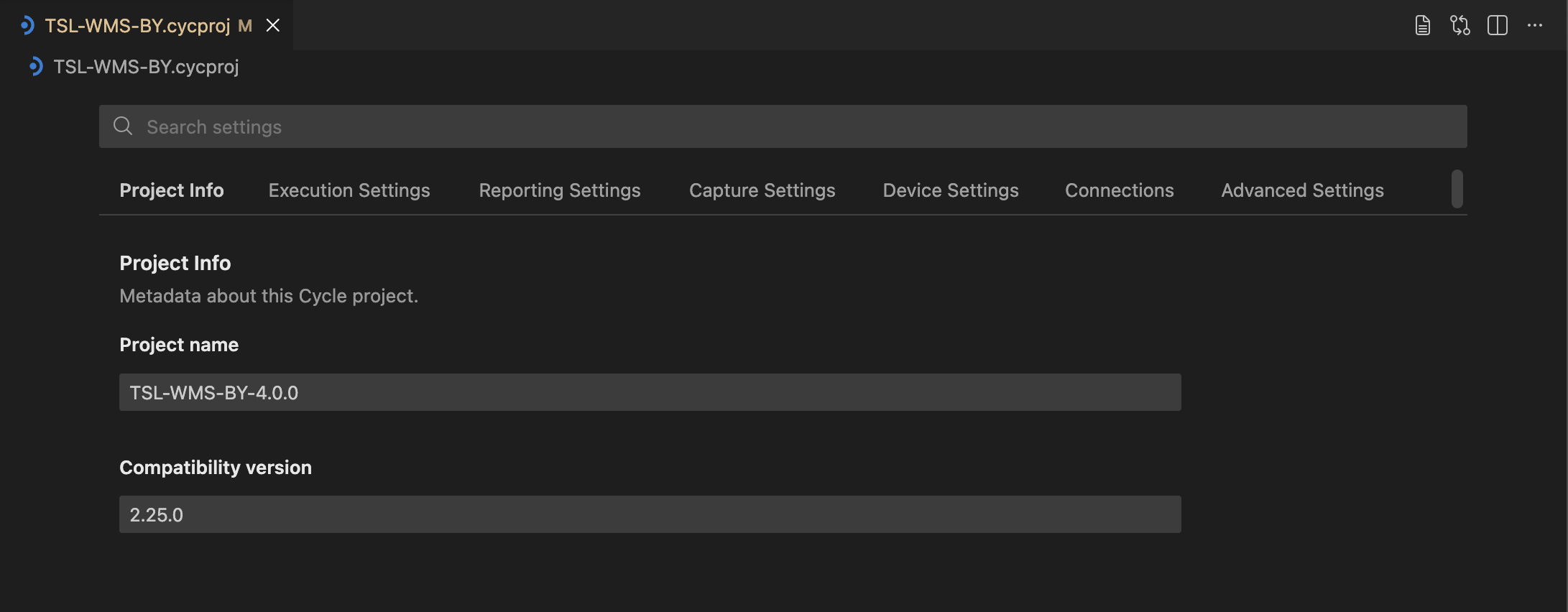
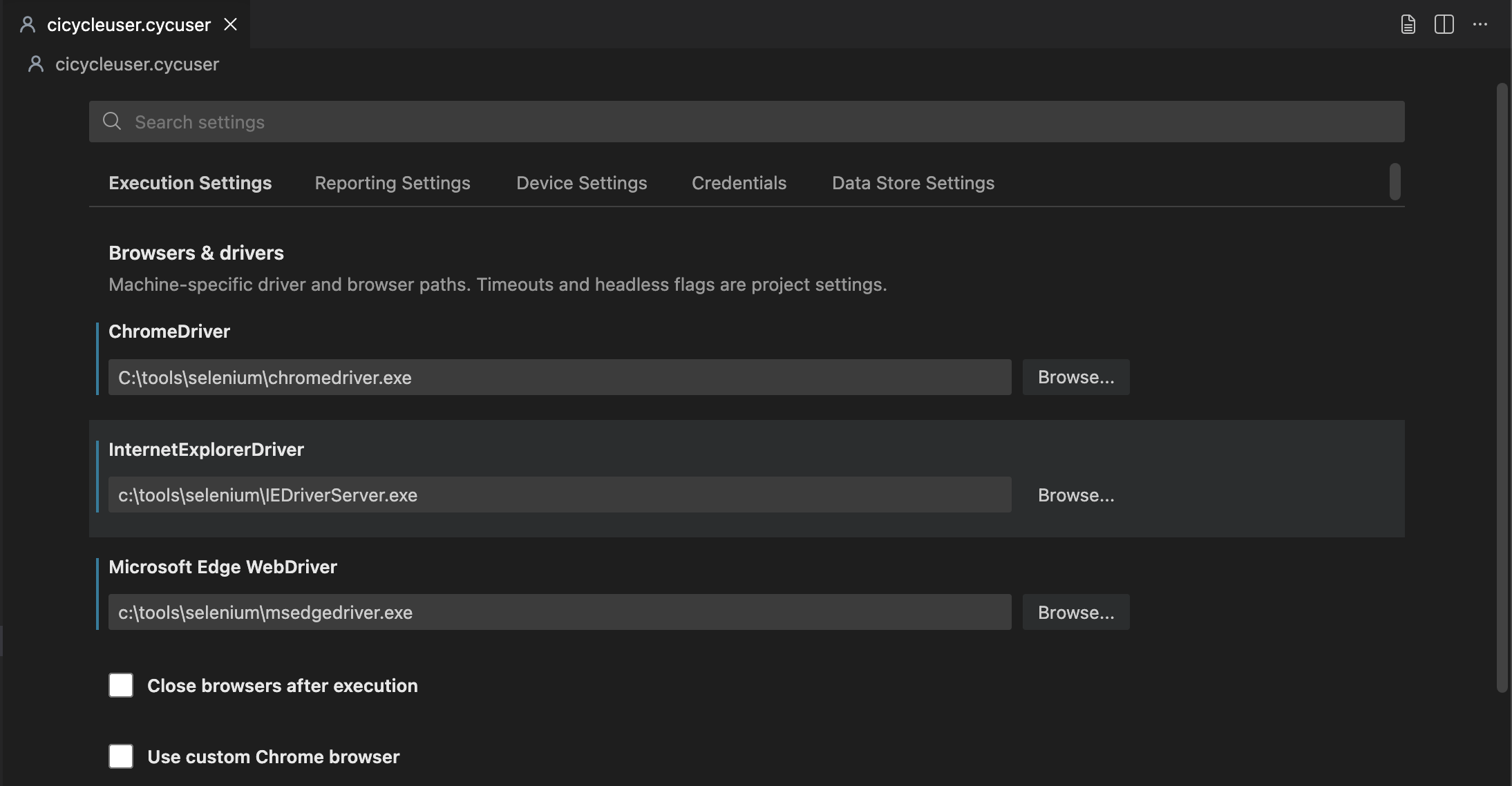
Project settings (.cycproj) and user settings (.cycuser) each open in their own visual editor.
You can open them from the Explorer, the Command Palette, or the Cycle Testing activity bar Projects view.
Below is the project settings editor:
And here is the user settings editor:
Running commands
The Cycle Testing VS Code Extension provides several commands for managing projects and learning more about Cycle.
Activity Bar
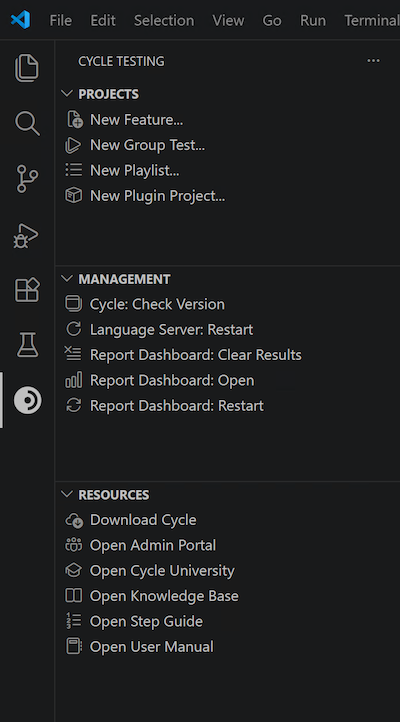
All Cycle commands are available through the Cycle Testing activity bar container. To open it, click the Cycle logo in the activity bar on the left side of the window. The view has three sections:
- Projects: Commands for creating files and projects
- Management: Commands for managing Cycle components
- Resources: Commands for downloading Cycle and learning more
Click the commands to run them.
Command Palette
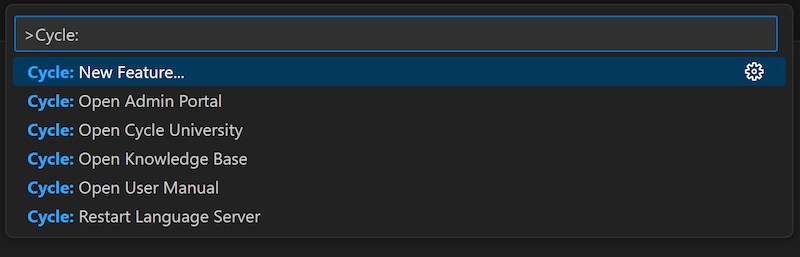
All Cycle commands are also available through the Command Palette.
To open the Command Palette, press F1 or Ctrl-Shift-P in VS Code.
An input box for all available commands appears at the top center of the editor.
Enter Cycle: into this input box to see all available Cycle commands.
Checking the Cycle version
The Cycle Testing VS Code Extension does not come with Cycle. You must install Cycle on the same machine for the extension to work fully. To check whether Cycle is installed and, if so, which version it is, run the Cycle: Check Version command from either the Command Palette or the Management view.
If Cycle is installed, you see a toast notification in the bottom-right corner reporting its version:

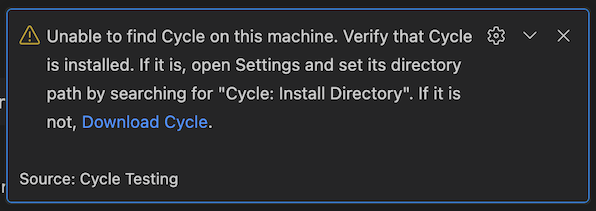
If Cycle is not installed, there is a warning message instead:
Configuring the display language
To set the display languages in VS Code, enter Configure Display Language into the Command Palette. Then select the desired language from the list of options. VS Code provides several language packs, but the Cycle Testing VS Code Extension provides locales only for the following languages:
- French

The display language does not localize CycleScript code. CycleScript steps remain entirely in English. Changing the display language affects only the VS Code interface (menus, commands, and options).