Editing Feature Files
Creating a new Feature File
In the Explorer view, right-click the folder in which you want to create the new Feature File. Select New Cycle File and then New Feature... from the context menu.
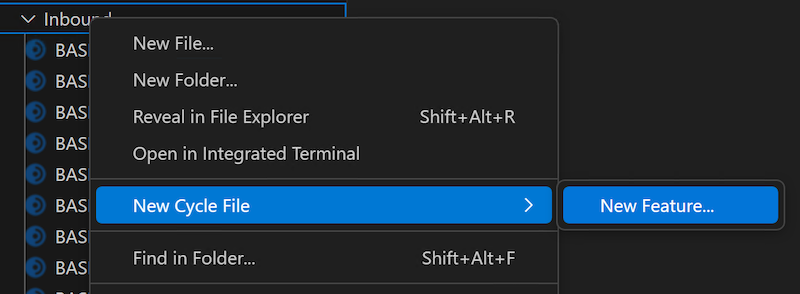
VS Code then opens an input box at the top of the editor window for the Feature File name.
Enter the name you want to give the Feature File.
This name becomes the file name as well as the Feature title.

Do not use special characters in this name, and do not append a file extension.
VS Code automatically appends the .feature extension to the file name.
Viewing Step Assistant
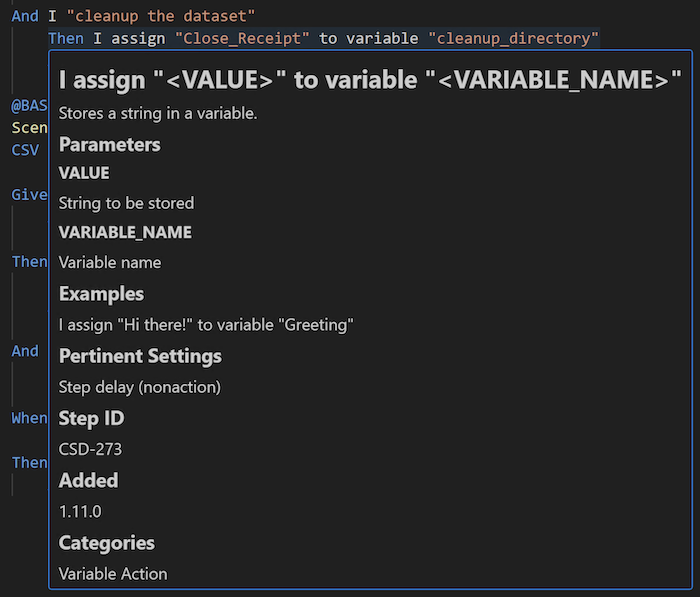
Every CycleScript step has helpful information available through Step Assistant. Hover over the step to trigger a modal with the Step Assistant information.
Opening the Step Guide
The Step Guide is a reference tool included with the Cycle application that provides searchable documentation for all available CycleScript steps. You can open it from VS Code using the Command Palette, provided Cycle is installed on your machine.
Open the Command Palette and run the Cycle: Open Step Guide command.
The Step Guide opens in a new window, where you can browse and search for steps, check syntax, and review step details.
Automatically completing steps
As you type steps, the editor provides suggestions for how to complete the step's text. Select the desired option from the suggestions to use it in the Feature File.

Identifying syntax errors
The editor marks any syntax errors for incorrect CycleScript syntax or step texts with red underlines.

Toggling comments
Lines for CycleScript comments start with the # character.
It is common to temporarily comment out steps or even whole Scenarios while editing and debugging Feature Files.
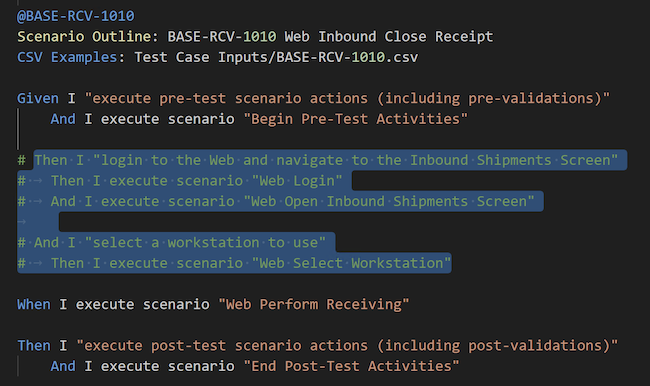
Rather than type the # character for every single line, highlight multiple lines and then press Ctrl+/ to add or remove the # character from them at once.
Using CycleScript snippets
Snippets are templatized blocks of code that you can insert into a file. They help you use proper syntax and structure. The Cycle Testing VS Code Extension provides the following snippets:
To use a snippet, type the name of the snippet on a new line. Snippet options should then appear in a modal. Select the desired snippet.

The editor inserts the snippet's code directly into the Feature File. Replace the highlighted sections with appropriate CycleScript code and steps.
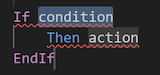
Snippet names are case-sensitive.
For example, you must select if and not If for the If statement snippet.
Navigating to Scenarios
In CycleScript, a Scenario can call another Scenario by using the I execute scenario "..." step, where "..." is the name of the Scenario to call.
To see the called Scenario's code, hover over the step, and press and hold the Ctrl key.
The Scenario name turns into a blue hyperlink.
Click the name while holding the Ctrl key.
VS Code opens the Feature File containing the called Scenario and navigates to the Scenario's definition within it.