Editing Group Tests
Group tests are .cvt files that define a JSON array of test groups.
Each group ties together a group name, a Feature File, a devices file, and an enabled flag.
Group tests support group testing in Cycle: running parameterized or data-driven Scenarios across multiple device input files against shared Feature Files.
The Cycle Testing VS Code Extension provides a visual group test editor (similar to the Cycle Desktop IDE) and a JSON text editor with syntax highlighting and validation.
Creating a new group test
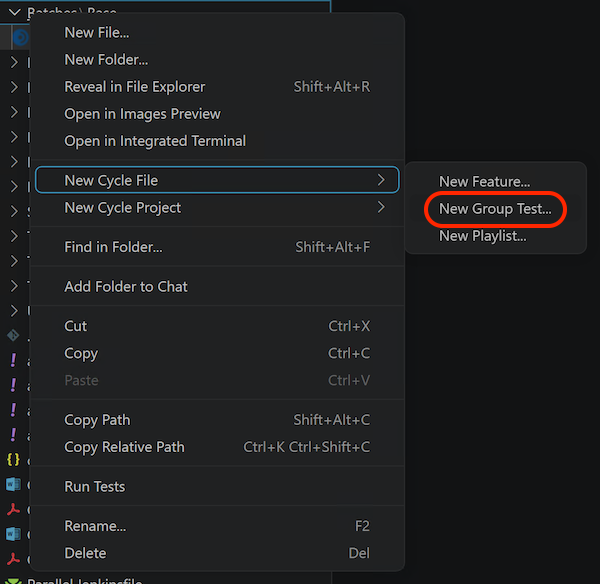
In the Explorer view, right-click the folder in which you want to create the new group test. Select New Cycle File and then New Group Test... from the context menu.
VS Code opens an input box at the top of the editor window for the group test name. Enter the name you want to give the group test.

Do not use special characters in this name, and do not append a file extension.
VS Code automatically appends the .cvt extension to the file name.
Allowed characters are letters, numbers, underscores (_), hyphens (-), and spaces.
After you enter a valid name, VS Code creates the file in the selected folder and opens it in the group test editor.
You can also run Cycle: New Group Test... from the Command Palette (F1 or Ctrl-Shift-P), from File > New File..., or from the Projects view in the Cycle Testing activity bar.
These methods open an unsaved group test and do not prompt for a name.
Save the file before you can add or edit groups or switch to the text editor.
Using the visual editor
When you open a saved .cvt file, VS Code opens the group test visual editor by default.
This visual editor lets you add, edit, reorder, and enable groups without editing the raw JSON.
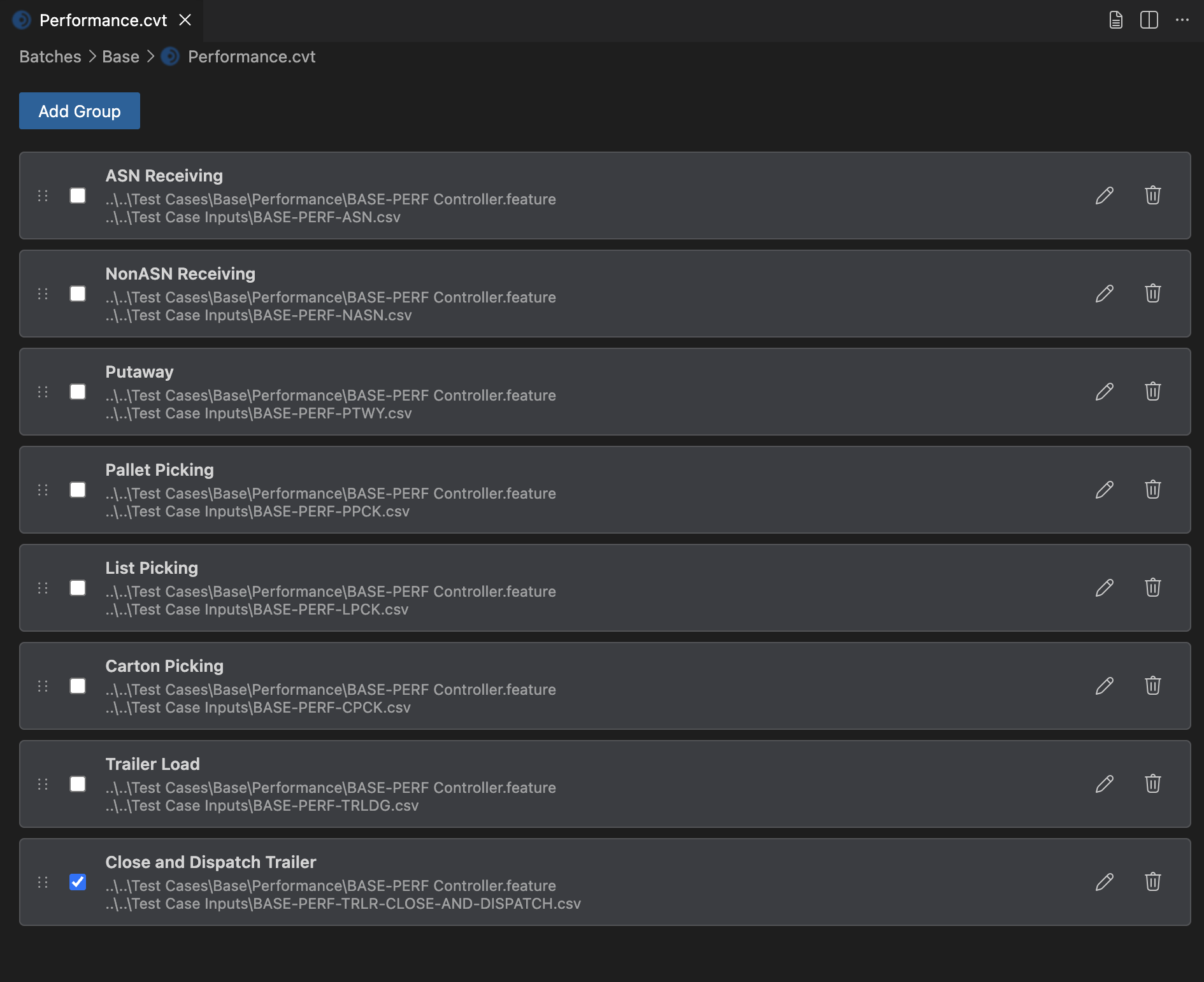
The visual editor layout includes:
- An error banner (red) when the file has syntax errors
- An info banner when the file is unsaved
- A toolbar with an Add Group button
- A draggable list of group rows, each with an Enabled checkbox
The visual editor modifies only the groups in the file.
Header fields such as resources, classes, and namespaces are not editable in the visual editor.
To change those settings, switch to the text editor.
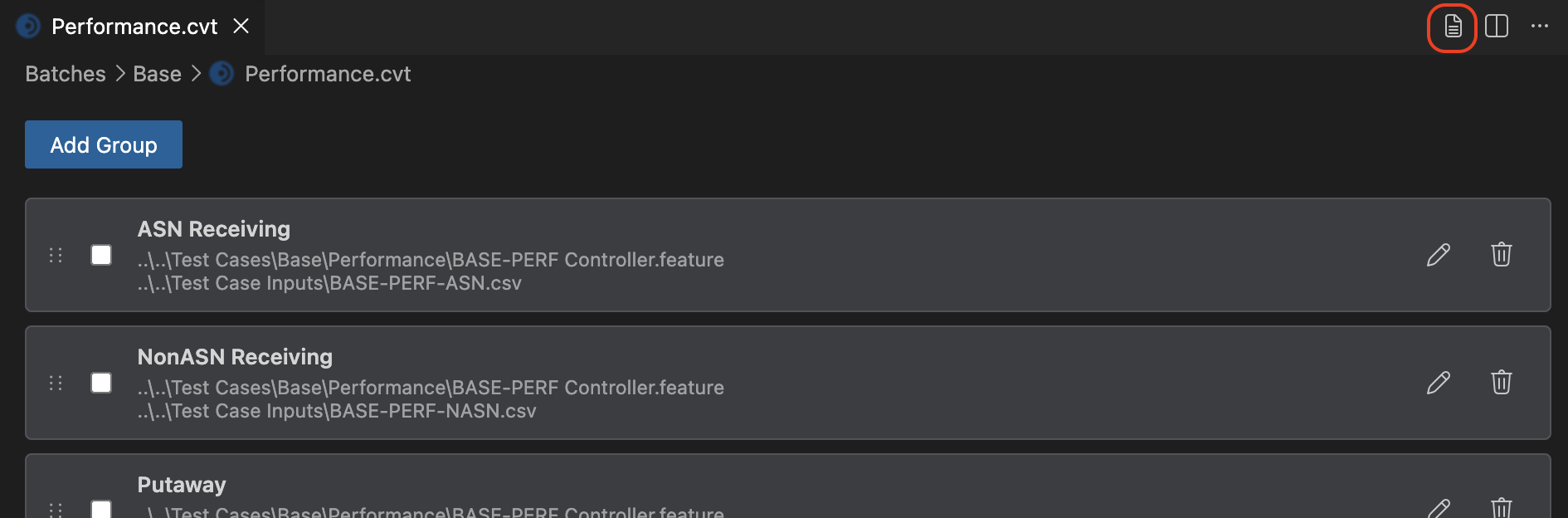
Each group row shows the group name, the full relative path to the Feature File, the full relative path to the devices file, and Edit and Remove buttons.
Adding a group
- Click Add Group in the toolbar.
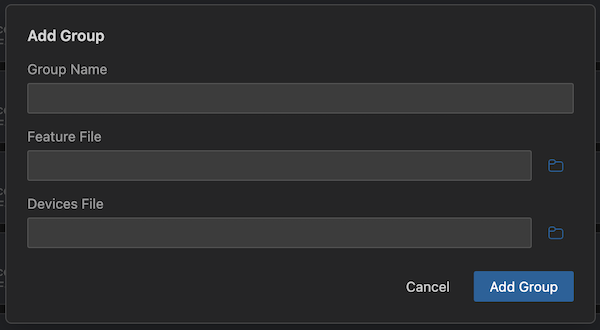
- In the modal, enter a Group Name, Feature File, and Devices File.
You can type paths manually or use the browse buttons to pick files.
The feature picker filters to
.featurefiles. The devices picker defaults to.csvfiles but also allows other file types. - Click Add Group to confirm, or Cancel to close the modal without changes.
VS Code adds the new group to the bottom of the list with enabled set to true by default.
Editing a group
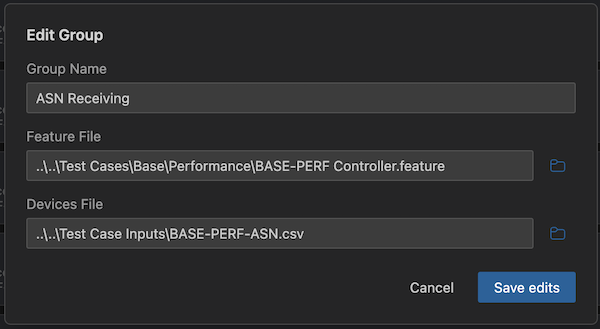
- Click Edit (pencil icon) on a group row.
- In the modal, update the Group Name, Feature File, or Devices File.
- Click Save edits to confirm, or Cancel to discard changes.
Editing a group updates its name, feature, and devices paths.
The group's enabled value and any existing tags value are preserved.
Reordering groups
Drag and drop rows using the drag handle on the left side of each item. Drop the row in the desired position to update the group order.
Removing groups
Click the trash icon on any row to remove that group from the group test. The remaining groups keep their relative order.
Enabling and disabling groups
Use the Enabled checkbox on each row to control whether a group runs with the group test.
Only groups with enabled set to true participate in execution.
Using the text editor
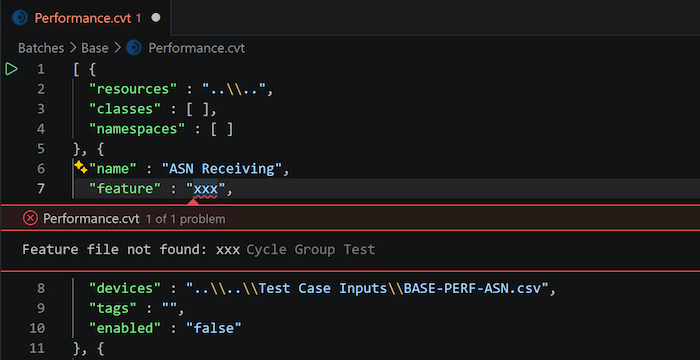
The text editor provides a way to view or edit the full .cvt file as JSON, including header fields and all groups.
To switch to the text editor, click Open Text Editor in the editor title bar (file-text icon).
Only saved group tests support this action.
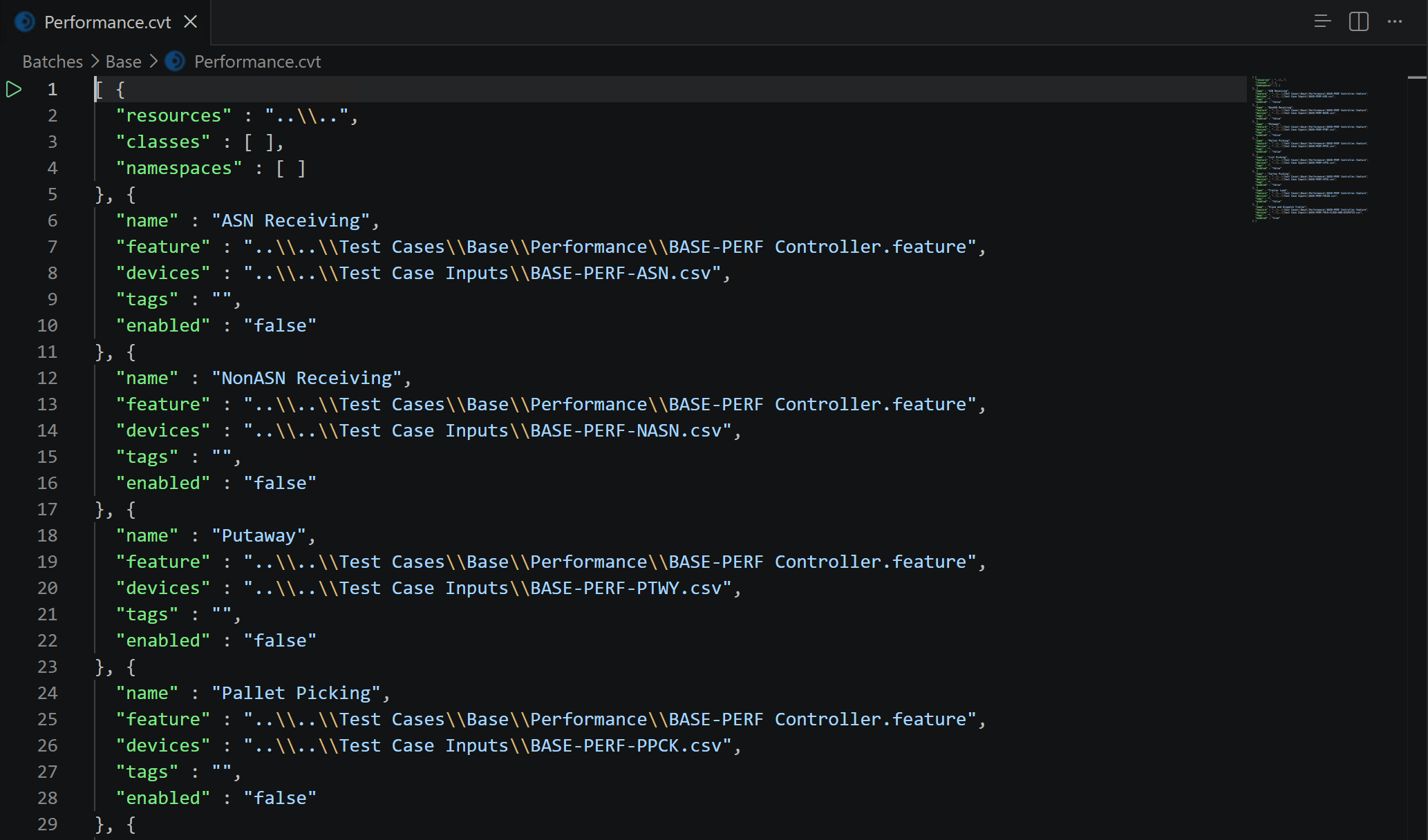
The text editor provides:
- Line numbers
- JSON syntax highlighting
- Collapsible JSON sections
- Full manual editing of all fields
- Diagnostics ("red squiggles") for syntax and semantic errors
To return to the visual editor, click Open Group Test Editor in the text editor title bar (list icon).
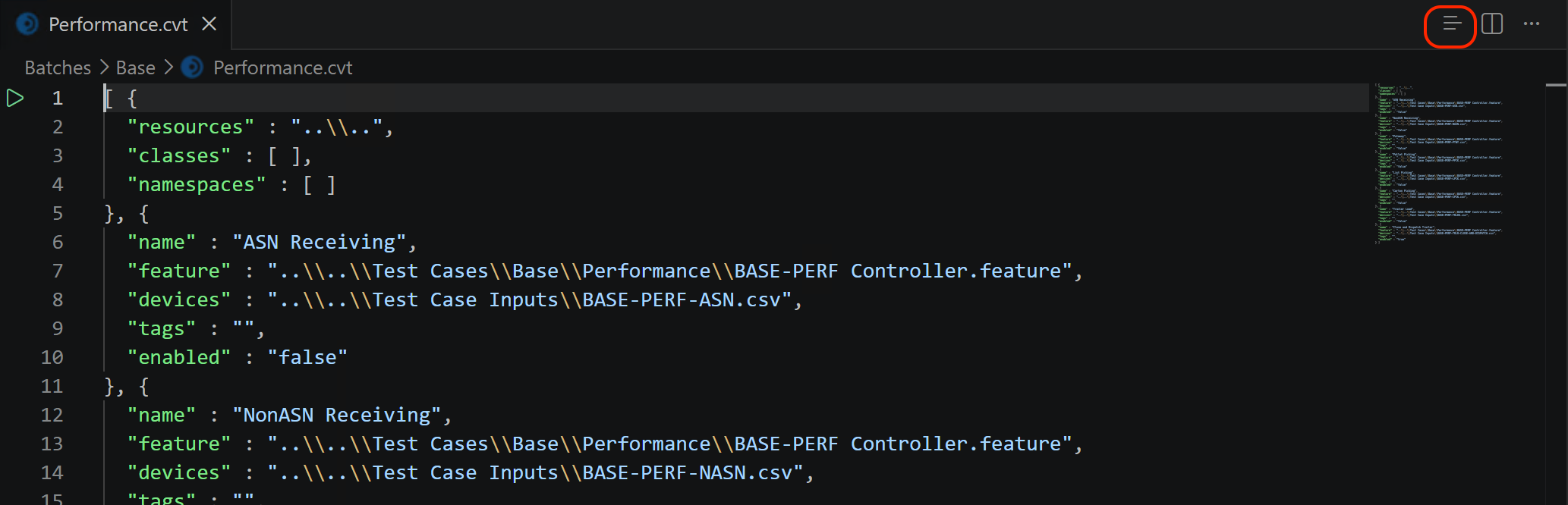
Only one view is open at a time per group test file. Edits made in the text editor appear when you switch back to the group test editor.
The text editor is useful for quick edits, copy-paste of multiple groups, and comparing two group test files.
Switching between editors does not mark the file dirty if you have not made changes. If you have made changes, you need to save the file before switching editors.
Prefer the visual editor rather than the text editor in most cases. The text editor can allow mistakes and syntax errors. It exists primarily for users who need to make direct edits.
Identifying errors
The extension validates group tests in two ways: syntax (parse) errors and semantic (path) errors.
Syntax errors
Syntax errors appear in a red banner in the group test editor:
This group test has a syntax error. Switch to the text editor to fix it:
{detail}
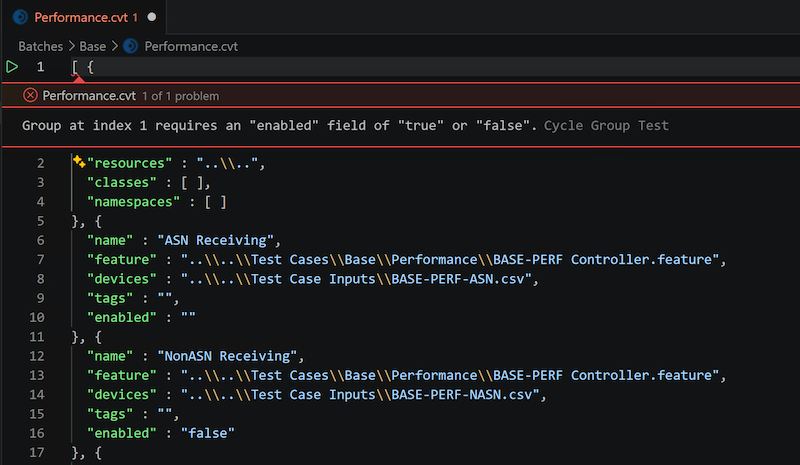
When a syntax error is present, group editing is blocked until you fix the file in the text editor. In the text editor, syntax errors show as red underlines. The diagnostic source is Cycle Group Test. Common syntax errors include:
- Empty file or invalid JSON
- An empty array
[] - A header that is missing or not an object
- Missing or wrong-type header fields (
resources,classes,namespaces) - A group that is missing required fields (
name,feature,devices) - An invalid
enabledvalue (must be"true","false", or a JSON boolean)
Semantic errors
For saved group tests, the extension also checks that referenced paths exist relative to the group test file:
- Feature: The file must exist and end with
.feature- Error:
Feature file not found: {path}
- Error:
- Devices: The path must exist as a file
- Error:
Devices file not found: {path}
- Error:
Semantic errors appear as diagnostics in the text editor. They do not block editing in the visual editor. Diagnostics refresh when the file content changes or when referenced files are created, deleted, or renamed in the workspace. Unsaved group tests skip semantic validation.