Reporting Settings
Reporting settings holds the configurations for the reports Cycle will generate after running tests. These settings are private and will not be shared as part of a Cycle project.
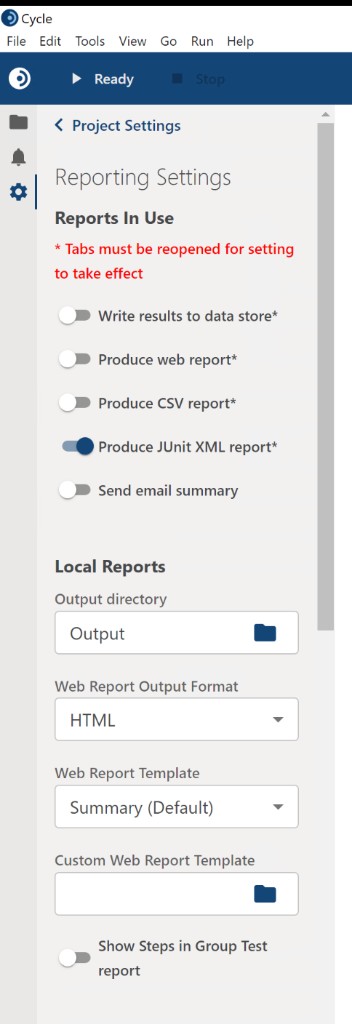
Reports in use
- Write results to data store: Turns on or off Cycle's logging of execution results directly to a database connection.
- Produce web report: Turns on or off Cycle's creation of an HTML-based report of the results of tests run.
- Produce CSV report: Turns on or off Cycle's creation of a report in CSV format for analysis in external applications.
- Produce JUnit XML report: Turns on or off Cycle's creation of a JUnit XML report for CI pipeline integration. Tabs must be reopened for this setting to take effect.
- Send email summary: Turns on or off the sending of a summary report via email. It is recommended to have this turned off while writing or debugging tests to avoid excessive unwanted emails.
Local reports
- Output Directory: Sets the location Cycle should export its reports (including JUnit XML, web, and CSV reports) and any saved images from execution.
- Web Report Output Format: Select from HTML or PDF formatted web reports.
- Web Report Template: Select whether Cycle uses the default Summary web report, Detailed web report, or a custom
.jrxmlweb report template. - Custom Web Report Template: Specify the local filepath to the custom
.jrxmlreport template. - Include Steps in Group Test reports: Toggles whether to include step information or only Feature and Scenario-level information in the CSV reports resulting from group tests.
Email summary
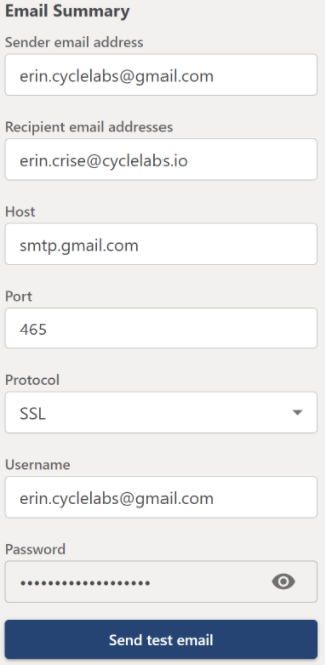
To enable email summaries, configure the following fields in the Reporting Settings > Email Summary section:
- Sender email address: The email address that Cycle will use to send the summary report.
- Recipient email addresses: Comma-separated list of email addresses that will receive the summary report. It is recommended to use an address different from the sender.
- Host: The SMTP server address for the sender’s email provider.
- Port: The port to send mail through.
- Protocol: The protocol used for sending emails. Cycle supports
SSL,TLS, andPlaintext. For Gmail,SSLis required. - Username: The email address used as the sender (same as the Sender email).
- Password: The password associated with the sender email. For Gmail accounts, you must use an App Password (see below).
Special instructions for Gmail users
Gmail requires enhanced security to allow third-party applications like Cycle to send emails. If using a Gmail address as your sender:
- Enable 2-Step Verification on your Google account.
- Navigate to your Google Account Security page and search “App Passwords” using the search bar.
- Under App passwords, generate a new password:
- Enter a name like
"Cycle"and click Create. - A modal will appear showing a 16-character app password (for example,
gssn adrx gkgg pfpt). Copy this password.
- Enter a name like
- Back in the Cycle app:
- Set Sender email address to your Gmail address.
- Set Recipient email to your intended recipient(s).
- Set Host to
smtp.gmail.com. - Set Port to
465. - Set Protocol to
SSL. - Set Username to your Gmail address.
- Set Password to the App Password (not your Gmail account password).
If you use TLS or Plaintext as your protocol, Gmail may reject the connection with an “unauthenticated” error.
Sending a test email
Once your settings are configured, use the Test Email option at the bottom of the Email Summary section to verify everything is working. If successful, a confirmation will appear, and the email summary will be sent to the recipient list.
Variable blacklist
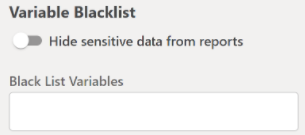
- Hide sensitive data from reports: Toggles on or off the masking of values assigned to sensitive variables specified in this section.
- Blacklisted Variables: The list of variables which should have their values masked in Cycle's output and all reports.