Inspector Panel
The Inspector panel, on the right side of Cycle, uses three buttons to show the Step Assistant (when editing a Feature File), Settings, and Output.
This panel also has two buttons in the lower left corner for the Data Extract tool and Collapse to hide the panel from view.

Step Assistant tab
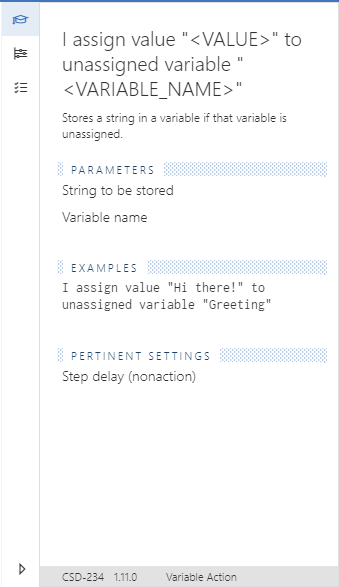
The Step Assistant tab provides additional information about the use case, parameters, and syntax of the highlighted step.
In the example below, the Step Assistant shows information about the step: I assign "<VALUE>" to variable "<VARIABLE_NAME>".
Settings tab
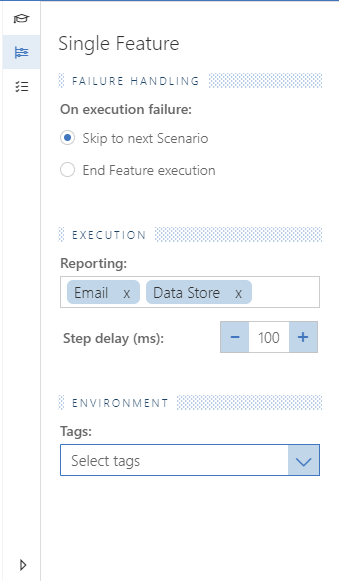
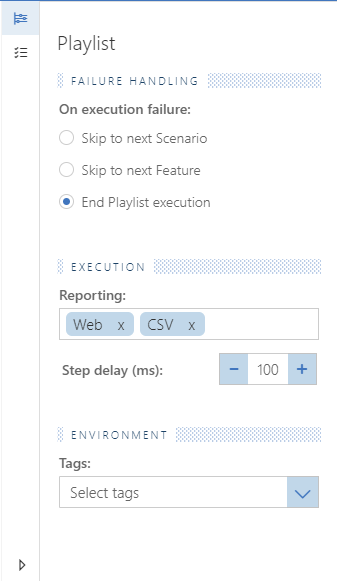
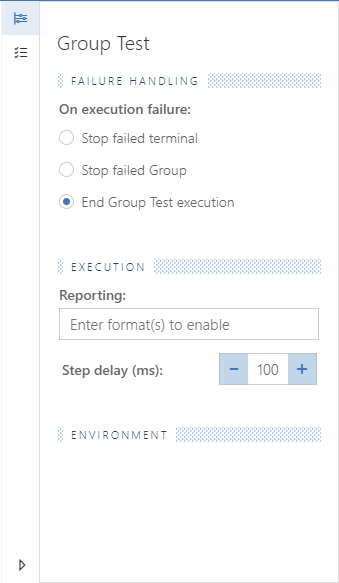
The Settings tab of the Inspector panel contains settings that are specific to the type of file open in the Cycle Editor. Below are examples of the Settings tab for each type of test. Settings configured here override any of the same settings configured under Edit > Preferences.
In general, the Settings tab contains these subsections:
- Failure Handling: What Cycle should do if a step fails
- Execution: What type of reports to enable (Email or Web), and how much time to pause between steps
- Environment: Defines the specific tags to be executed
Feature File settings
Playlist settings
Group test settings
Output pane
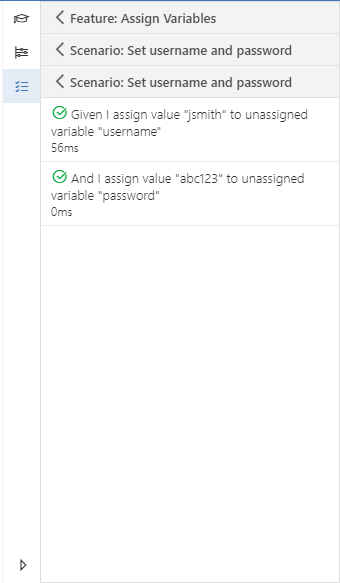
The Output pane shows the results of a test that is currently running or has completed. A green check indicates success or "true", a red X indicates failure, an orange exclamation point indicates "false", and rotating arrows indicate a step is currently running.
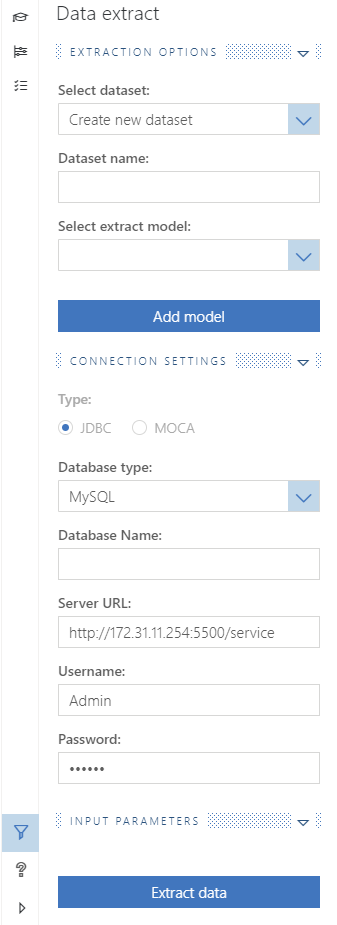
Data Extract tab
The Data Extract tool creates CSV files from an existing database. Open the Extract Data window from Tools > Extract Data... in Cycle. You can also open it from the Inspector panel with the funnel-shaped button.