Cycle Editor
The Cycle Editor workspace is the central pane of the Cycle Desktop IDE. Use it to create, edit, and run Feature Files, and to configure and run playlists and group tests.
Feature editing
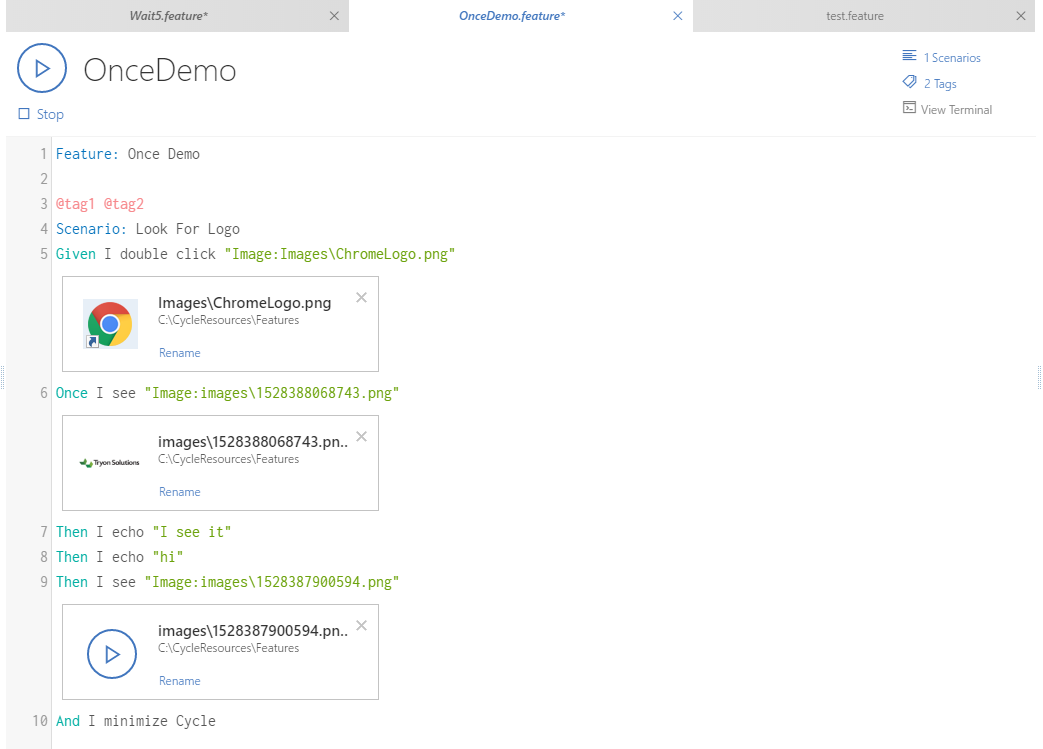
Editing a Feature File is one of the primary functions of the Cycle Editor workspace.
In the screenshot above, the open Feature File is named OnceDemo.feature.
The Editor has two main areas:
- Editor Controls: The upper portion of the Editor workspace, including:
- Tabs for other open Feature Files, playlists, or group tests
- Play button. Begins execution of the Feature File
- Stop button. Halts execution of the Feature File (only visible when a Feature File is running)
- Feature title. Indicates which Feature File is open
- Scenario and tag counters. Indicate how many Scenarios and tags are included in the selected Feature File
- View Terminal button. Opens a terminal window or device grid
- Editor Body: The lower and larger portion of the Editor workspace, which includes the full text of the Feature File
The Feature File editor helps you write valid steps with:
Dark mode
Beginning in Cycle 2.5.0, the Cycle Desktop IDE can be switched to a dark color mode:
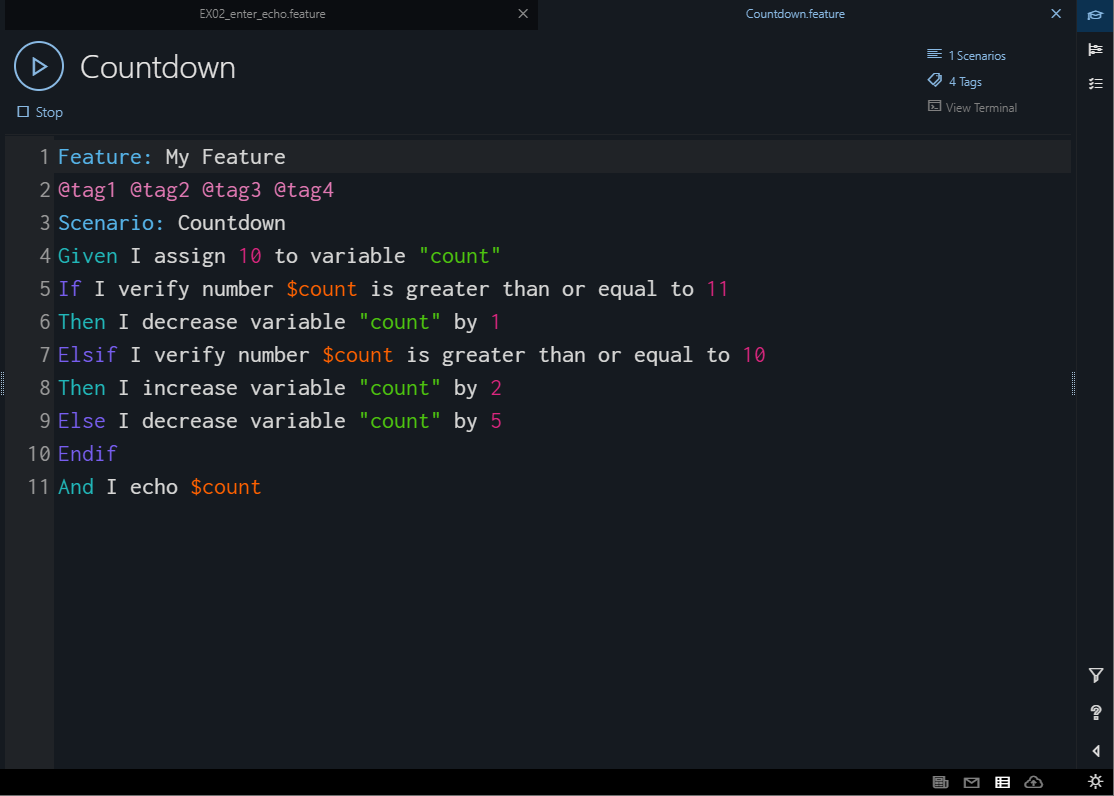
Toggle dark mode on or off from the moon/sun icon in the bottom right corner or in Edit > Preferences.
Playlist editing
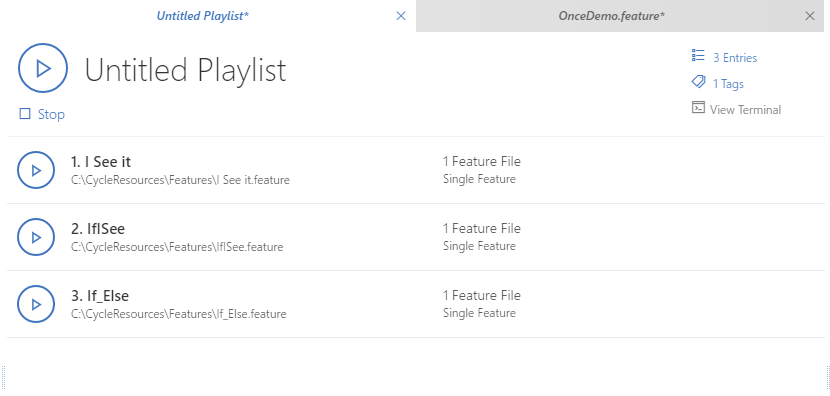
The editor for a playlist is similar to a Feature File in the header portion. The body of the editor becomes a drag-and-drop interface for including and reordering the Feature Files that comprise the playlist.
Group test editing
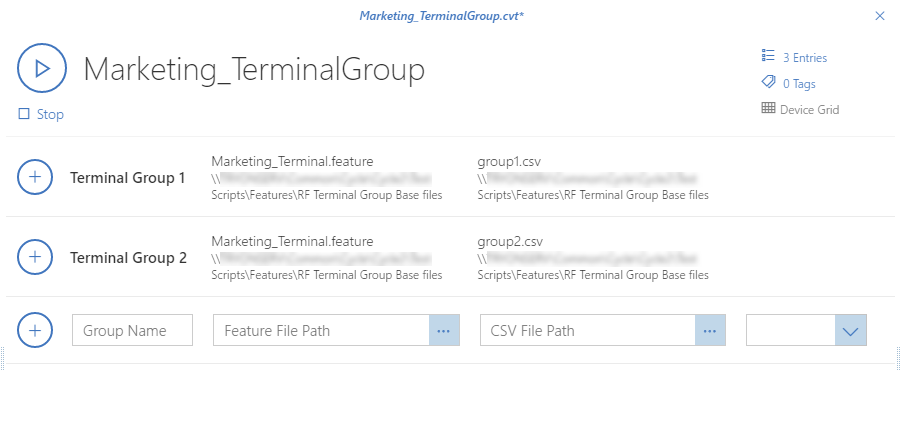
The editor for a group test is similar to a playlist for adding entries and reordering. The header contains a Device Grid button for showing or hiding the device grid of a currently running group test.
A new entry in a group test includes the Group Name, the path to the Feature File that the group test will execute, a CSV dataset for the group test to run through, and any specific tags the group test should run from within the Feature File.
Tab names in the Cycle Editor workspace have bold italicized titles when they contain unsaved changes. The bolding and italics are removed once the file is saved.