Making a test plan
Once you've completed answering all applicable questions in your project, Intelligent Discovery generates a customized test plan based on your answers. For Blue Yonder WMS projects, the test plan lists the relevant test scenarios from Cycle Labs' Blue Yonder WMS test library.
When the Test Plan Becomes Available
The test plan becomes available when your project reaches 100% completion. This means you've answered all applicable questions across both orientation and exploration areas.
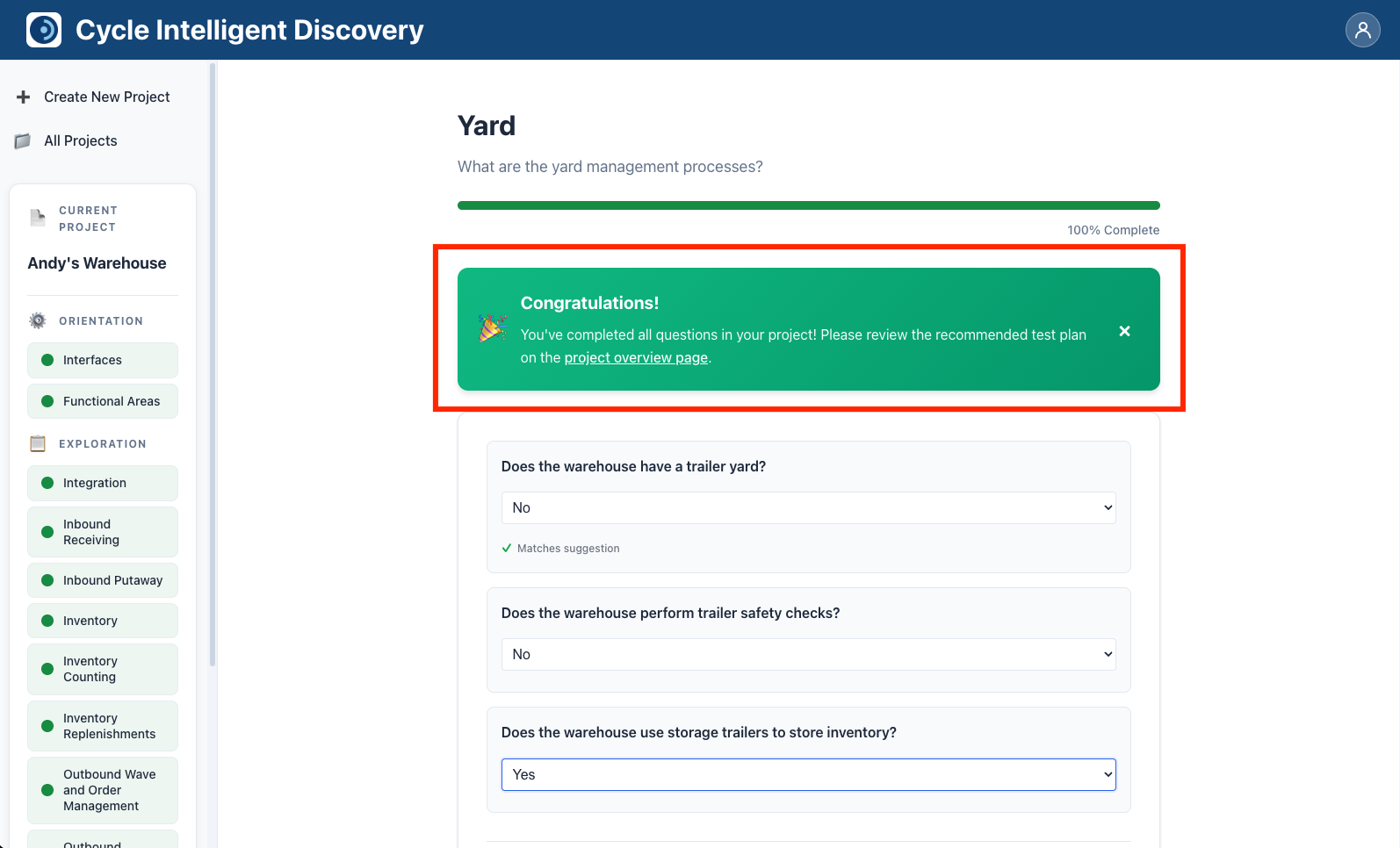
When you reach 100% completion, you'll see a congratulatory message indicating that your project mapping is complete and the test plan is ready for review.
Viewing Your Test Plan
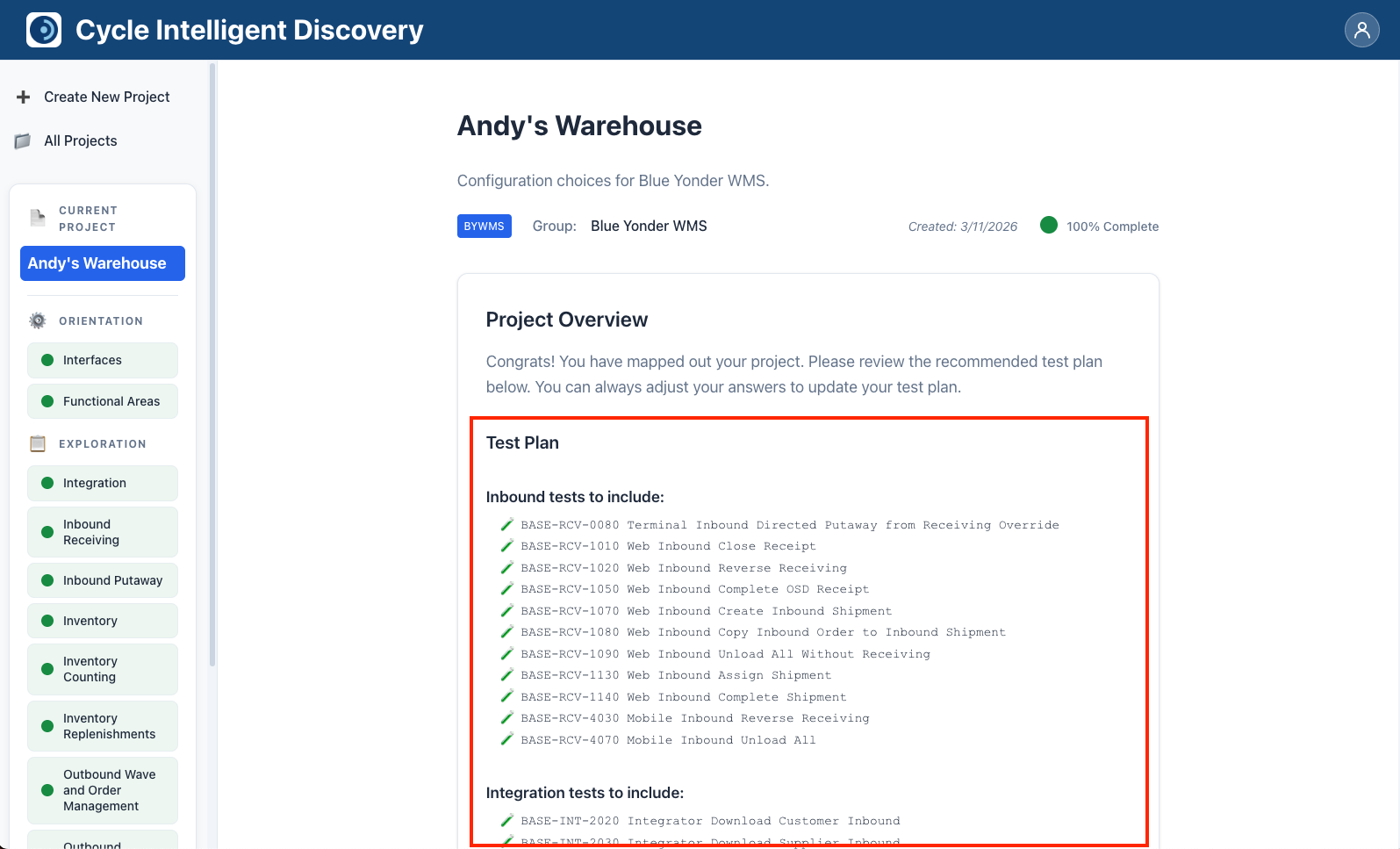
When your project is 100% complete, you'll see a section on the project page displaying your test plan. The plan shows:
- Test scenarios grouped by functional area
- Each area name as a heading
- Test scenario names indented under each area
- Areas with no applicable tests will show "None"
Understanding Test Plans
The test plan consists of test scenario names from the Blue Yonder WMS library that Cycle Labs provides. These scenarios are automatically selected based on your answers to the discovery questions.
- Each test scenario name represents a specific test case that should be executed for your WMS configuration.
- The scenarios are organized by functional area.
- Only scenarios relevant to your configuration (based on your answers) are included in the plan.
Downloading Your Test Plan
You can download your test plan as a text file for use in your testing process:
-
On the project page, locate the test plan section (visible when completion is 100%).
-
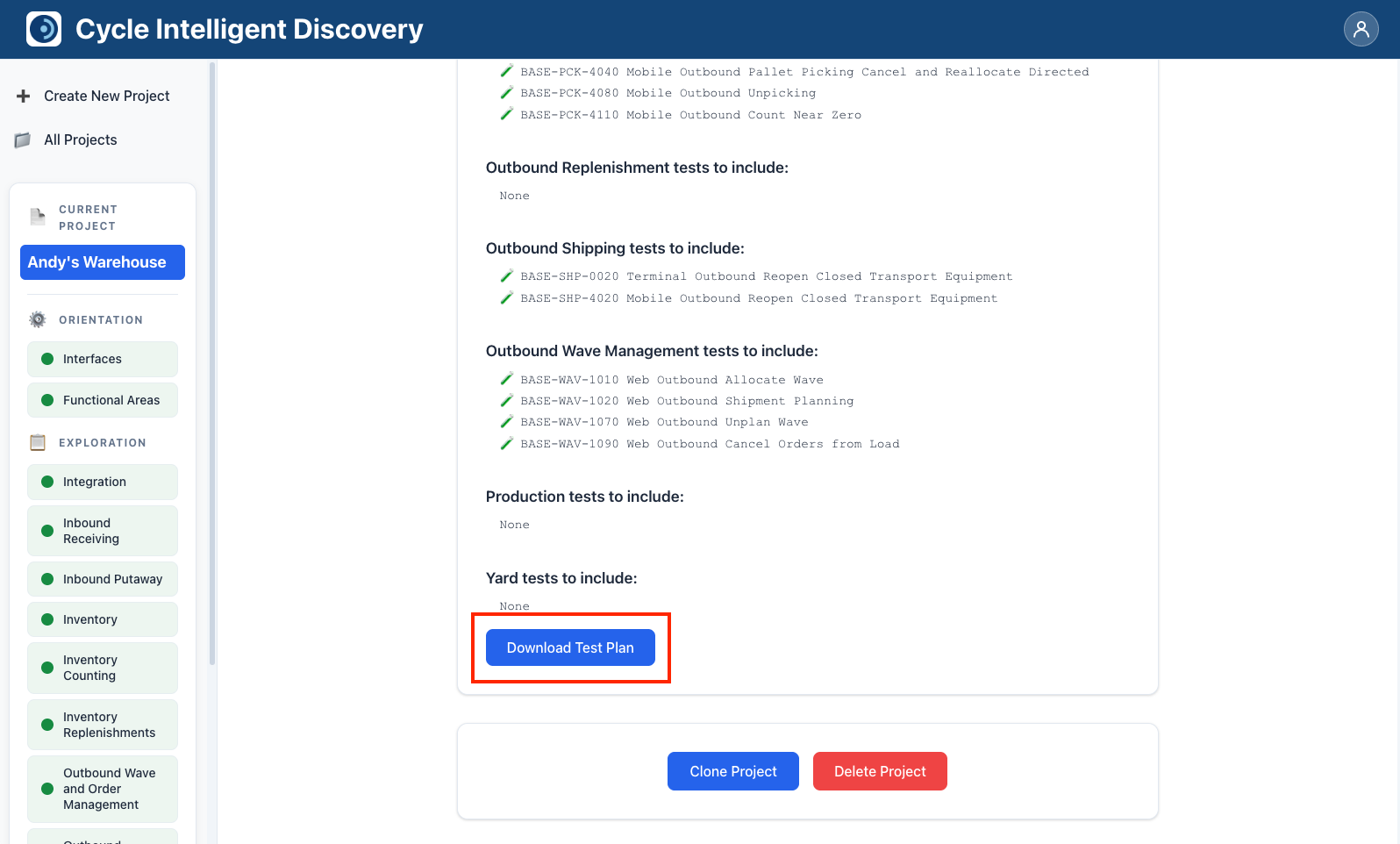
Click the "Download Test Plan" button or similar download control.
-
The test plan will be downloaded as a text file to your computer.
-
The file will be named using the format:
{project_name}_test_plan.txtFor example, if your project is named "Warehouse A", the file will be named
warehouse_a_test_plan.txt.
Test Plan File Format
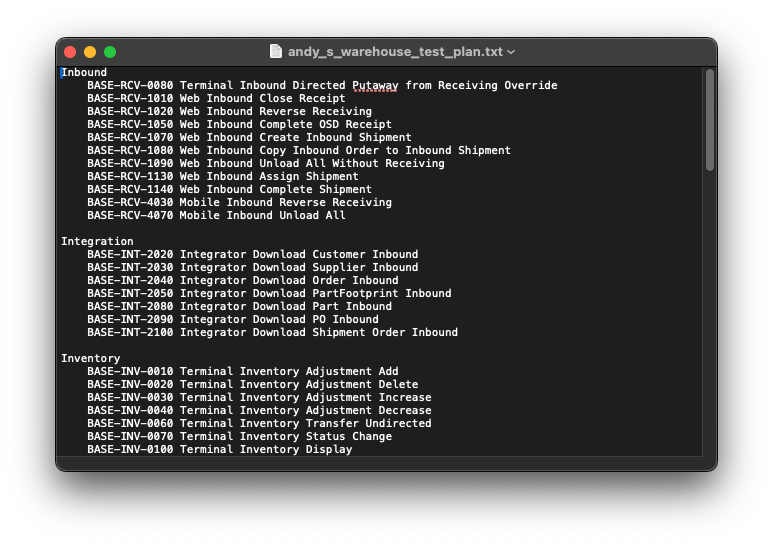
The downloaded test plan file is a plain text file with the following structure:
- Each functional area name appears as a heading (not indented)
- Test scenario names for that area appear indented (4 spaces) beneath the area name
- Areas are separated by blank lines
- If an area has no applicable tests, it will show "None" indented beneath the area name
Example format:
Receiving
    Test Receiving - Basic Receipt
    Test Receiving - Advanced Putaway
    Test Receiving - Cross-Dock

Shipping
    Test Shipping - Order Fulfillment
    Test Shipping - Label Printing

Inventory Management
    None
Below is an example test plan text file:
Updating Your Test Plan
Your test plan is dynamically generated based on your answers. This means:
- If you change any answers after reaching 100% completion, the test plan will automatically update to reflect those changes.
- You can download the updated test plan at any time.
- The test plan will always reflect the current state of your project's answers.
If changing answers causes your completion percentage to drop below 100% (for example, if new questions appear due to dependency changes), the test plan section may be hidden until you complete those new questions.
Using Your Test Plan
Once downloaded, you can use your test plan to:
- Guide your testing efforts for the system implementation
- Share with your testing team
- Track test execution progress
- Document which test scenarios are relevant to your configuration
The test plan serves as a roadmap for ensuring comprehensive testing coverage of your system configuration based on the specific choices and capabilities you've documented in Intelligent Discovery.