Changing project information
You can edit your project information and answers at any time. Intelligent Discovery makes it easy to update project details and modify your answers as your system configuration evolves.
Viewing Your Project
To view and edit a project, navigate to the project page by:
- Clicking on a project from the "All Projects" list, or
- Using the project's direct URL:
/project/{projectId}
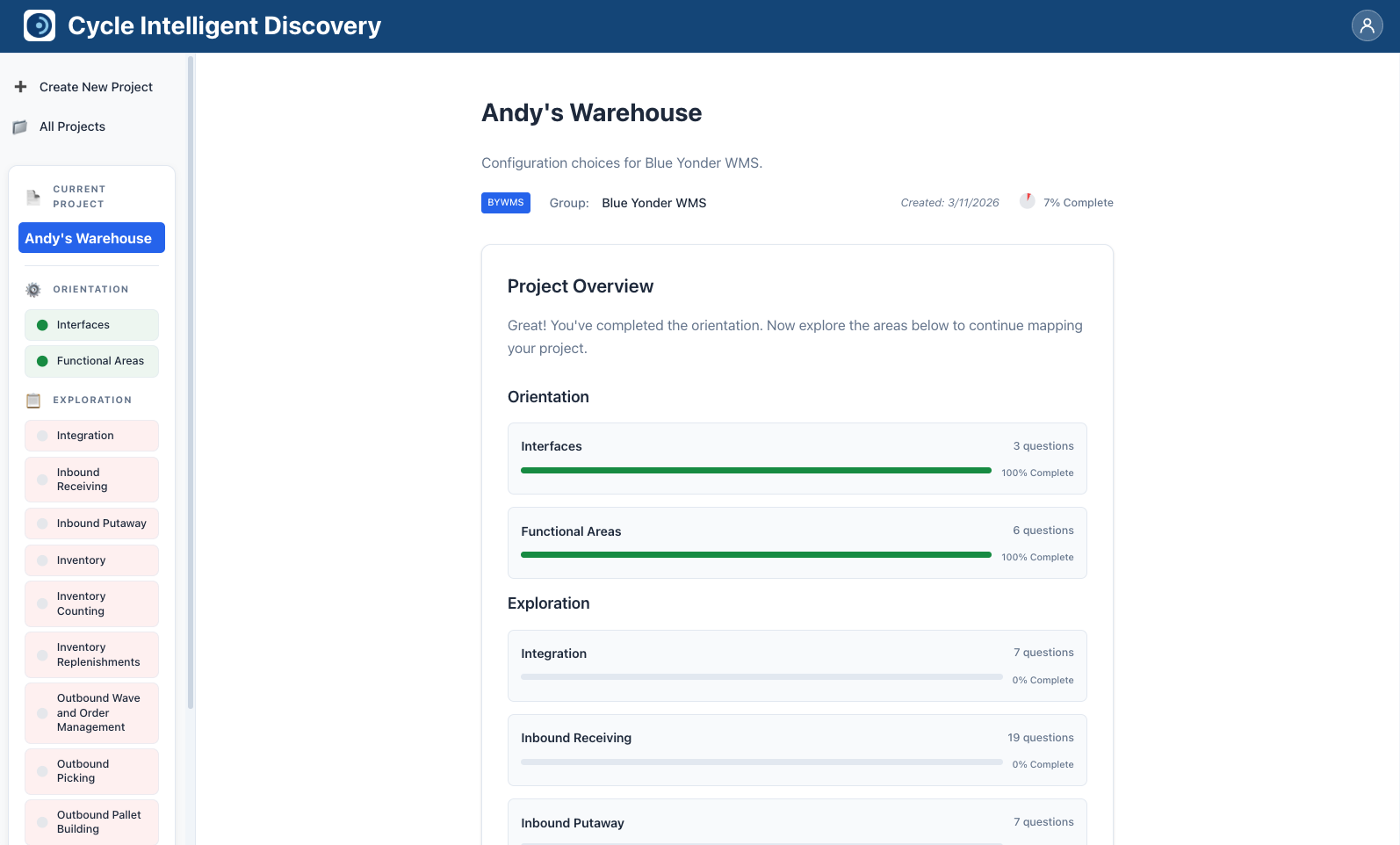
The project page displays all project information and provides access to editing capabilities.
Editing Project Fields
You can edit three main project fields directly on the project page:
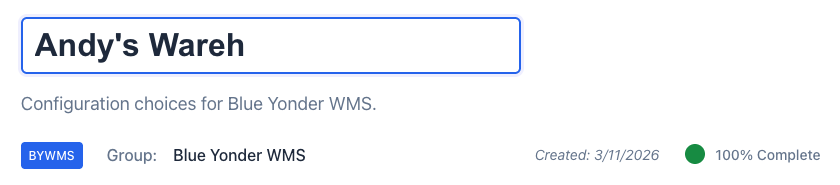
Project Name
The project name appears as a large heading at the top of the project page.
- Click on the project name to enter edit mode.
- The name becomes an editable text field.
- Type your new project name.
- Press Enter to save, or click outside the field to save.
- Press Escape to cancel editing and revert to the original name.
Changes are saved automatically when you finish editing.
Project Description
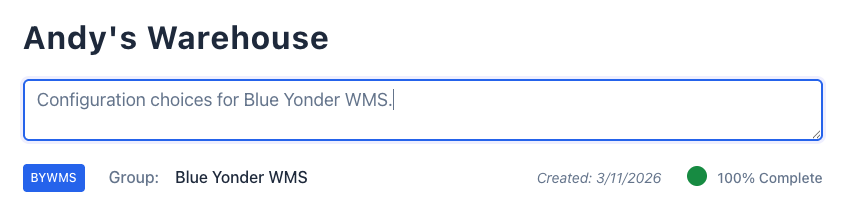
The project description appears below the project name.
- Click on the description text to enter edit mode.
- The description becomes an editable textarea.
- Type or modify your description.
- Press Enter (without Shift) to save, or click outside the field to save.
- Press Escape to cancel editing.
Changes are saved automatically when you finish editing.
Group Name
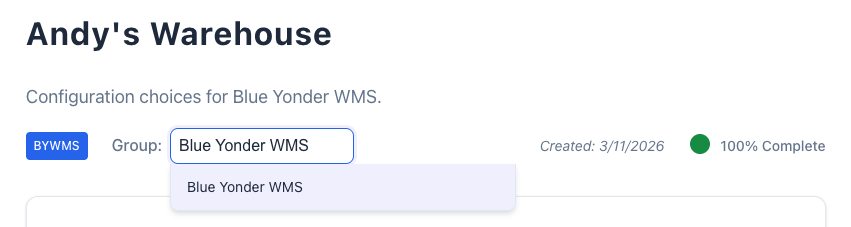
The group name appears in the project metadata section, labeled "Group:".
- Click on the group name to enter edit mode.
- The group name becomes an editable text field with autocomplete suggestions.
- Start typing to see suggestions from existing project groups.
- Select a suggestion from the dropdown, or type a new group name.
- Press Enter to save, or click outside the field to save.
- Press Escape to cancel editing.
If you type a group name that doesn't exist, it will be created when you save. Changes are saved automatically.
Changing Answers
To change answers to questions:
-
Navigate to the area containing the question you want to modify. You can do this by:
- Clicking on an area card from the project overview page, or
- Using the area navigation if you're already on an area page
-
Find the question you want to change.
-
Select a new answer. Your change is automatically saved.
-
The area's completion percentage and overall project completion will update automatically based on your changes.
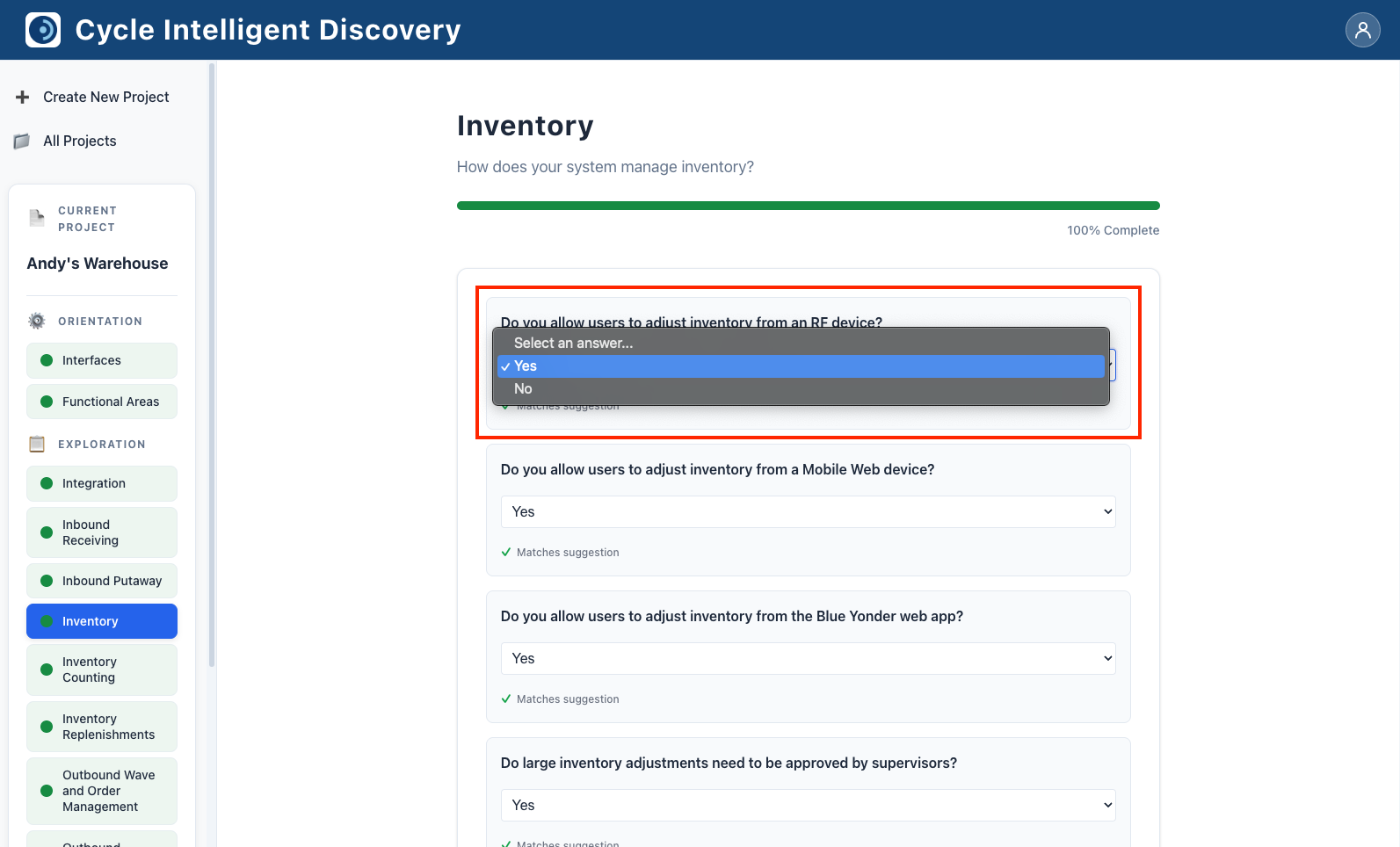
Implications of Changing Answers
Changing answers can have several important effects on your project:
Dependency Changes
When you change an answer, questions and areas that depend on that answer may appear or disappear:
- New questions appear: If your new answer meets a dependency condition, previously hidden questions will become visible.
- Questions disappear: If your new answer no longer meets a dependency condition, dependent questions will be hidden.
- Answers reset: If you change an answer and dependent questions that were previously answered no longer meet their dependency conditions, those answers will be reset to unanswered. You'll need to answer them again if they become applicable later.
Example: If you change "Do users work with RF terminals?" from "Yes" to "No", all questions specifically about RF terminal configurations will be hidden. If you change it back to "Yes" later, those questions will reappear, but any answers you had previously provided will need to be provided again.
Completion Percentage Recalculation
The project completion percentage is recalculated whenever you change an answer:
- If new questions appear due to dependency changes, your completion percentage may decrease (because there are more questions to answer).
- If questions disappear, your completion percentage may increase (because there are fewer applicable questions).
- The completion percentage always reflects the current state of applicable questions.
Test Plan Updates
If your project was at 100% completion and you change answers:
- The test plan will automatically update to reflect your new answers.
- New test scenarios may be added if your answers now match additional mapping rules.
- Test scenarios may be removed if your answers no longer match certain mapping rules.
- You can download the updated test plan at any time.
If changing answers causes new questions to appear (due to dependencies), your completion may drop below 100%, and the test plan section may be hidden until you complete those new questions.
Area Visibility
Entire exploration areas can have dependencies. Changing orientation answers may cause exploration areas to appear or disappear:
- If an area's dependency conditions are met, the area becomes visible.
- If an area's dependency conditions are no longer met, the area is hidden.
- Answers in hidden areas are preserved but won't affect completion calculations until the area becomes visible again.
Best Practices
When changing project information:
-
Review dependencies: Before changing a key answer, consider which questions or areas might be affected.
-
Check completion: After making changes, review your completion percentage to see if new questions have appeared.
-
Update test plan: If your project was complete, download a new test plan after making significant changes to ensure it reflects your current configuration.
-
Save frequently: While answers auto-save, be aware that dependency changes can affect multiple questions at once.
-
Document changes: Consider updating your project description if you make significant changes to document why those changes were made.