Executing Playlists
A playlist (.cycplay) runs a collection of Feature Files together as one launch.
Create and edit playlists under Cycle Projects > Playlists; this page covers how to run them.
Running from the Desktop IDE
Open the playlist in the Cycle Editor and press the Play button, the same control used for executing a Feature File.

While the playlist runs, avoid moving the mouse or pressing keys if the Feature Files interact with the desktop UI, since that can interfere with Cycle's actions.
Playlist execution uses the same configuration as a single Feature File for Cycle extensions, resource directories, and tag execution.
Failure handling
In the Playlist Settings tab, choose what happens when a step fails:
- Continue executing the current Feature File
- Run the next Feature File
- End playlist execution
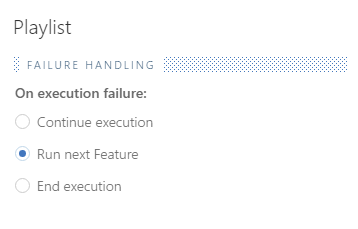
This option is similar to Fail Fast in Cycle Settings.
Results in the Output pane
The Output tab works like Feature File execution, with an extra level that groups results by parent Feature File. A playlist produces a single report when it completes.
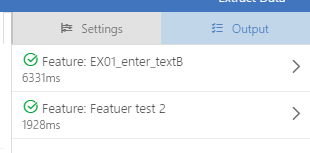
For interactive results while developing, use the Report Dashboard. For durable, shareable output, use Classic Reporting.
Running from the Cycle CLI
Pass the path to a .cycplay file as the execution target, the same way you would pass a Feature File:
cycle-cli path\to\playlist_name.cycplay
See Cycle CLI parameters for parameters, including --error-handling options that apply to playlists (for example, end the playlist on failure with ALL_TESTS).