JUnit XML Reports
JUnit XML reports are an industry-standard format for sharing automated test results. The report is a single XML file that lists test case names, pass/fail status, execution time, and error details when a test fails. Nearly every test framework can produce JUnit XML, and nearly every Continuous Integration (CI) system can consume it to display rich test result views, store historical trends, and highlight recurring failures across pipeline runs.
Cycle can optionally generate a JUnit XML report after a Feature File, playlist, or group test finishes. This makes Cycle behave like other standard test automation tools and gives pipeline users better visibility into Cycle test results without extra conversion steps.
For background on where these settings live in the Cycle client, see Cycle Reporting Settings.
Why generate JUnit XML reports?
If you run Cycle tests in a CI pipeline, JUnit XML reporting is a direct way to get actionable test results inside that pipeline. With JUnit XML enabled, your CI system can:
- Display pass/fail summaries and drill-down details for each test case
- Attach the screenshots captured during a run to the test results that produced them
- Persist test history across pipeline runs
- Surface failure trends over time
- Fail or warn a build based on test outcomes alongside other pipeline checks
Because JUnit XML is widely supported, the same Cycle report file can be published through Jenkins, Azure DevOps, GitLab CI, GitHub Actions, and most other CI platforms with minimal additional configuration.
Generating JUnit XML reports
JUnit XML reporting is controlled from Reporting Settings in the Cycle client.
These are user settings stored in your .cycuser file and are not shared as part of a project.
- Open Settings from the Project Directory.
- Select Reporting Settings.
- In the Reports In Use section, turn on Produce JUnit XML report.
- In the Local Reports section, set Output directory to the folder where Cycle should write the report.
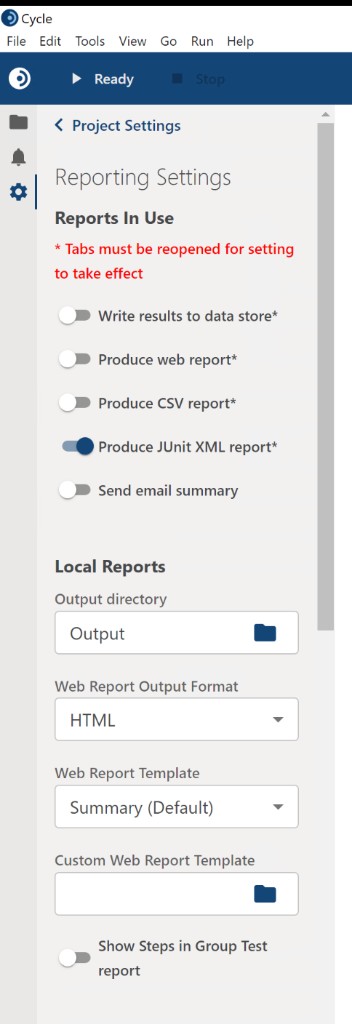
The Output directory is the same output directory used for web reports, CSV reports, and saved execution images.
The path may be absolute or relative to your project directory, for example Output or C:\Cycle\Output.
Make sure the directory exists or that Cycle has permission to create it.
If you run tests from cycle-cli in CI, choose a location inside your workspace or agent output folder so the CI system can publish the file as a build artifact.
cycle-cli also accepts -o (or --output-directory) to override this setting for a single run, which is the more reliable choice in a pipeline.
See Publishing Reports in CI Pipelines.
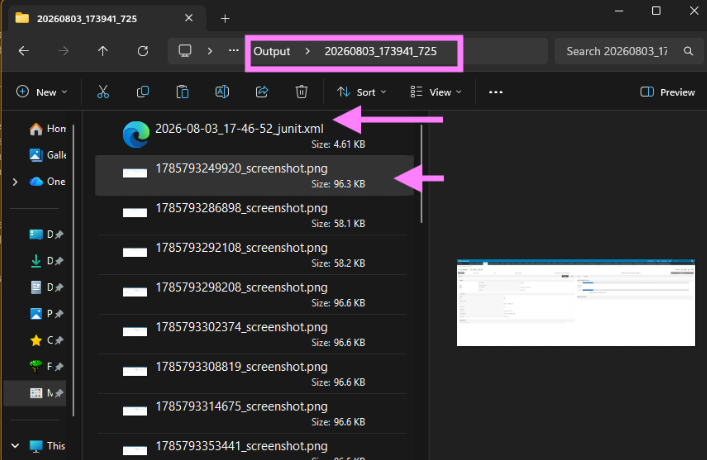
After configuring these settings, Cycle generates JUnit XML report files into a timestamped directory under the specified output folder.
Tabs must be reopened before Produce JUnit XML report takes effect. A tab that was already open when you changed the setting continues to use the previous configuration.
What the report contains
Cycle maps its own execution structure onto the standard JUnit XML elements:
| XML element | Cycle concept | Notable attributes |
|---|---|---|
<testsuites> | The test execution as a whole | name, tests, failures, errors, time |
<testsuite> | Each Feature File, group, or playlist in the run | name, tests, failures, errors, time, timestamp |
<testcase> | Each Scenario | name, classname (the enclosing suite), time |
<failure> | A failed Scenario | message (the failure detail), type (the failing step text) |
<system-out> | Screenshots captured by the Scenario | Contains one [[ATTACHMENT|path]] marker per screenshot |
Suite names carry the declaration keyword, so a Feature File appears as Feature: <name> rather than the bare name.
A Scenario Outline produces one <testcase> per Example, named Scenario Outline: <name> - Example <n>.
Timestamps on <testsuite> are recorded in UTC.
A Feature File that opened but ran no Scenarios does not appear as an empty <testsuite> in the output.
Each run writes into its own timestamped directory, for example Output/20260803_173941_725/, containing the report as <date>_<time>_junit.xml alongside the screenshots from that run.
Using JUnit XML reports in CI
- Screenshots in JUnit XML Reports: how Cycle attaches captured images to test results, and how the file paths behave.
- Publishing Reports in CI Pipelines: Jenkins, Azure DevOps, and other CI configuration.