Screenshots in JUnit XML Reports
When Cycle generates a JUnit XML report, it also records the screenshots captured during the run. Each Scenario's test case carries references to the image files its steps produced. CI systems that understand these references attach the images to the matching test result, so a failed Scenario shows the screen as it appeared when the test failed.
This page explains how those references work, how the file paths behave, and what to configure so the images actually reach your CI reports. To enable JUnit XML reporting in the first place, see JUnit XML Reports.
Why attach screenshots to test results?
A pass/fail list tells you that a Scenario failed. A screenshot tells you what the application looked like when it failed. Attaching screenshots to the test result closes that gap directly inside the CI report:
- Triage without the test machine: Reviewers diagnose failures from the pipeline run instead of requesting access to the agent that ran the test.
- Evidence next to the result: The image is attached to the specific Scenario that produced it rather than buried in a folder of build artifacts.
- Faster review of web failures: Web steps that fail on an unexpected page or a missing element are usually obvious from a single image.
- A record for passing runs: Screenshots captured by passing Scenarios are attached as well, which is useful for verification and audit trails.
What counts as a screenshot
For JUnit XML reporting, a screenshot is an image file that a step captured during execution. These are predominantly the images captured during web browser testing, including:
- Automatic screenshots taken when a web step fails
- Images saved explicitly by steps such as
I save screenshotandI save screenshot as "<FILE_PATH>"
Terminal screenshots are captured as text rather than as image files, so they do not appear as attachments. Terminal output still reaches the report through the failure message and error detail on the test case.
The image files a JUnit XML report references are the same ones a tester reviews locally. The Report Dashboard displays a captured web step screenshot in its step details pane, next to the step text and the error detail for that step.
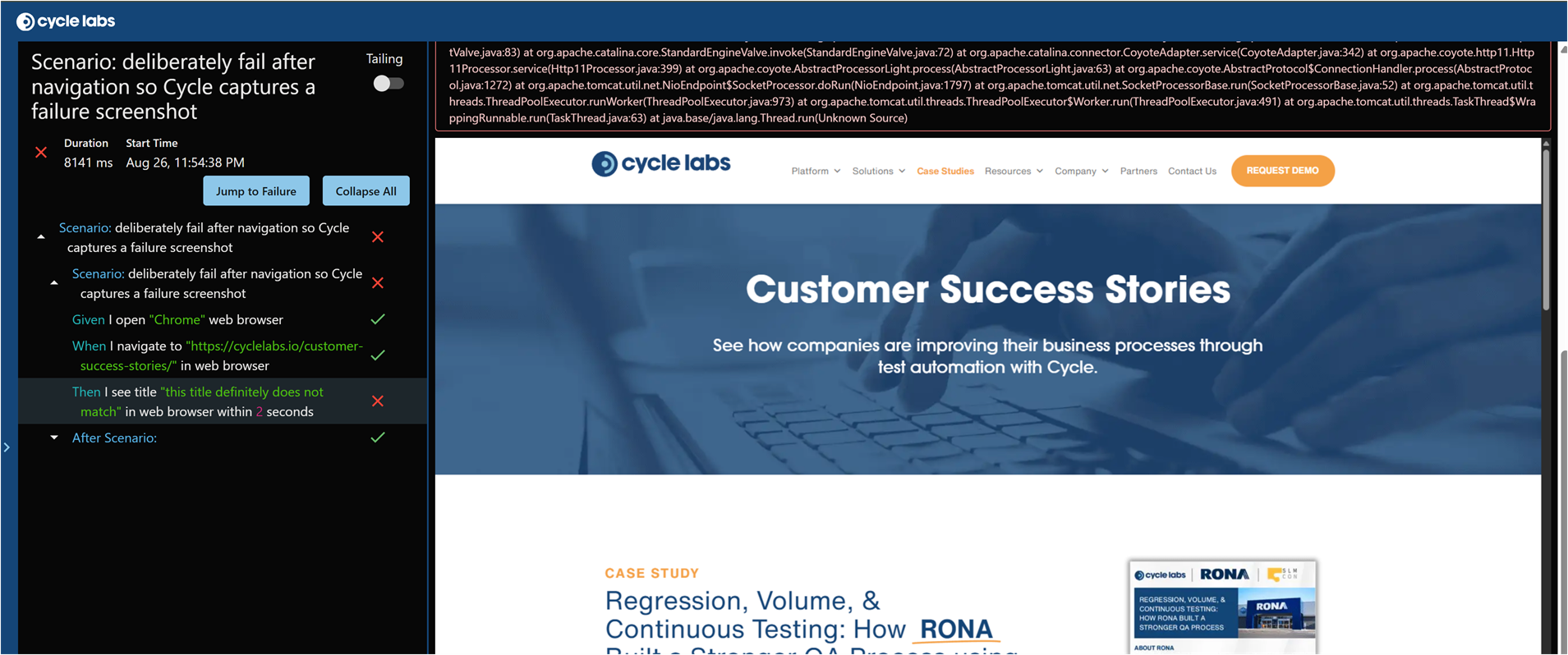
How screenshot references appear in the report
There is no formal standard for embedding attachments in JUnit XML.
There is, however, a widely adopted convention: a [[ATTACHMENT|path]] marker inside the <system-out> element of a <testcase>.
Both Azure DevOps and Jenkins parse this convention, so a single Cycle report works in either system.
Cycle writes one marker per screenshot, each on its own line, in the order the steps ran:
<?xml version="1.0" encoding="UTF-8"?>
<testsuites name="Feature: Inventory Adjustment" tests="1" failures="0" errors="0" time="429.278">
    <testsuite name="Feature: Inventory Adjustment" tests="1" failures="0" errors="0" time="429.278" timestamp="2026-08-03T21:39:43">
        <testcase name="Scenario Outline: Inventory Adjustment - Example 1" classname="Feature: Inventory Adjustment" time="428.964">
            <system-out>
[[ATTACHMENT|C:\Cycle\Projects\bywms\Output\20260803_173941_725\1785793249920_screenshot.png]]
[[ATTACHMENT|C:\Cycle\Projects\bywms\Output\20260803_173941_725\1785793286898_screenshot.png]]
</system-out>
        </testcase>
    </testsuite>
</testsuites>
Each marker must occupy a whole line with no surrounding text. Cycle handles this formatting for you.
Two details are easy to miss in that example:
- The Scenario above passed, and it still carries attachments. A single long Scenario can accumulate dozens of markers across its steps.
- A Scenario Outline produces one
<testcase>per Example, namedScenario Outline: <name> - Example <n>, and each carries the screenshots from its own run.
Screenshot files are written into the same timestamped run directory as the report itself, named with the capture timestamp:
Output/
  20260803_173941_725/                  # one directory per run
    2026-08-03_17-46-52_junit.xml       # the JUnit XML report
    1785793249920_screenshot.png        # screenshots from that run
    1785793286898_screenshot.png
Understanding screenshot paths
Cycle writes screenshot references as absolute paths. This is deliberate, because the two supported CI systems resolve relative paths differently:
| CI system | How it resolves a relative path | Result with an absolute path |
|---|---|---|
| Azure DevOps | Relative to the report file | Used as-is |
| Jenkins | Relative to the workspace root, not the report directory | Used as-is |
A path that is relative to the report file would resolve correctly in Azure DevOps and fail in Jenkins. An absolute path is the one form both systems resolve identically, so the same report file works in both without rewriting.
Because the paths are absolute, the image files must be readable at those exact paths when the publish step runs. This holds in the normal CI case, where the same agent runs the tests and publishes the results. It does not hold when the two happen in different places.
Two situations commonly break absolute paths:
- Publishing from a different machine: If one agent runs Cycle and another publishes the report, the paths point at a filesystem the publishing agent cannot see.
- Crossing a container boundary: If Cycle runs inside a container and the publish step runs on the host, a path such as
/cycle/output/checkout-1.pngrefers to the container filesystem. Mount the output directory so the same path is valid on both sides, or run the publish step in the same container.
When Cycle cannot determine the project directory for a run, it writes the stored relative path instead of an absolute one. Test results still publish normally in that case, but the attachments may not resolve.
Keeping screenshots available to CI
The report references the images. It does not embed them. Plan for both files to be present and readable when your pipeline publishes results:
- Point Output directory at a location inside the workspace or agent output folder, so screenshots and the report land together in a place the pipeline can reach.
- Publish test results from the same agent and the same filesystem view that ran the tests.
- Archive the image files alongside the report when you want them retained as standalone build artifacts.
Cycle writes the JUnit XML report and the saved execution images under the same Output directory. Archiving that directory captures the report and its screenshots in a single artifact pattern.
Large image sets consume storage and upload time on every run. Azure DevOps supports 2 GB of total attachments for public projects. If your suites capture many screenshots, review your execution settings to control how many images each run produces.
Variable blacklisting masks sensitive variable values in the Output Panel and in reports. Two parts of a JUnit XML report fall outside it:
- Screenshots: A screenshot is a picture of the screen, so whatever the browser displayed at capture time is preserved in the image.
- Failure detail: The
messageattribute of a<failure>element carries the underlying error. For web and plugin steps that is often a full stack trace, and it can include the server address under test and local file paths. Thetypeattribute holds the step text, which may itself contain a URL.
Publishing results sends both to everyone who can read your build. Before turning this on in a shared pipeline, check who has access, and confirm that neither the screens under test nor the failure output carry customer data or credentials.