Using Accessibility Insights
To use Cycle native app Steps, it is recommended that Windows Accessibility Insights is installed to identify app object identifiers. If you have not downloaded and installed Accessibility Insights, follow the instructions provided on this page:
How to Configure Your Computer to Use Cycle's Native App Steps
When using native app Steps there are 4 element locator types that can be used to interact with applications using Cycle.
Locator types:
- Name
- AutomationId
- xPath
- controlType
Finding object identifiers with Accessibility Insights
-
With your application and Accessibility Insights open, the mouse cursor can be moved around the application and Accessibility Insights shows UI element information in real time based on what UI element the cursor is hovering over.
In the example below using the Windows Calculator app, the "1" button is being hovered over, and the Live Inspect view displays information about the "1" button. The Tree view shows the location of the button within the element hierarchy, and the Details section shows object identifiers of the button.
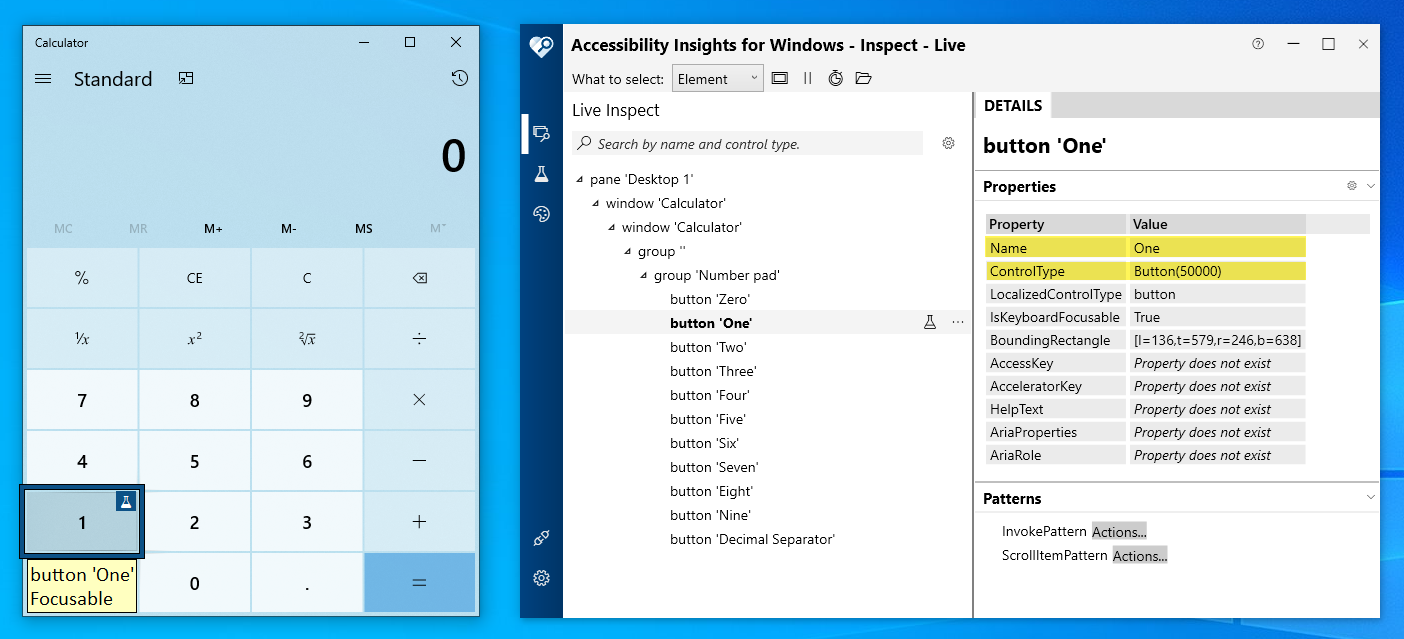
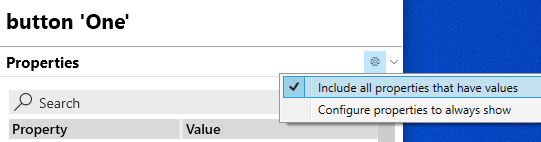
The default view on the details pane does not show all possible properties of an object. To update this, click the gear symbol on the Properties section header and check the box for "Include all properties that have values":
-
The Tree view on the left side can be navigated to any accessible element within the element hierarchy with mouse or keyboard.
Both a locator type and an object identifier are needed in order to write Cycle Steps.
For most use cases the Name or AutomationId object types are the most reliable and help maintain the readability of Feature Files. Using xPath and controlType may take more time to execute and could be less reliable.
If an application is closed and reopened, Accessibility Insights may also need to be closed and reopened in order for accurate information to be displayed.
Accessibility Insights has a wide range of additional settings and features. The official Microsoft documentation can be found here: