Inserting or Replacing Images
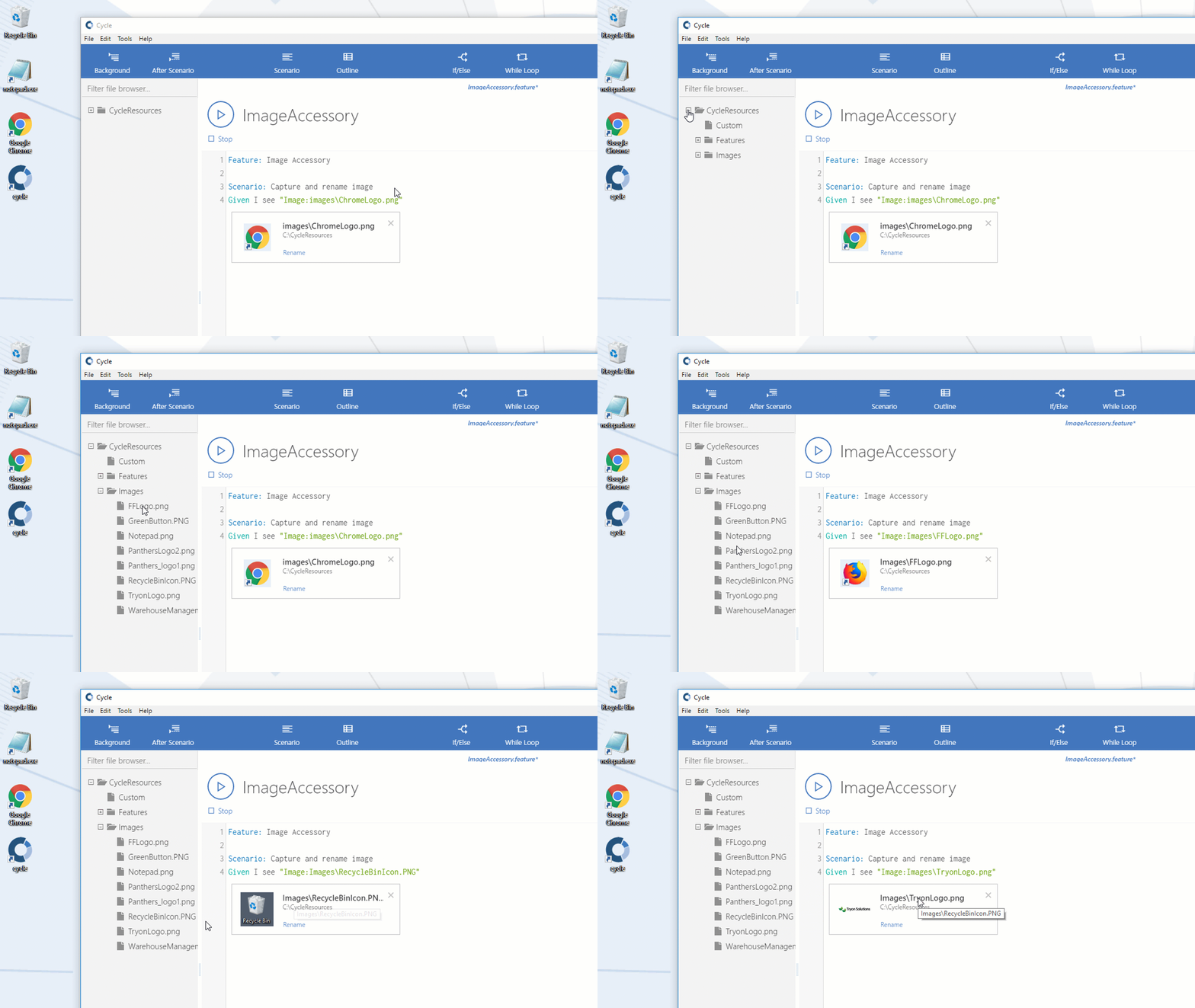
Cycle allows drag and drop of images in image Steps using the Image Accessory.
To access the Image Accessory tool, follow the steps below.
-
Write a Step that looks for an image, such as
Then I see "Image:<IMAGE_FILE_PATH>". -
Click the Image Preview On/Off button:


-
The Image Accessory appears below the image Step:

-
From the File Browser panel, find and drag the image Cycle should look for onto the Image Accessory. Images can also be replaced by dragging a new image onto the already populated Image Accessory: