Browsing and Searching Steps
The Step Guide provides two main views, accessible via the tabs at the top of the window: the Steps view (selected by default) and the Plugins view.
The Steps view
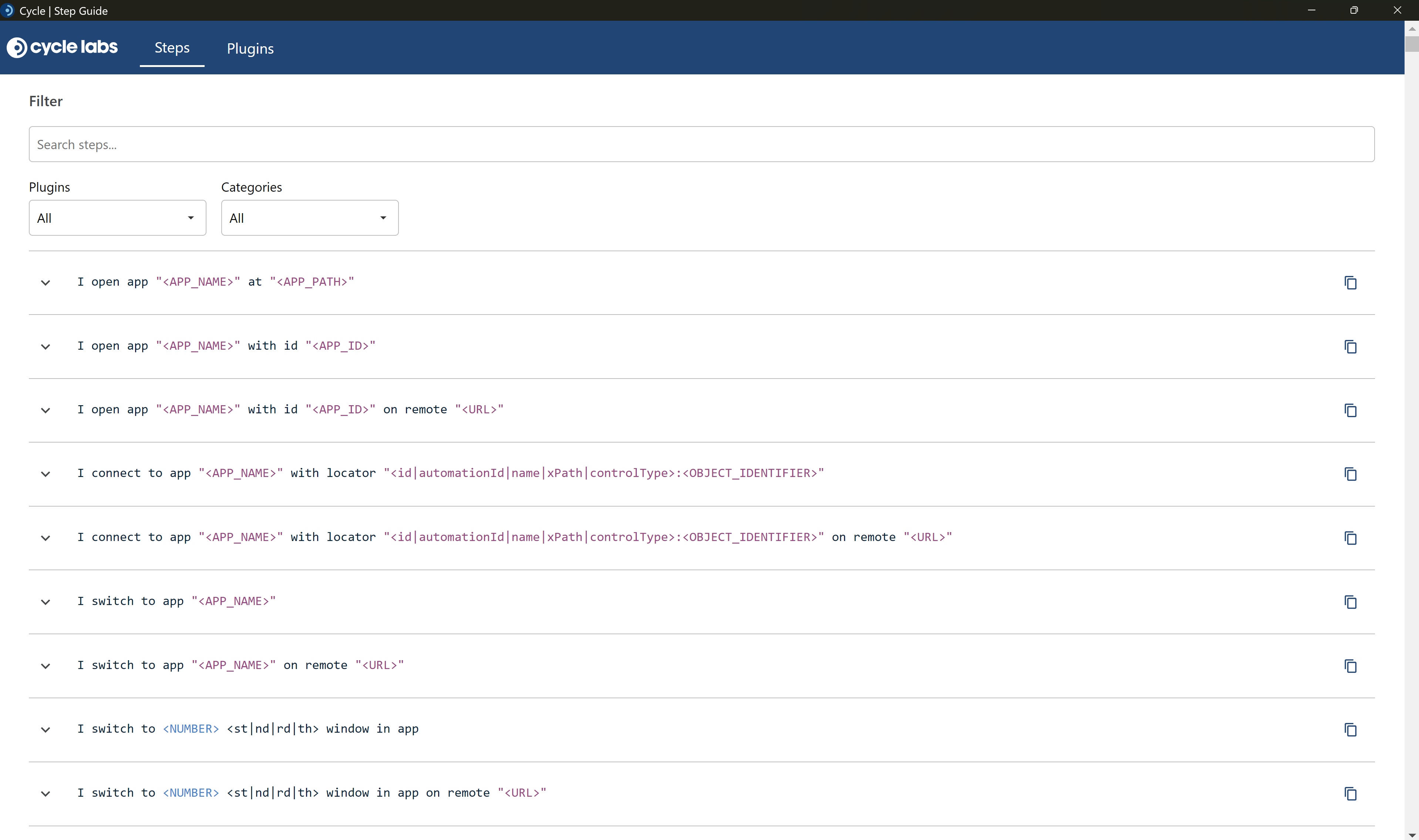
The Steps view displays a list of all available CycleScript steps. Each step appears as a collapsible card showing the step's syntax in a highlighted code block. Click a step card to expand it and reveal its full documentation, or click it again to collapse it.
Searching for steps
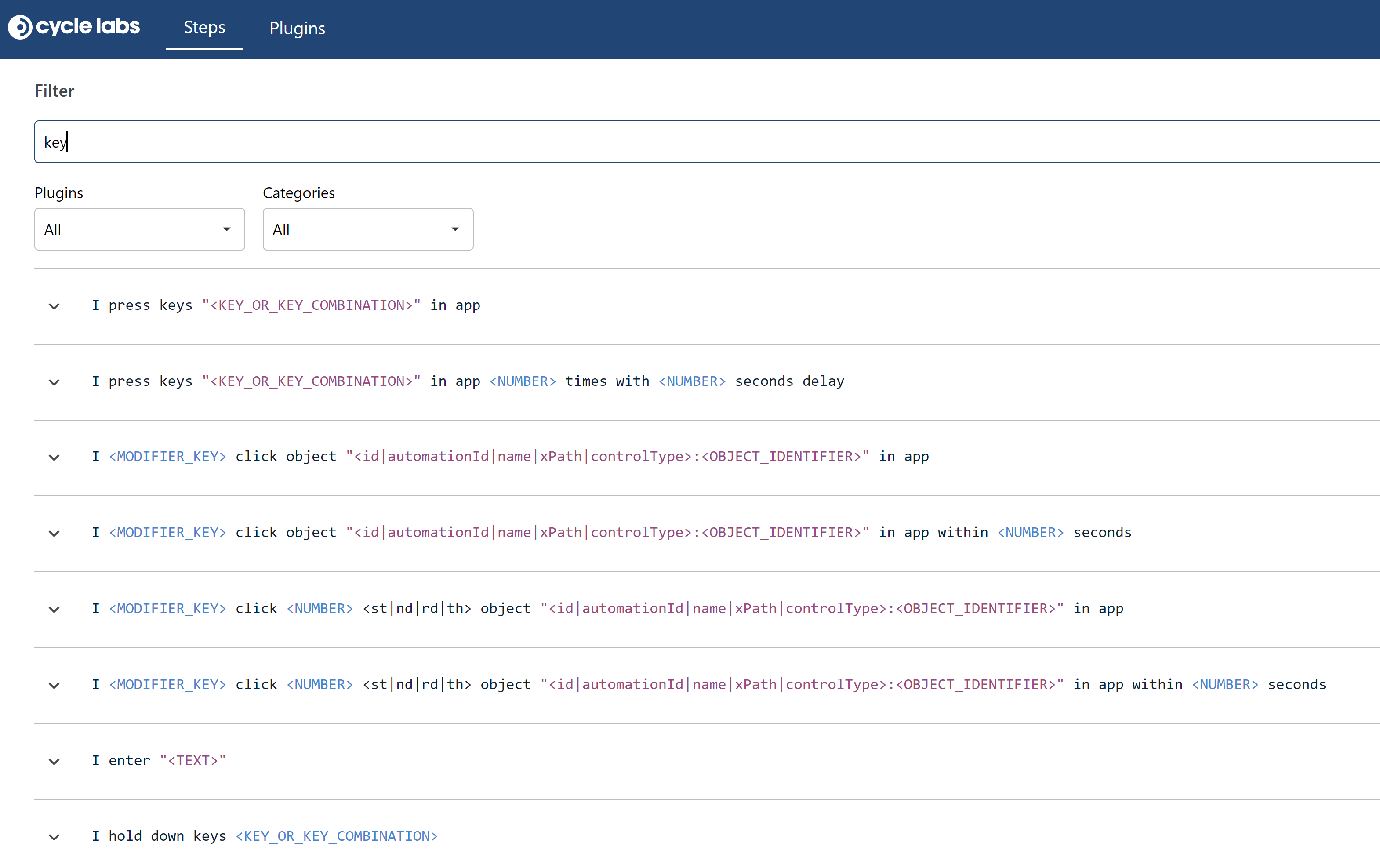
Use the search box at the top of the Steps view to find steps by keyword. The search runs across step names, descriptions, parameters, and categories, so you can search for terms like "click", "database", "verify", or any other keyword related to what you need. Results update as you type.
Filtering steps
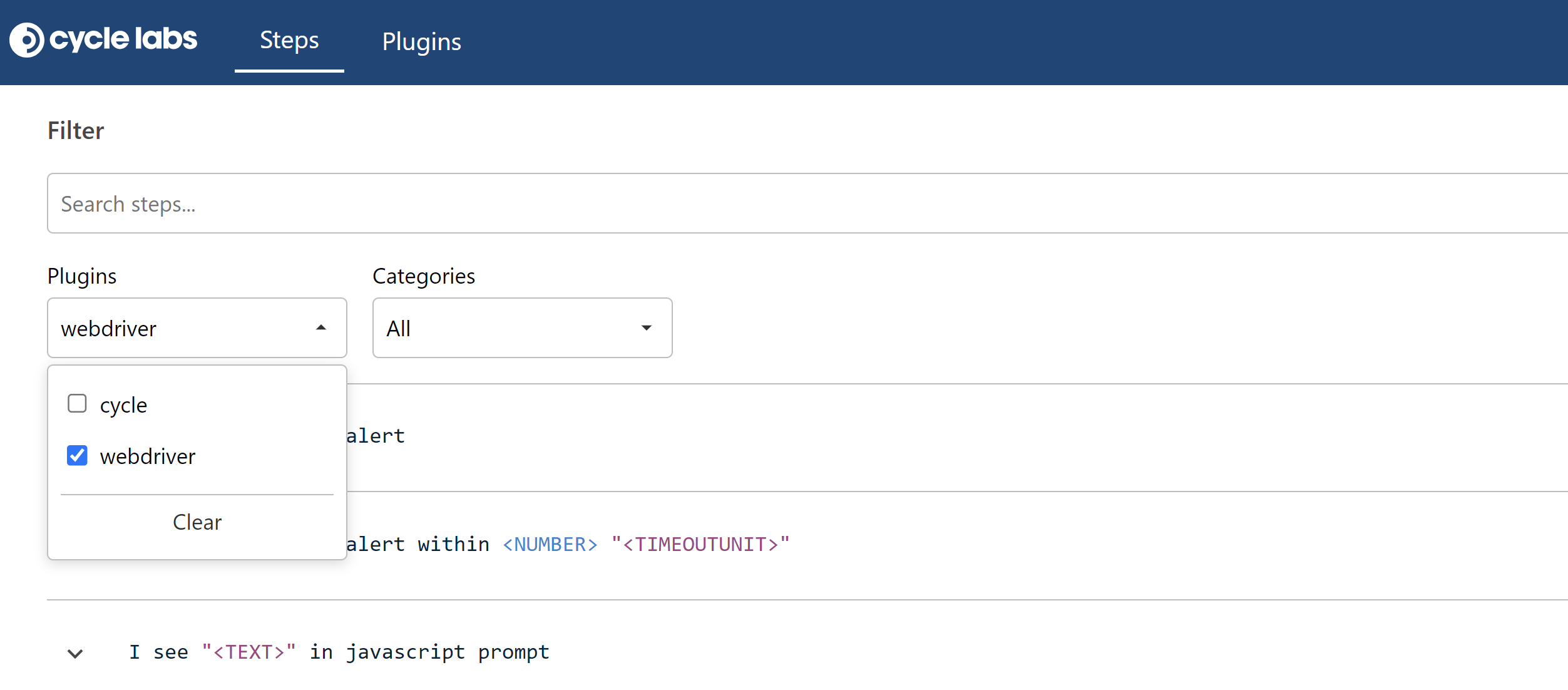
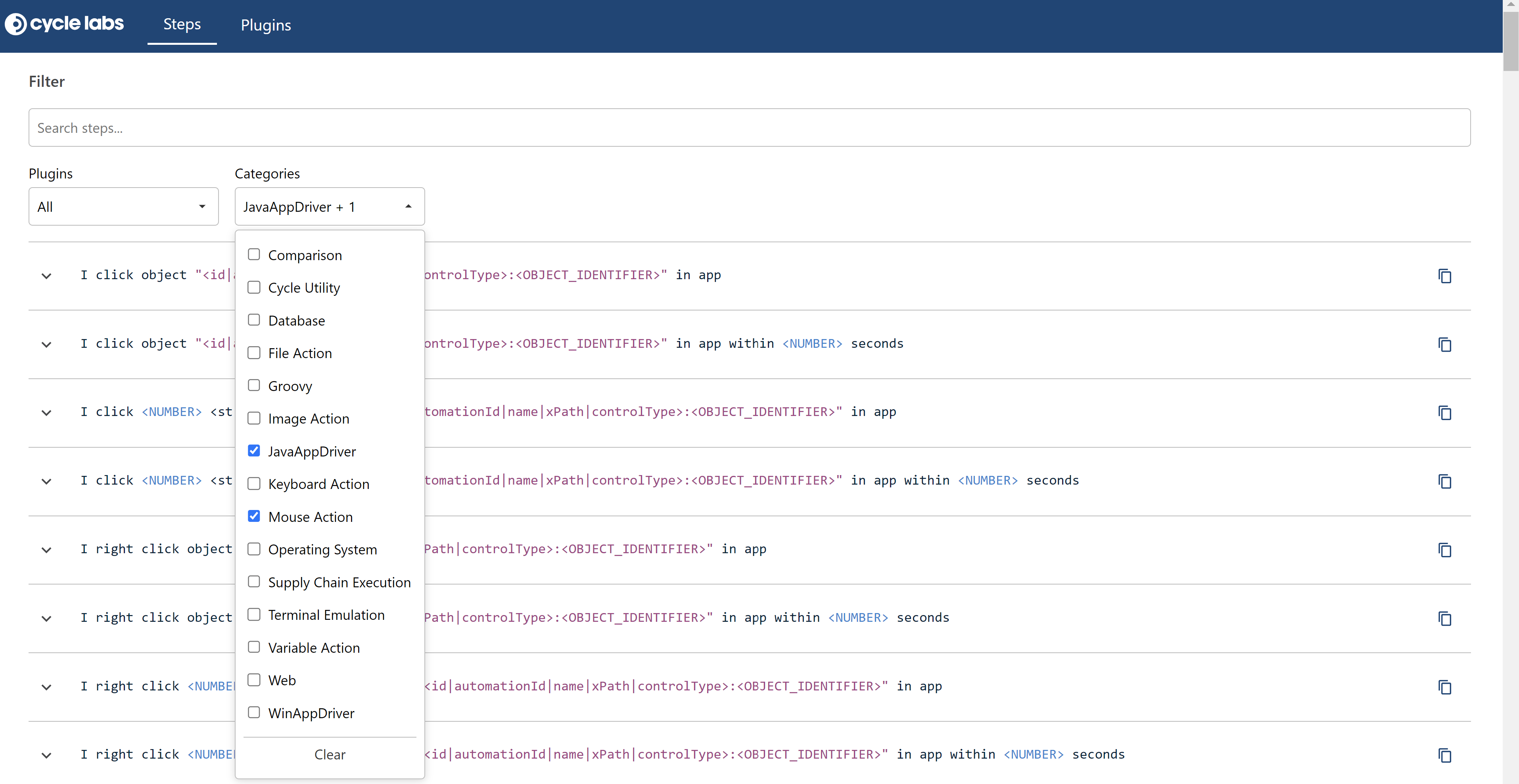
You can narrow the step list using the Plugin and Category dropdowns. Check one or more options in either dropdown, and the step list will update to show only matching steps. Click Clear in a dropdown to remove its filter. Both filters can be used together with a search term to refine results further — for example, searching for "Mouse Action" while filtering to a specific plugin.
Copying step syntax
Each step card includes a copy button on the right side of the code block. Click it to copy the step's syntax to your clipboard, ready to paste into your feature file.

The Plugins view
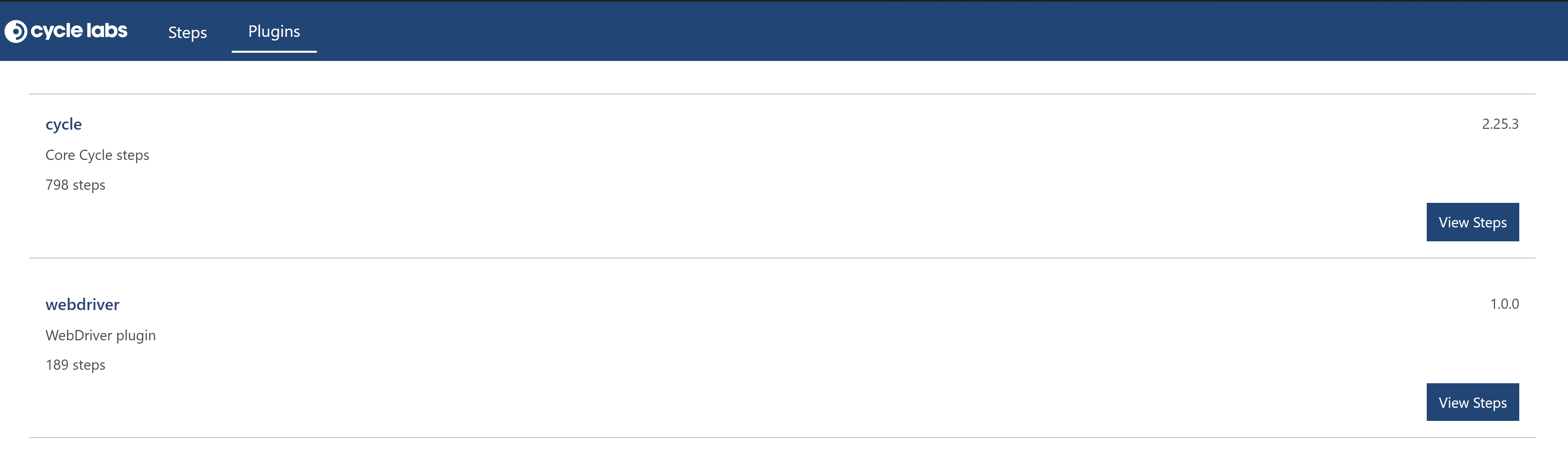
The Plugins view shows all the step plugins installed in your Cycle environment. Each plugin card displays the plugin's name, version, description, and the number of steps it provides. Click View Steps on a plugin card to switch to the Steps view filtered to that plugin's steps.