Launching Cycle
Installing Cycle
To get started, log into your Cycle account and download the latest Cycle client from https://app.cyclelabs.io.
If you do not have a Cycle account, you can sign up for free by going to https://app.cyclelabs.io, then select Sign up now.
Opening Cycle
-
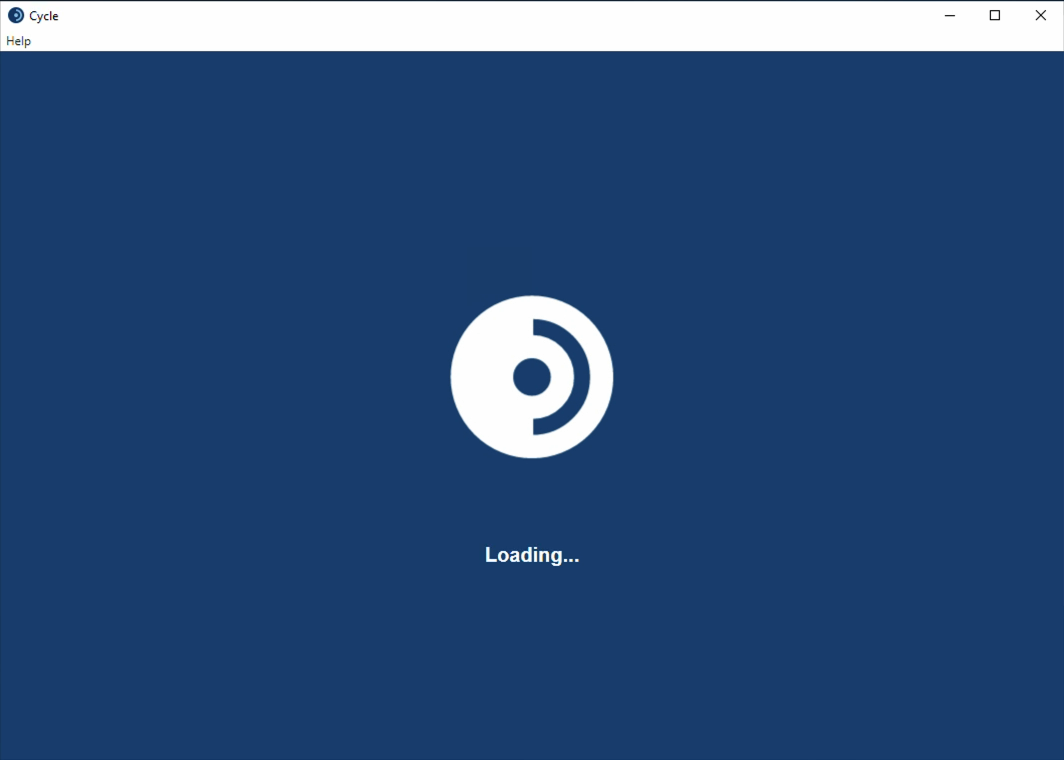
When opening Cycle, you see the initial loading screen.
-
If you have not yet authenticated, you have previously logged out, or your previous authentication has expired, you see a notification that the login window has launched.
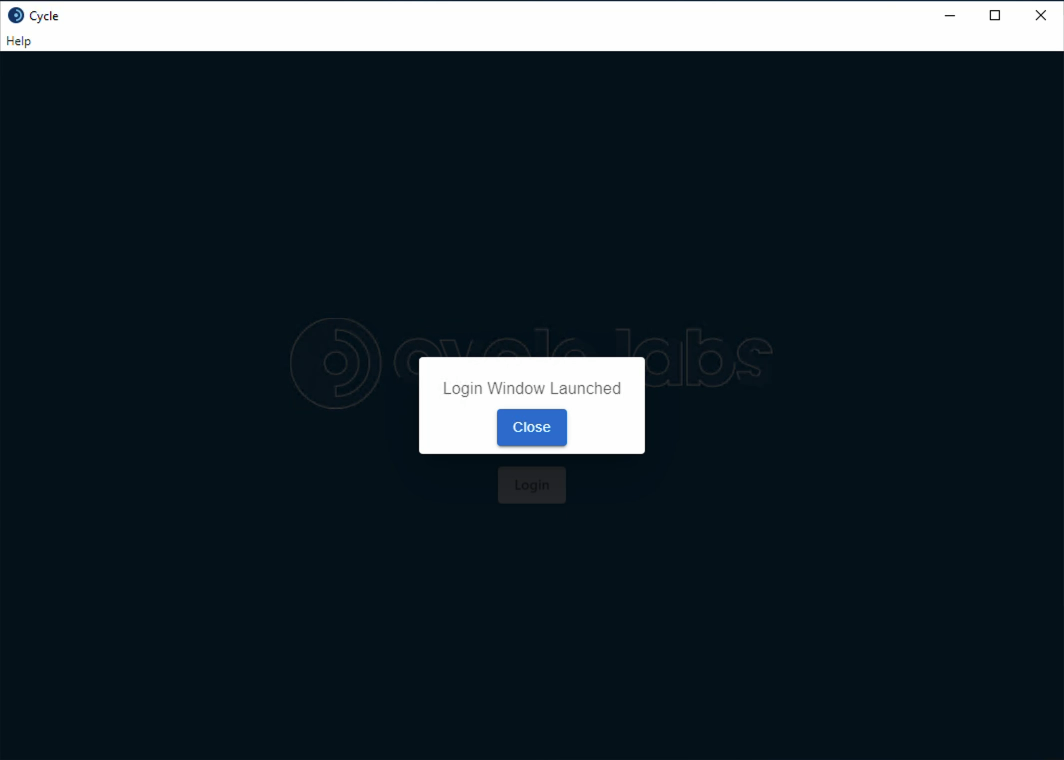
To continue with authentication, do nothing and the login screen loads momentarily.
To exit the authentication flow, use the Close button.
-
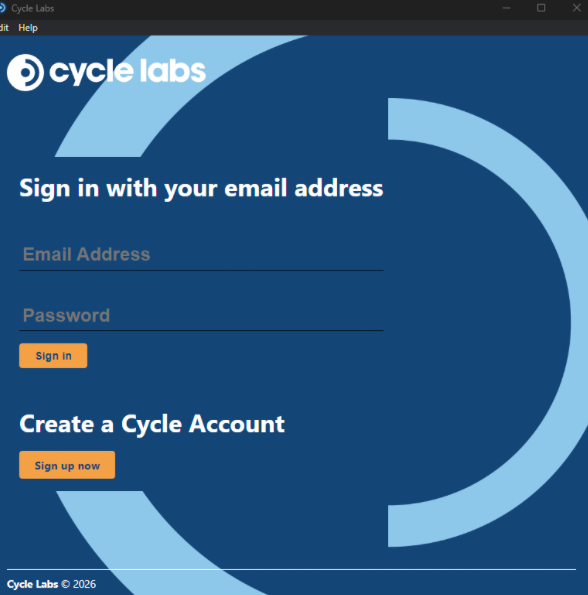
When the login screen has loaded, enter your Cycle credentials.
-
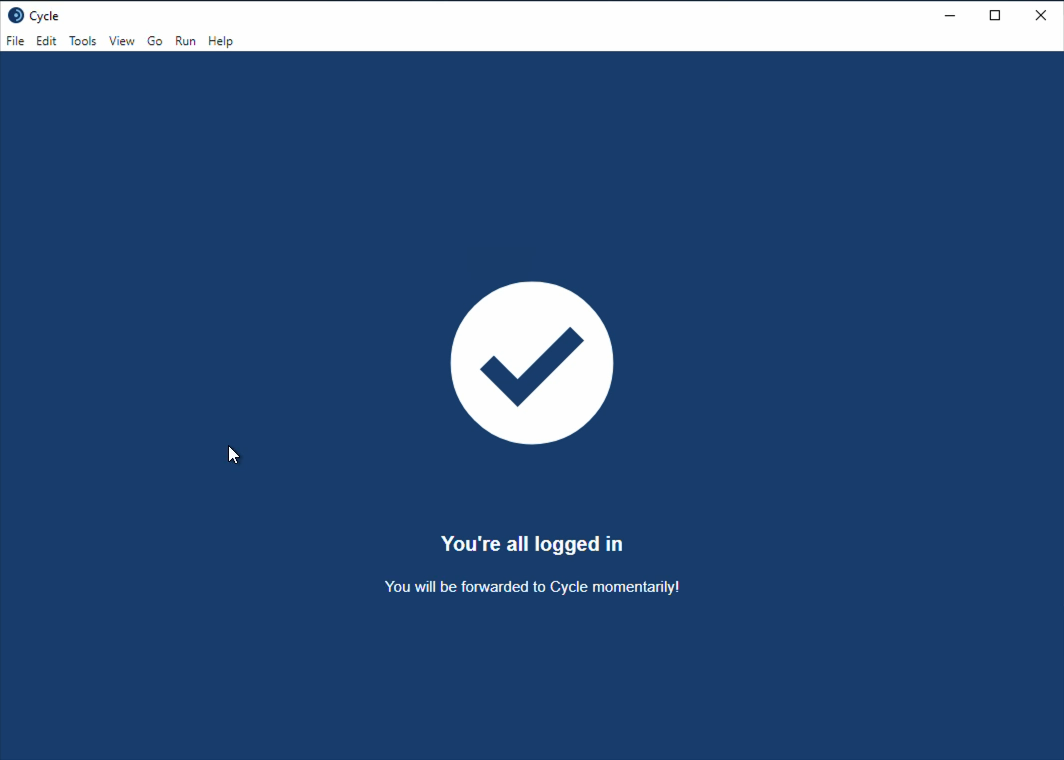
After successfully logging in, you see a brief confirmation that the login was successful.
-
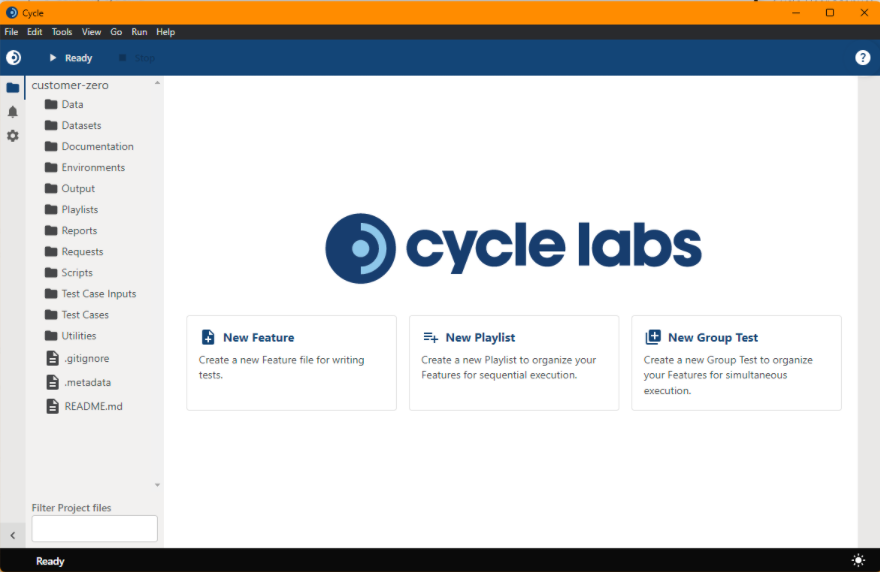
After the login confirmation disappears, Cycle opens and you can begin using Cycle.
-
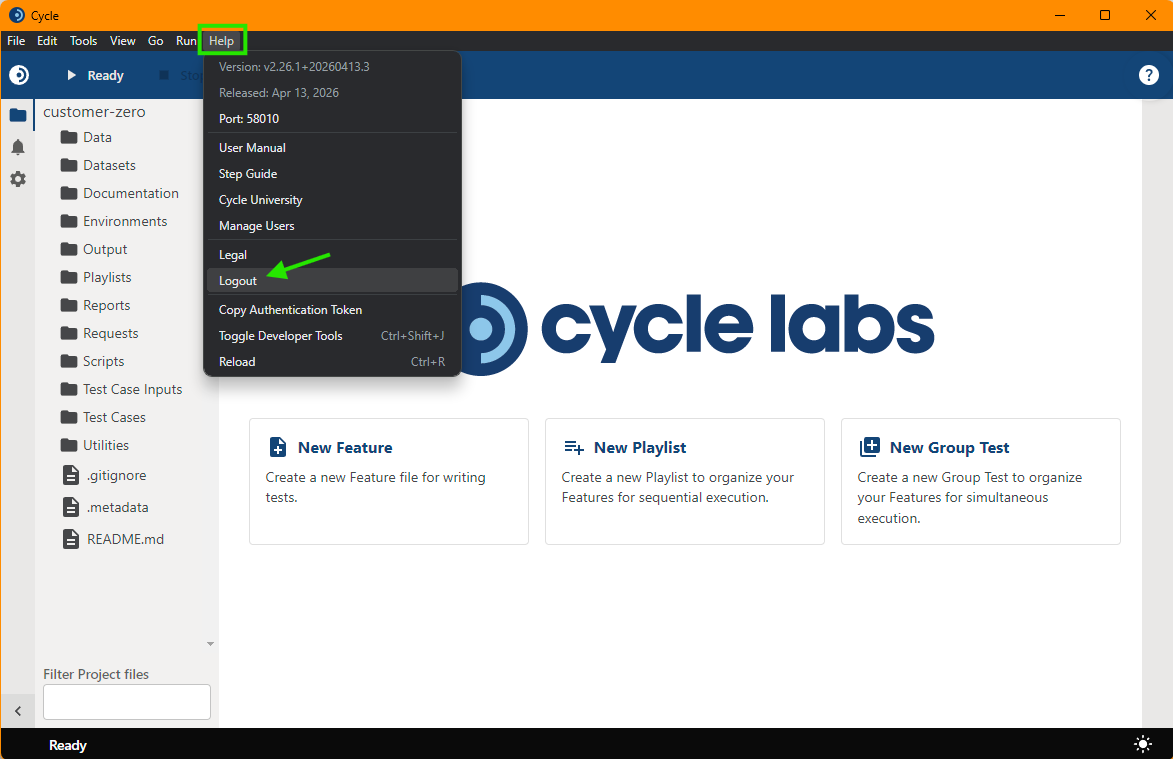
To log out of the Cycle client later, open the help menu and select Logout.
Troubleshooting login
- Using Cycle requires membership in a valid subscription.
- See User Management to verify that you are assigned to a valid (non-expired) subscription.
- For additional help when logging in, including dealing with proxies that may impact authentication flows, see the Install Guide section of the Knowledge Base.