User Management
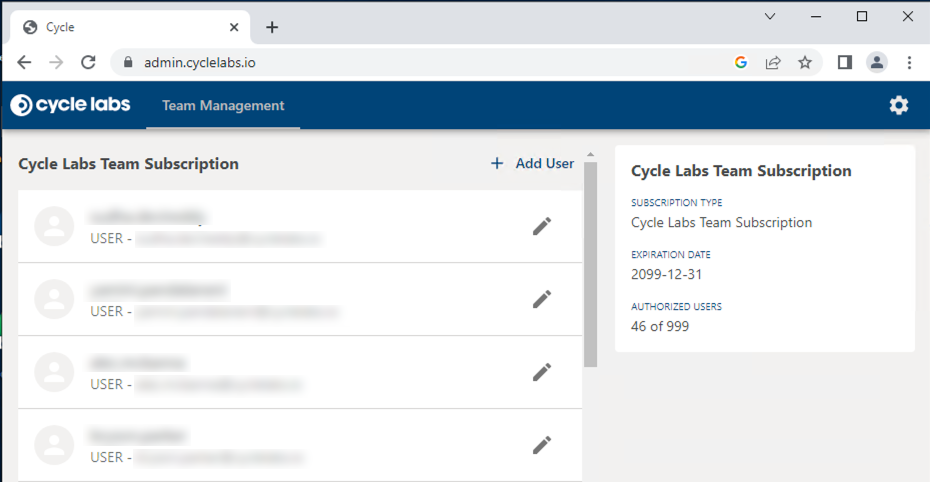
User Management is where team admins administer your Cycle subscription. Open it at https://admin.cyclelabs.io, or choose Manage Users from within Cycle to open it in your default browser.
From User Management, you can:
- View subscription details, seats, and team membership
- Add and remove users
- Grant or revoke admin status
- Manage application secrets for CLI and pipeline authentication
Subscription overview
The User Management page shows the members on your subscription and each member's role (team admin or user). It also shows how many seats your subscription allows, how many are currently assigned, and when the subscription expires.
When a subscription is first created, your account manager helps set up the initial team administrator. That admin can then add other users, including additional admins, to the team.
Roles
Both users and admins can use Cycle and count equally toward your subscription seat limit. The difference is that only admins can add users, remove users, and assign roles.
Non-admin users can view subscription and team membership details, but they cannot add, update, or remove users.
Adding users
-
Click Add User at the top of the screen.
-
Enter the user's email address. Use the checkbox if you want to add them as an admin.
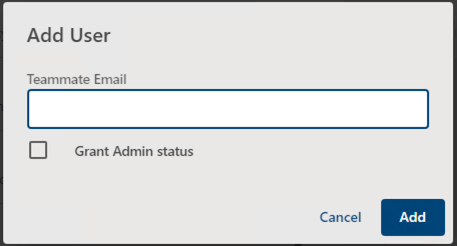
Users must create an account at Cycle Cloud Home (https://app.cyclelabs.io) before an admin can add them to the team.
Editing and removing users
To change a user's role or remove them from the team, click the edit icon to the right of their name.
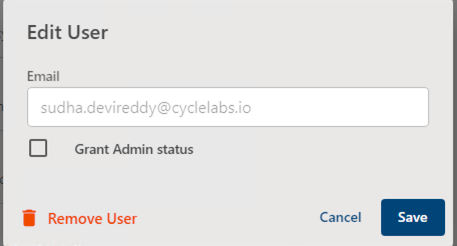
- To change their role, toggle Grant Admin status and press Save.
- To remove them from the team, click Remove User. This frees the seat on your subscription and prevents them from using Cycle.
Application secrets
Team admins can also create and manage application secrets in User Management. These secrets authenticate the Cycle CLI and CI pipelines against your subscription. For setup details, see Running Cycle CLI in Pipelines.