Scheduling Cycle Executions
Cycle may be scheduled to run by using Windows Task Scheduler without having to manually write to the command line.
Windows Task Scheduler
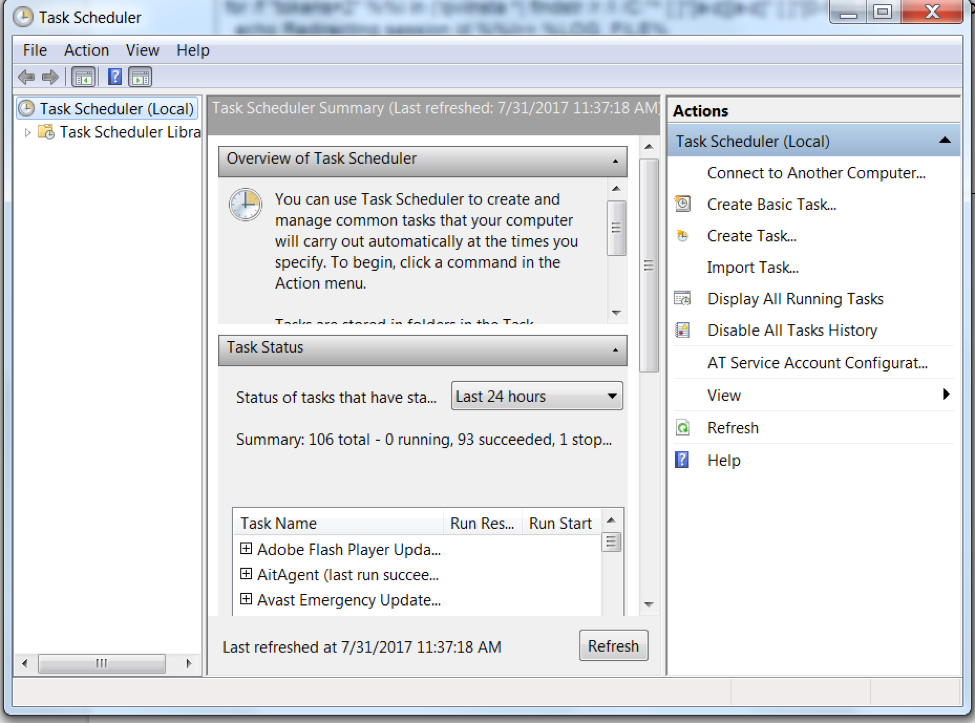
To use Windows Task Scheduler to schedule Cycle to run based on a set time or event, complete the following steps:
-
Open Windows Task Scheduler.
-
Create Task.
-
In the Create Task window that appears give the new task a name and description in the General tab. Note: If you are using Windows 10, click "Change User or Group..." and enter "SYSTEM" into the "Object name to select" box.
-
On the Triggers window, set a time or event to start the Cycle execution.
-
On the Actions window, create a new Action.
- Set the Action to be "Start a program" and set the "Program/script" to be the location of where cycle-cli.exe is installed.
- Add arguments in the same format as the arguments for Cycle-CLI.
- Make sure to use the --token argument for successful authentication.
- Set your token as an environment variable and rotate it regularly.
- Set the "Starts in" field to be the working directory the execution will start from and where log files will be created.
Note: Only one instance of Cycle can be run on a single server.